
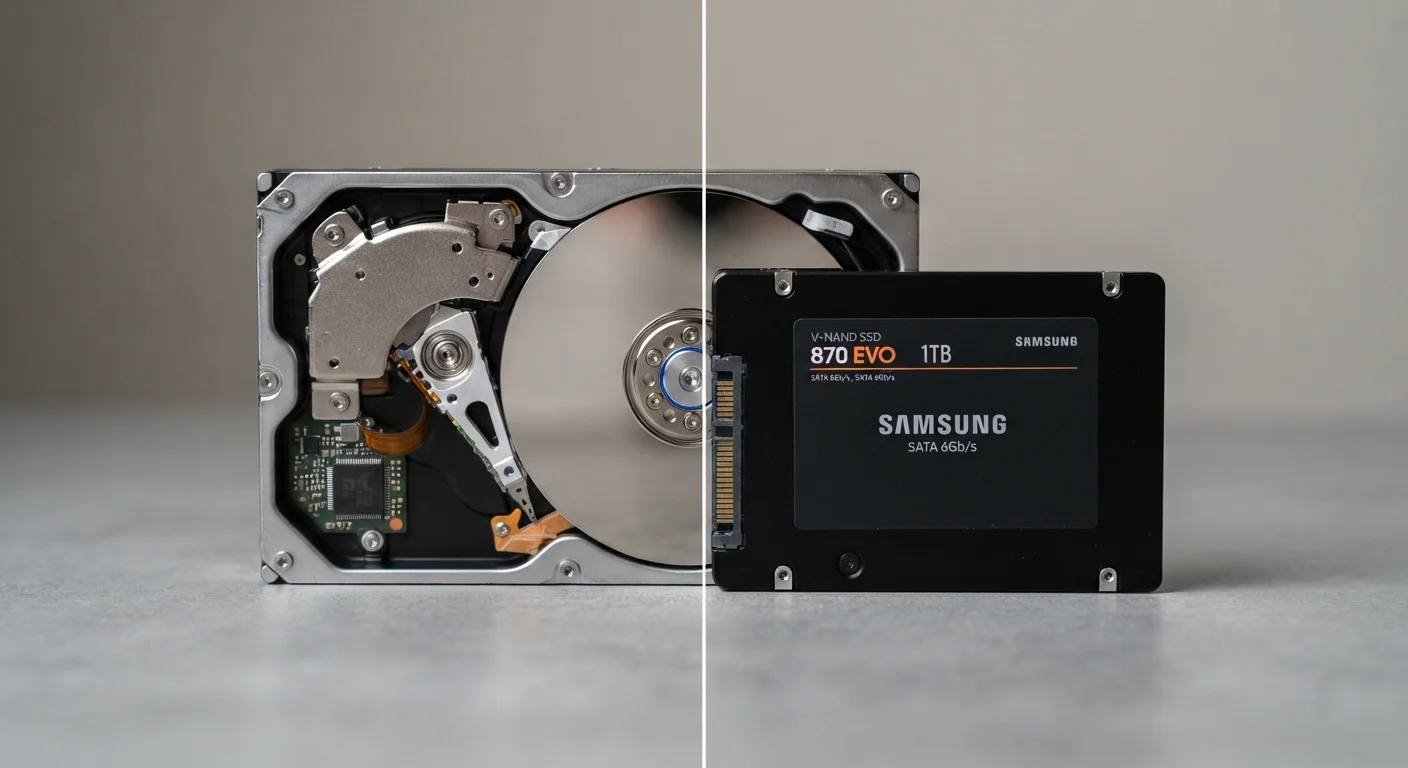
How Each Drive Actually Works
Understanding the real difference between an SSD and an HDD starts with how they physically store data. A hard disk drive (HDD) contains one or more rigid magnetic platters that spin at high speed - typically 5,400 or 7,200 revolutions per minute. A mechanical read/write arm moves across those platters to locate and retrieve data, much like a record needle on a vinyl LP. This mechanical process introduces measurable delay, called seek time.
A solid-state drive (SSD), by contrast, stores data in interconnected flash memory chips - the same fundamental technology used in USB thumb drives, just faster and more sophisticated. Because there are no moving parts, data access is nearly instantaneous. The drive doesn't need to wait for a platter to spin into position.
This architectural difference is why the same computer can feel dramatically faster after swapping an HDD for an SSD, even if the processor and memory haven't changed. For a deeper look at how storage fits into overall system performance, see our guide to RAM, storage, and processing power.
Speed, Capacity, and Cost: The Core Tradeoffs
No single drive type wins on every dimension. The decision almost always involves balancing three factors: speed, capacity, and price.
| Criterion | SSD | HDD |
|---|---|---|
| Data access speed | Very fast (500-3,500+ MB/s) | Moderate (100-150 MB/s) |
| Moving parts | None | Spinning platters and read arm |
| Shock/vibration resistance | High | Low to moderate |
| Typical cost per terabyte | Higher | Lower |
| Common capacity range | 256 GB - 4 TB (consumer) | 500 GB - 16 TB (consumer) |
| Noise and heat | Silent, low heat | Audible, more heat generated |
| Failure warning signs | Often sudden | Often gradual, detectable |
| Long-term unpowered storage | Charge can degrade over years | More stable for archival use |
SSDs consistently outperform HDDs on read and write speeds. A typical consumer SSD using the SATA interface delivers sequential read speeds around 500-550 MB/s; drives using the faster NVMe interface can exceed 3,000 MB/s. A standard 7,200 RPM HDD, by comparison, typically tops out around 100-150 MB/s. For everyday tasks - booting the operating system, opening applications, loading files - this gap is immediately noticeable.
Where HDDs maintain an edge is raw capacity relative to price. It remains common to find 4TB or 8TB hard drives at price points that would buy only 1TB of SSD storage. For users managing video archives, large photo collections, or system backups, this difference matters. To understand how cloud-based storage compares as an alternative, our article on cloud storage vs. local storage covers the key considerations.
~5x
Speed advantage of SATA SSDs over typical HDDs
Sequential read speeds for SATA SSDs commonly reach 500+ MB/s compared to roughly 100 MB/s for 7,200 RPM hard drives.
10x+
Speed advantage of NVMe SSDs over HDDs
High-end NVMe SSDs using the PCIe interface can exceed 3,000 MB/s in sequential reads, far outpacing mechanical drives.
50-70%
Typical cost premium of SSDs per terabyte vs. HDDs
Price-per-gigabyte figures vary by market and time, but HDDs have consistently offered more raw capacity per dollar for bulk storage.
Durability, Failure, and What Happens to Your Data
Both drive types fail - but they tend to fail differently, and that distinction shapes how you should think about backup strategy.
Because HDDs contain spinning platters and moving arms, they are physically vulnerable to shocks and vibration. A hard drive dropped while running can suffer head crashes, where the read arm contacts the platter surface and causes permanent damage. That said, mechanical drives often show early warning signs - clicking sounds, slower-than-usual response, or errors flagged by diagnostic tools - before they fail completely, giving users some window to recover data.
SSDs, having no moving parts, handle physical shock much better. However, when they do fail, it can be more sudden. Flash memory cells have a finite number of write cycles, and drive controllers manage this wear over time. Consumer SSDs are typically rated for hundreds of terabytes of writes before wear becomes a concern - far more than most everyday users will accumulate.
One less-discussed limitation: SSDs that are stored unpowered for extended periods can gradually lose data, because the flash cells rely on a small electrical charge to retain information. For long-term archival storage kept in a drawer for years, HDDs may be the more reliable choice. For guidance on what to do when drives fail, see what happens to your data when a computer dies.
The 3-2-1 Backup Rule Still Applies
Regardless of which drive type you use, no single drive is a substitute for a proper backup strategy. A widely recommended approach is keeping three copies of important data, on two different media types, with one copy stored off-site or in the cloud. Both SSDs and HDDs can and do fail - planning for that possibility protects your files no matter which technology you choose.
Choosing the Right Storage for Your Setup
For most laptop buyers today, an SSD is the practical default. The speed gains are tangible in everyday use - faster startups, snappier application launches, quicker file access - and the absence of moving parts suits portable devices well. If you're evaluating a new system, our comparison of desktops vs. laptops can help frame how storage fits into that broader decision.
Desktop users have more flexibility. A common approach is pairing a smaller SSD for the operating system and active applications with a larger HDD for file storage and backups. This hybrid setup balances speed for daily work with affordable capacity for archiving. If you're adding external storage to supplement either type, our explainer on external hard drives vs. USB flash drives helps clarify the options.
It also helps to understand the difference between storage and memory before making any hardware decision. These two concepts are frequently confused, but they affect performance in entirely different ways - our explainer on the real difference between memory and storage is a useful starting point.
