
What 'The Computer Died' Actually Means for Your Files
When someone says their computer died, it usually means the machine won't boot or has become completely unresponsive - not that every byte of data has vanished. In the majority of cases, personal files stored on the drive are physically intact even when the computer itself is unusable. The failure is often in a component entirely separate from storage: the motherboard, power supply, display, or operating system.
Think of it like a car with a dead engine. The cargo in the trunk is still there - you just can't drive it anywhere yet. Getting to your data depends on diagnosing what actually failed, and whether that failure involved the storage drive itself.
Understanding the type of failure is the critical first step. Broadly, computer failures fall into three categories: software failures (corrupted operating system, bad updates, malware), hardware failures (failed components like the power supply or RAM), and storage-specific failures (a damaged or malfunctioning hard drive or SSD). Only the third category puts your files in direct jeopardy.
How Different Failure Types Affect Your Data
Software failures are the most recoverable. If Windows or macOS becomes corrupted or fails to load, the drive holding your files is typically undamaged. Booting from a recovery USB drive, reinstalling the operating system, or removing the drive and accessing it externally can often restore full access to your data.
Hardware failures - a dead motherboard, blown power supply, or failed RAM - can be alarming but usually leave storage untouched. In many cases, a technician can extract the drive and connect it to a working system to retrieve files before any repair or replacement work begins.
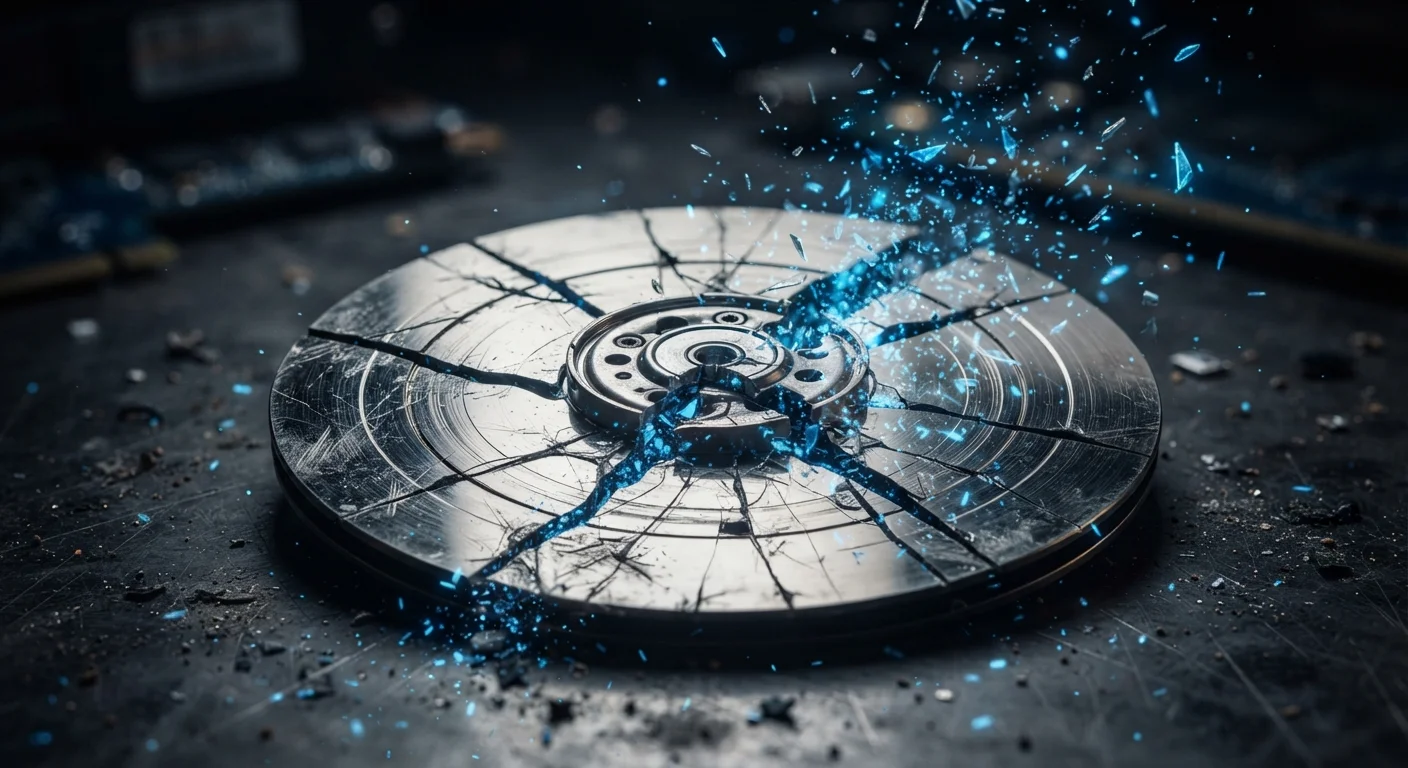
Storage-specific failures are where data loss becomes a genuine risk. HDDs (hard disk drives) rely on spinning magnetic platters read by a mechanical arm. When that arm fails or the platters are physically damaged - sometimes signaled by a clicking or grinding sound - data recovery becomes complex and expensive. SSDs (solid-state drives) fail more silently but can lose data abruptly when controller chips fail. To understand the underlying differences between these drive types, see our SSD vs. HDD guide.
~140,000
Hard drives fail in the U.S. every week
An estimate frequently cited by data recovery industry sources, reflecting the scale of routine consumer and enterprise drive failures.
30%
Adults who have never backed up their data
Various consumer surveys have found that a significant portion of computer users have no regular backup system in place, leaving files vulnerable to loss.
$300-$1,500+
Typical professional data recovery cost range
Costs vary widely based on failure type, drive technology, and urgency; physical HDD recovery from specialized labs often sits at the higher end of this range.
When Data Recovery Is - and Isn't - Possible
Consumer-grade data recovery software (tools that scan a drive for recoverable file structures) can work well for logical failures - accidental deletion, partition corruption, or a failed OS - where the drive hardware itself is intact. These tools read raw disk data and attempt to reconstruct file system information.
Physical drive failure is a different matter. Opening an HDD outside of a cleanroom environment - even briefly - can introduce dust particles that destroy platters. Professional recovery labs use specialized equipment to operate on damaged drives safely, but the process can cost hundreds to thousands of dollars and success is never guaranteed.
One key distinction with SSDs: many modern drives use a feature called TRIM, which instructs the operating system to actively clear data marked for deletion. This improves performance but means deleted or overwritten data is often unrecoverable, even with professional tools. Physical SSD failure can also be sudden, with little warning.
Stop Using a Failing Drive Immediately
If a drive begins making unusual sounds, showing read errors, or behaving erratically, power it down as soon as possible and avoid further use. Continued operation on a failing HDD can cause the read/write head to damage the platters, potentially destroying data that might otherwise have been recoverable. The same applies to SSDs showing repeated errors - further writes reduce recovery chances.
For context on how a computer's age and maintenance history factor into failure risk, our article on computer lifespan and upgrades covers the warning signs worth watching.
The Only Real Answer: Backups Before Failure Happens
No recovery method - professional or DIY - is as reliable as a backup made before the failure occurred. The widely cited 3-2-1 rule offers a practical framework: maintain three copies of important data, stored across two different types of media, with at least one copy off-site or in cloud storage. This approach ensures that even a catastrophic drive failure doesn't result in permanent loss.
Cloud services, external drives, and network-attached storage each serve different backup needs. Automated backup software reduces the human error factor of forgetting to back up manually. For guidance on keeping your system stable and reducing failure risk in the first place, see computer maintenance habits that prevent problems.
The discomfort of setting up a backup system is minor compared to the cost - financial and personal - of losing years of photos, documents, or work files to a hardware failure that gave no warning. Storage drives of all types will eventually fail; the only variable is whether you're prepared when they do.
