
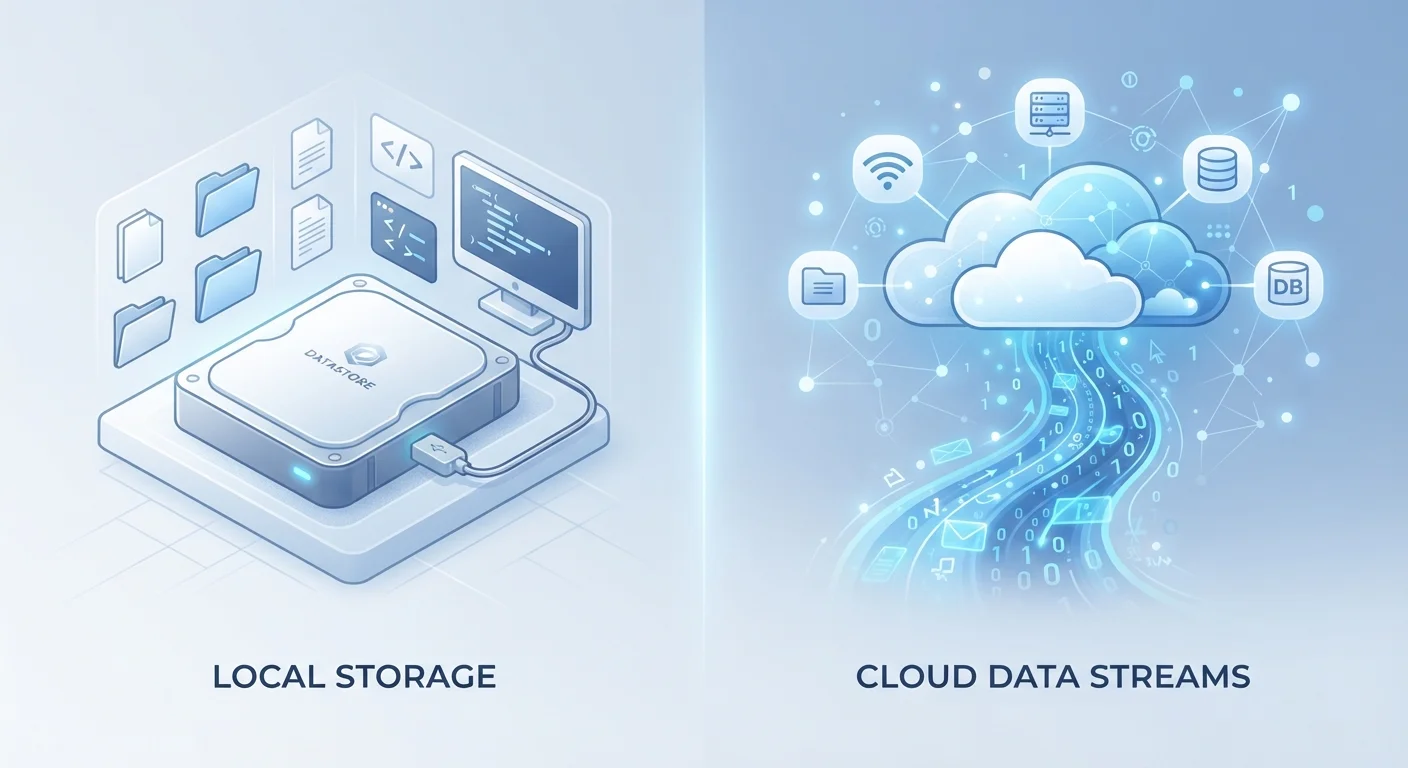
What Local Storage Actually Means
Local storage refers to any physical medium that holds data directly on or connected to your device. That includes your computer's internal drive, an external hard drive, or a USB flash drive. When you save a document and it appears instantly - even with Wi-Fi turned off - it's stored locally.
The key characteristic is that you control the hardware. No subscription is required, no third party holds the data, and access doesn't depend on an internet connection. That makes local storage especially useful for large files, sensitive documents, or working in areas with poor connectivity.
The trade-off is physical vulnerability. A drive can fail, get lost, or be damaged. Files stored only locally aren't automatically available on other devices. For a deeper look at the hardware itself, our guide to SSDs vs. HDDs explains how the type of local storage affects speed and durability.
What Cloud Storage Actually Means
Cloud storage means your files are saved on servers operated by a third-party company - not on your own hardware. When you upload a photo or save a document to a cloud service, that data travels over the internet to a remote data center, often in another state or country.
The practical advantage is access from anywhere. Log into any device, and your files are there. Cloud services also handle redundancy internally, meaning your data is typically copied across multiple servers, reducing the risk of loss from a single hardware failure.
However, cloud storage has real limitations. Access requires a reliable internet connection. Storage beyond a small free tier usually involves a recurring subscription fee. And you're trusting a company with your data - meaning their security practices, privacy policies, and business continuity all affect your files. Smartphone storage works similarly, blending on-device space with cloud syncing in ways that aren't always obvious to users.
| Cloud Storage | Local Storage | |
|---|---|---|
| Access requirement | Internet connection needed | Works fully offline |
| Device accessibility | Any device, anywhere | Limited to connected devices |
| Ongoing cost | Subscription for significant space | One-time hardware purchase |
| Data control | Third party holds the data | You own and control the hardware |
| Hardware failure risk | Provider handles redundancy | Single point of failure if not backed up |
| Privacy exposure | Subject to provider policy and jurisdiction | Stays on your device |
| Setup complexity | Minimal - sign up and sync | Requires managing physical drives |
Privacy and Security: What the Differences Mean for You
One of the most important distinctions is who can access your files. Local storage puts that control entirely in your hands - no company policy change or data breach at a cloud provider can expose files that never left your device.
Cloud providers are legally subject to government data requests in their operating jurisdiction, and their security depends on practices you can't audit yourself. That doesn't mean cloud storage is unsafe - major providers invest heavily in encryption and security infrastructure - but it does mean the risk profile is different from keeping files on a drive in your home.
Cloud Storage Isn't the Same as a Backup
Many users assume that syncing files to a cloud service means those files are backed up. In practice, most cloud sync services mirror whatever is on your device - including deletions and corrupted files. If data is lost locally, it may be removed from the cloud copy as well. Always verify whether your cloud service retains version history or deleted file recovery, and for how long.
For everyday documents, photos, and work files, the convenience of cloud storage usually outweighs these concerns. For highly sensitive material - legal documents, financial records, medical information - many security-conscious users prefer local storage or encrypted local copies as the primary version.
Why Most People Need Both
Relying entirely on one approach creates predictable gaps. Cloud-only storage leaves you stranded without internet and dependent on a service's continued existence. Local-only storage means a single hardware failure or disaster could wipe out everything.
A practical hybrid strategy uses local storage as your primary working space and cloud storage for syncing and accessibility - while also maintaining a separate backup. Backing up your computer properly means treating cloud sync and backup as related but distinct concepts: sync keeps files current across devices, while a true backup preserves a recoverable copy you control.
If you also want to expand local storage options, understanding the difference between external hard drives and USB flash drives helps clarify which physical medium fits your needs. For smartphone users specifically, backing up your smartphone involves the same cloud-vs-local trade-offs applied to mobile data.
Use Cloud Sync and Local Backup Together
Cloud sync is not the same as a backup. If you accidentally delete a file or a ransomware attack corrupts your data, some cloud services will sync that damage across devices. Keep at least one local backup copy that isn't continuously connected to your system, so you have a clean restore point when you need it.
