
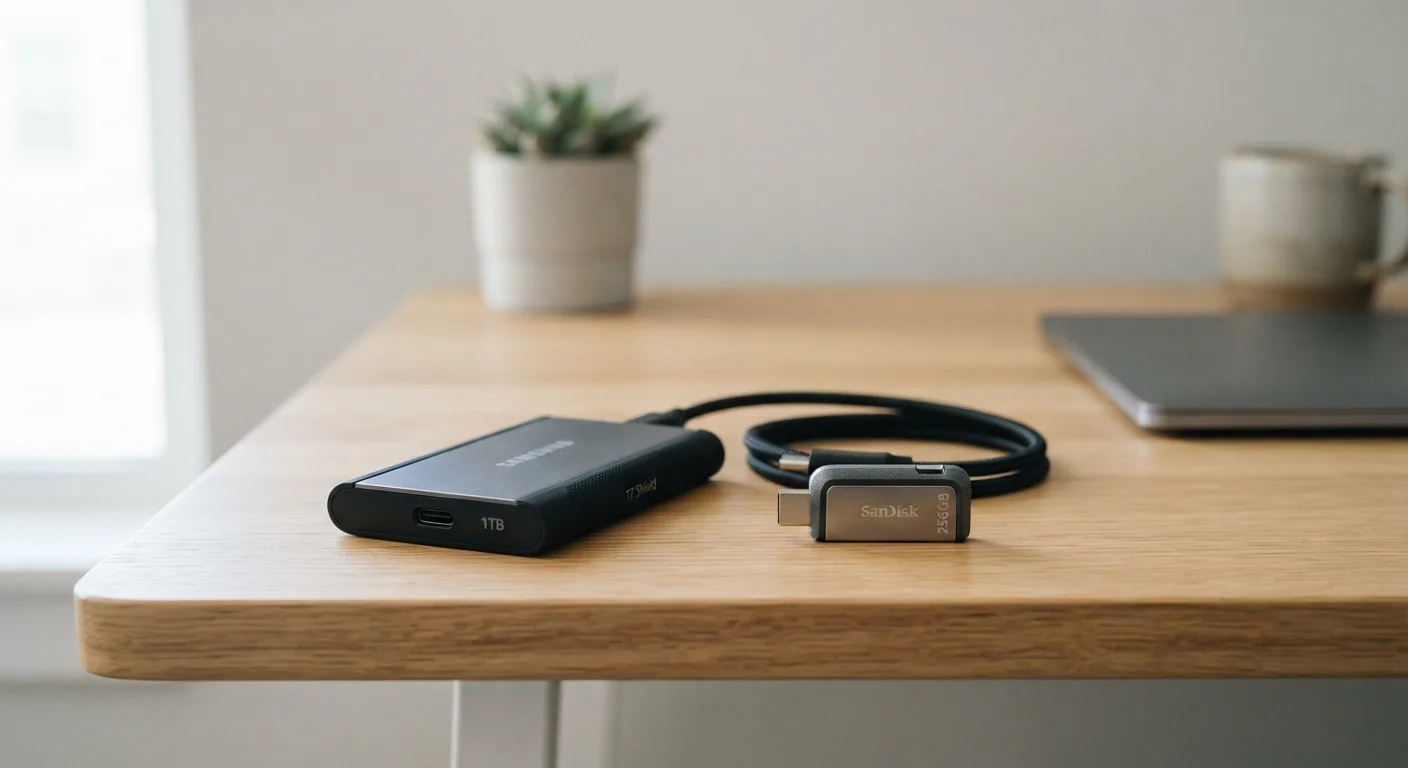
What Each Device Actually Is
Despite sharing the same USB connection, external hard drives and USB flash drives are fundamentally different devices built around different technologies. Understanding how each one works helps explain why they're suited to different jobs.
An external hard drive is essentially a storage drive - either a traditional spinning-disk HDD or a solid-state SSD - housed in a portable enclosure with a USB interface. For a deeper look at how HDDs and SSDs differ internally, see our SSD vs. HDD explainer. External drives typically range from 500 GB to 8 TB or more, and many draw power directly from the USB connection, though larger desktop models may require an AC adapter.
A USB flash drive (also called a thumb drive or memory stick) uses NAND flash memory - the same general technology found in smartphones and SD cards - with no moving parts at all. Flash drives are tiny by design, and capacities commonly range from 16 GB to 256 GB, though higher-capacity models exist. Because they're engineered around portability, they sacrifice raw speed and volume for convenience.
It's also worth understanding that both devices rely on your computer's USB ports to function. The type of port - USB-A, USB-C, or USB 3.x - affects transfer speeds. For a plain-English breakdown of those port distinctions, our guide to computer ports is a useful companion read.
| Criterion | External Hard Drive | USB Flash Drive |
|---|---|---|
| Typical capacity range | 500 GB - 8 TB+ | 16 GB - 256 GB |
| Physical size | Pocket to palm-sized | Fingertip-sized |
| Internal technology | HDD (spinning disk) or SSD | NAND flash memory |
| Transfer speed (typical) | 80 - 1,000+ MB/s | 20 - 400 MB/s |
| Drop/vibration resistance | Low (HDD) to High (SSD) | High (no moving parts) |
| Requires external power | Sometimes (desktop models) | No |
| Best use case | Backups, large archives | Portable file transfers |
Speed, Capacity, and Durability: Where They Diverge
The practical differences between these two devices show up most clearly when you look at capacity, transfer speed, and physical durability.
8 TB+
Maximum common external drive capacity
Consumer-grade external hard drives are widely available at capacities that dwarf typical flash drive options, making them the go-to for bulk storage.
~20 MB/s
Typical budget flash drive write speed
Many low-cost USB flash drives transfer data at speeds that make moving large files - like a 10 GB video - a slow process compared to external drives.
500x
Approximate capacity advantage
A 2 TB external drive holds roughly 500 times more data than a typical 4 GB flash drive, illustrating the wide gap in storage scale between device classes.
Capacity: External hard drives dominate here. A 2 TB external drive can hold roughly 500,000 average-sized photos or hundreds of hours of HD video. Most USB flash drives top out at capacities that make them unsuitable for anything approaching that scale.
Transfer speed: External SSDs and USB 3.0 HDDs can move data at hundreds of megabytes per second. Budget flash drives often transfer at 20-30 MB/s - adequate for documents, but slow when moving gigabytes of data. Premium flash drives using USB 3.1 or 3.2 close the gap somewhat, but typically cost significantly more.
Durability: Flash drives have no moving parts, which gives them a meaningful advantage in drop and vibration resistance. Traditional spinning-disk external drives can be damaged by a fall, particularly while in use. External SSDs split the difference - they're as resilient as flash drives but offer the capacity of a traditional drive.
File system format can also affect how these drives interact with different operating systems. Our file systems explainer covers what formats like exFAT and NTFS mean for cross-platform compatibility - relevant if you move files between Windows and macOS.
External SSDs Change the Equation
External solid-state drives (SSDs) blur the line between these two categories - they're compact, have no moving parts like flash drives, but offer capacities and speeds closer to traditional external hard drives. If durability and speed both matter, an external SSD is worth considering as a third option. They tend to cost more per gigabyte than spinning-disk drives but offer a meaningful performance and resilience upgrade over both standard HDDs and most flash drives.
Choosing the Right Tool for the Job
The clearest way to decide between these two devices is to start with what you're actually trying to accomplish.
Use an external hard drive when:
- You need to back up your entire computer or create system images
- You work with large video, photo, or audio projects
- You're expanding the storage of a laptop with limited internal capacity
- You want a long-term archive that you'll access regularly
Use a USB flash drive when:
- You need to hand a few files to a colleague or client
- You're carrying presentation files, résumés, or reference documents
- You want something that fits on a keychain and goes everywhere
- The files you're moving are small enough to transfer in seconds
It's also worth considering whether local storage is even the right category of solution. For some use cases - particularly accessing files across multiple devices - cloud storage may be a better fit than either physical device.
Finally, if you've ever been unclear on how storage differs from your computer's memory (RAM), that's a separate but related concept our memory vs. storage explainer addresses directly.
