
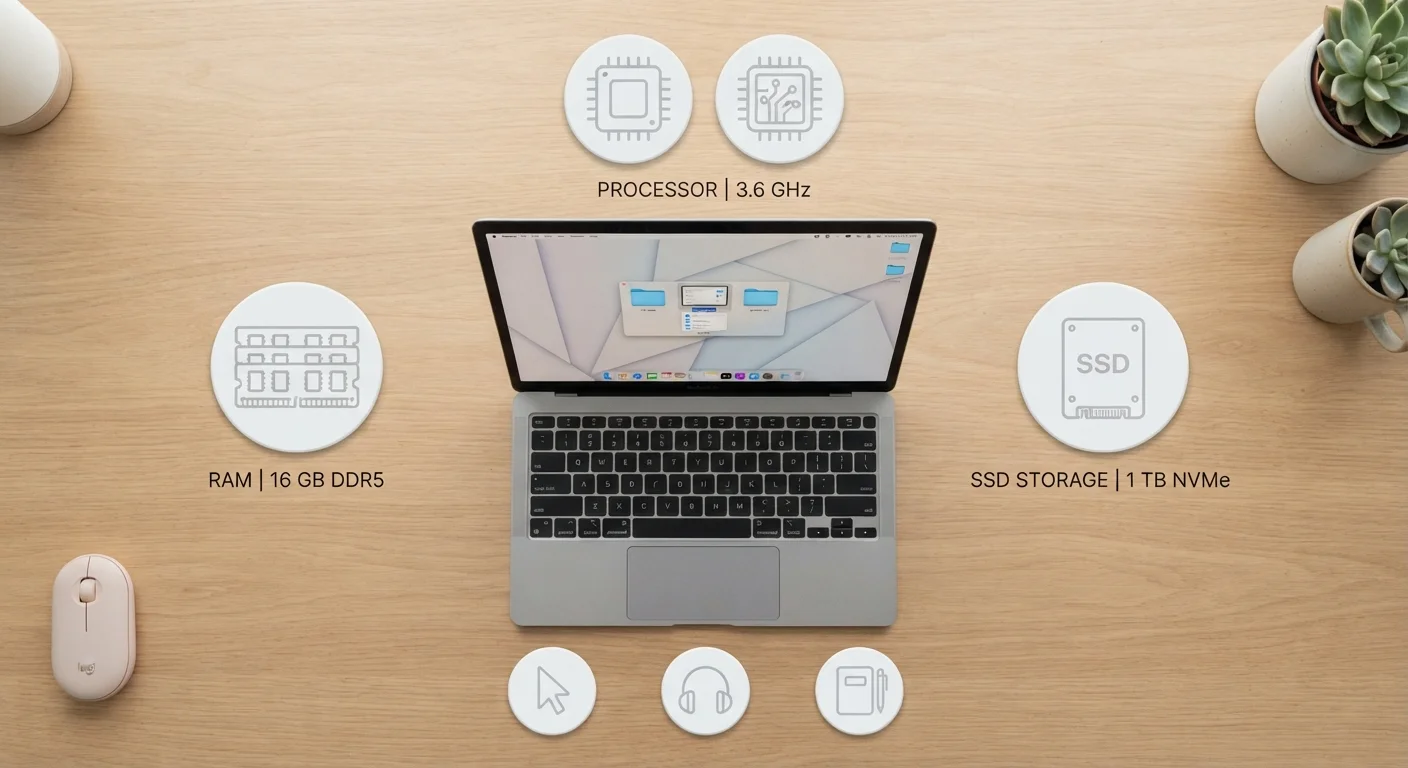
RAM: The Workspace Your Laptop Thinks In
Think of RAM (Random Access Memory) as your laptop's physical desktop - the surface where active work happens. When you open a browser, a spreadsheet, and a video call simultaneously, each one occupies a portion of that surface. When RAM fills up, the computer starts shuffling tasks to slower storage to compensate, and you'll notice it immediately through sluggishness, freezing, or delayed responses.
For most everyday users, 8 GB handles routine multitasking comfortably. Power users who keep dozens of tabs open, run virtual machines, or edit photos regularly will benefit from 16 GB. Video editors and software developers often need 32 GB or more.
One important caveat: more RAM doesn't fix every slowdown. Adding RAM isn't always the answer - sometimes the processor or storage is the real constraint. Diagnose before you shop.
Check Upgradeability Before You Buy
Some laptops allow you to add more RAM or swap in a larger SSD after purchase; many slim models do not. Before committing, look up the specific model's service manual or check the manufacturer's specifications page to confirm whether memory and storage are soldered or replaceable. Buying the minimum RAM on a non-upgradeable machine is a decision you'll live with for the laptop's entire lifespan.
Storage: How Much Space - and What Kind - You Actually Need
Storage is where your laptop keeps everything permanently: your operating system, installed apps, photos, videos, and documents. Two main technologies dominate laptop storage today - SSDs (solid-state drives) and HDDs (hard disk drives). SSDs have no moving parts, access data nearly instantly, and are now standard in most new laptops. HDDs are slower but offer more space at a lower cost, making them common in budget machines or as secondary drives in larger systems.
For most users, 256 GB of SSD storage is workable but can feel tight if you store large media libraries locally. 512 GB is a comfortable middle ground. If you rely heavily on cloud services for photos and documents, you can get by with less onboard storage.
Understanding the SSD vs. HDD tradeoff is one of the highest-impact decisions in laptop shopping - it affects startup speed, file load times, and overall responsiveness far more than many buyers expect.
Cloud Storage Changes the Equation
If you store most of your photos, videos, and documents in cloud services, you may need far less onboard storage than you think. Many users find that 256 GB of fast SSD storage is entirely adequate when paired with a cloud subscription - and that tradeoff can free up budget for better RAM or a more capable processor.
Processing Power: The Engine Under the Hood
The CPU (central processing unit) is the core engine of your laptop. It executes every instruction your software sends - from rendering a webpage to running a spreadsheet formula or exporting a video file. Modern processors are described by their core count, clock speed (measured in GHz), and generation number, and these figures interact in ways that make simple comparisons tricky.
For everyday computing - web browsing, documents, video streaming - virtually any modern processor released in the past few years is fast enough. The gap becomes meaningful when you're running demanding applications: video editing software, 3D modeling tools, or compiling large amounts of code. In those cases, more cores and a higher-generation chip genuinely accelerate your work.
How processors are described and what those numbers mean provides a deeper look at core counts, clock speeds, and what generation differences actually translate to in practice. Also worth noting: some tasks that stress a CPU - like gaming or 3D rendering - may actually depend more on a dedicated graphics card. See our explainer on what a GPU actually does to understand where the CPU ends and the GPU begins.
Matching Specs to Your Real-World Use
The most common mistake laptop buyers make is optimizing for specs they don't need while underinvesting in ones they'll feel every day. A high-end CPU paired with slow HDD storage and minimal RAM will frustrate a user who opens twenty browser tabs, while a well-balanced machine with a fast SSD and adequate RAM will feel snappy for years.
~70%
New laptops shipped with SSD storage
Industry analysts broadly report that SSD adoption has become the dominant standard in new laptop shipments, particularly in the consumer segment.
2-4x
Speed difference: SSD vs. HDD file access
SSDs typically deliver sequential read speeds several times faster than conventional hard drives, according to drive manufacturer benchmarks.
16 GB
RAM increasingly considered the practical baseline
As operating systems and browsers consume more memory, many technology reviewers and IT professionals now recommend 16 GB as a future-proof starting point for new laptop purchases.
Before finalizing any decision, it helps to work through a structured evaluation. Our computer buying checklist covers ports, battery life, build quality, and display - the factors that round out the spec sheet. And if you're still deciding between a laptop and a desktop setup entirely, this comparison of desktop vs. laptop setups walks through the broader tradeoffs.
