
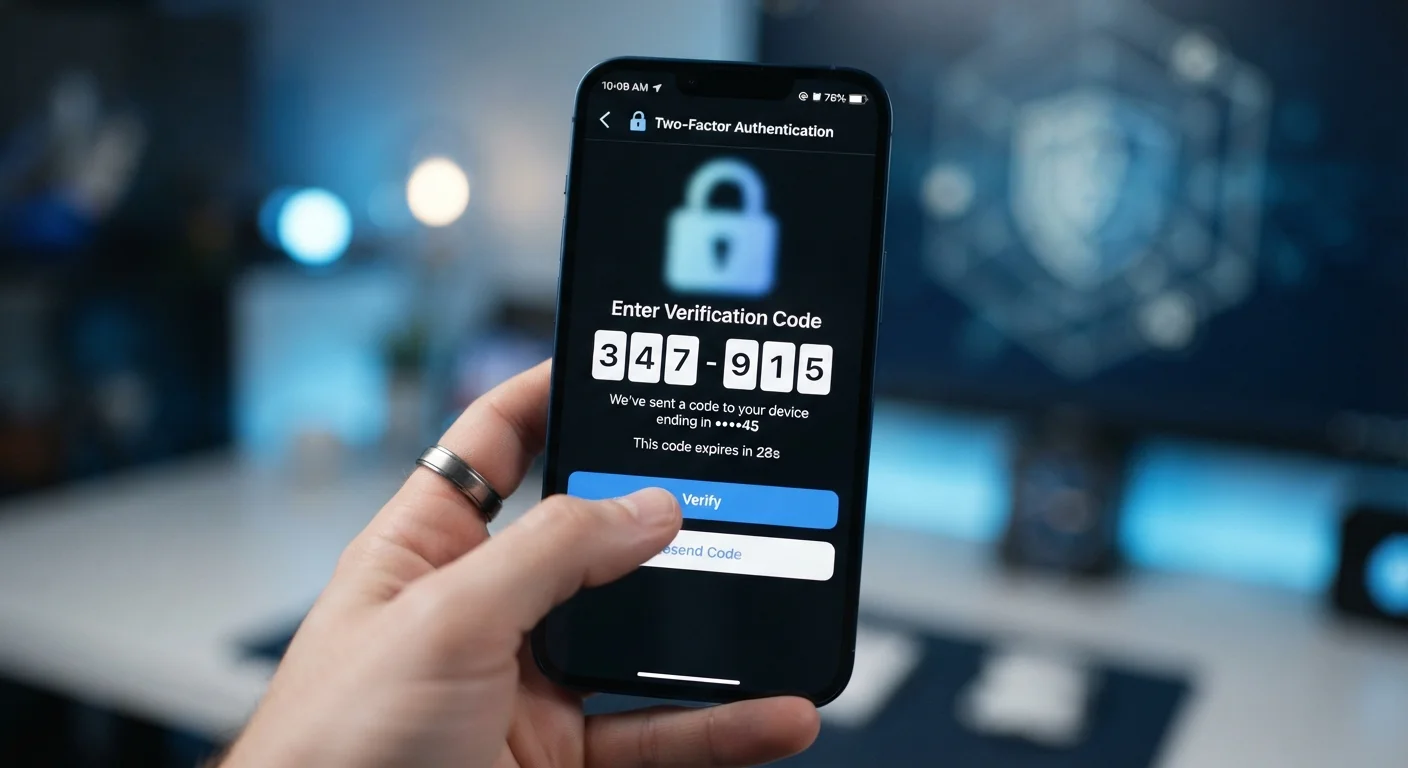
What Two-Factor Authentication Actually Does
A password alone is a single barrier between your account and anyone who wants access to it. If that password is guessed, stolen in a data breach, or exposed through a phishing message, the account is immediately compromised. Two-factor authentication (2FA) changes this by requiring a second, independent proof of identity at login.
The logic follows a straightforward security principle: combine something you know (your password) with something you have (your phone or a hardware key) or something you are (a biometric). An attacker who steals your password still cannot log in without also controlling your second factor. According to widely cited cybersecurity research, accounts protected by 2FA are dramatically less likely to be compromised, even when passwords are exposed.
2FA is distinct from biometric unlock on your device itself. Unlocking your phone with a fingerprint is a local authentication step - 2FA applies at the account level, meaning it protects your email, banking, social media, and other services regardless of what device you use. For a deeper look at how biometrics work within this ecosystem, see our guide to biometric authentication on smartphones.
Authenticator Apps Work Offline
Unlike SMS codes, authenticator app codes are generated locally on your device and do not require a cellular signal or internet connection. This makes them reliable even when traveling internationally or in areas with poor reception. They also refresh every 30 seconds, making them significantly harder to intercept than a text message.
Setting Up Two-Factor Authentication: Step-by-Step
The process is broadly similar across most major platforms. Before you start, gather the items listed below.
What you will need
Authenticator App (TOTP-compatible)
Generates time-based one-time passcodes (TOTP) for 2FA without relying on SMS delivery.
Password Manager
Stores backup codes and strong unique passwords securely alongside your 2FA setup.
Pen and Paper or Secure Storage
Used to record and safely store backup recovery codes provided during 2FA enrollment.
Go to the Security Settings of the Account You Want to Protect
Open the app or website for the account (e.g., your email, banking app, or social media profile) and navigate to Settings. Look for a section labeled Security, Privacy & Security, or Account. Most major platforms place two-factor authentication options here.
Find and Select the Two-Factor Authentication Option
Within the security section, look for terms like Two-Factor Authentication, Two-Step Verification, or Login Verification. Tap or click the option to begin setup. Some services may ask you to confirm your current password before proceeding.
Choose Your Second Factor Method
You will typically be offered one or more methods:
- SMS/Text Message: A code is sent to your phone number each time you log in. Easy to set up, but vulnerable to SIM-swapping attacks.
- Authenticator App: Generates a time-limited code on your device. More secure than SMS and works offline.
- Email Code: A code is sent to a verified email address. Convenient, but only as secure as that email account.
- Hardware Key: A physical USB or NFC device you tap to authenticate. The strongest option, mainly used in high-security contexts.
For most everyday users, an authenticator app provides a strong balance of security and convenience.
Link Your Authenticator App or Phone Number
If using SMS, enter your mobile phone number and tap Send Code. Enter the code you receive to verify. If using an authenticator app, the service will display a QR code. Open your authenticator app, tap the option to add a new account, and scan the QR code. The app will immediately begin generating codes for that service.
Confirm the Setup With a Test Code
Most services will ask you to enter a code immediately to verify the connection is working. If you are using an authenticator app, open it, locate the entry for this service, and type in the current 6-digit code before it expires (codes refresh every 30 seconds). If using SMS, enter the code from the text you receive.
Save Your Backup Codes
After 2FA is confirmed, the service will typically generate a set of single-use backup codes. These allow you to access your account if you ever lose your phone or cannot receive codes. Write them down or save them to a secure password manager. Do not store them in the same app or email account they protect.
Never Share Your 2FA Code With Anyone
Legitimate services will never ask you to read your authentication code aloud, enter it on a third-party site, or share it via text or call. If someone contacts you requesting your code, treat it as a social engineering attack. Sharing your 2FA code instantly defeats its purpose and can result in immediate account takeover.
Troubleshooting and Staying Secure After Setup
Once 2FA is active, your accounts are meaningfully stronger - but a few practical points keep that protection working over time.
Changing phones: Before switching devices, transfer your authenticator app accounts to the new phone using the app's built-in export or migration feature. Doing this before you wipe the old device avoids being locked out.
Code timing errors: Authenticator apps rely on your device's clock being accurate. If codes are consistently rejected, check that your phone's date and time are set to automatic in your system settings.
Lost phone: Use your saved backup codes to log in. Then immediately update your 2FA settings to link your new device. This is why storing backup codes offline matters so much.
Save Your Backup Codes Before You Need Them
When you enable 2FA, most services generate one-time backup codes you can use if your primary second factor is unavailable. Store these codes in a secure, offline location - such as a printed sheet in a locked drawer or a reputable password manager. Without them, losing your phone or authenticator app access could permanently lock you out of your account.
Two-factor authentication works best alongside other mobile security habits. Reviewing the privacy settings on your smartphone and understanding the most common mobile security threats rounds out a solid baseline of everyday protection.
