
Why This Audit Matters
Every smartphone ships with default settings designed for convenience, not privacy. Unless you actively review those settings, apps may be collecting your location continuously, accessing your microphone in the background, and sharing data with advertising networks you've never heard of. The good news: you don't need technical expertise to change this. A methodical walk through your phone's settings menus - which this checklist guides you through - is enough to significantly reduce unnecessary data exposure.
For a broader picture of what threats exist beyond settings alone, see our overview of mobile security threats facing everyday users. And if you want to understand what individual app permission requests actually mean before you grant or deny them, our guide to app permissions explains each one in plain language.
Location Access
App Permissions
Ad Tracking and Data Sharing
Lock Screen and Notification Privacy
Ongoing Maintenance
Tools You'll Need
No third-party software is required to complete this audit. Everything on the checklist lives inside your phone's native settings. That said, a few resources will help you get the most out of the process.
Your phone's native Settings app
All permission and privacy controls in this checklist are accessed directly through the built-in Settings application on Android or iOS.
Google or Apple account dashboard
Platform-level data controls - including ad personalization, location history, and diagnostic sharing - are managed through your linked account settings online.
App Privacy Report (iOS 15+)
Shows a time-stamped log of which apps accessed your camera, microphone, location, and contacts, helping you spot unexpected permission use.
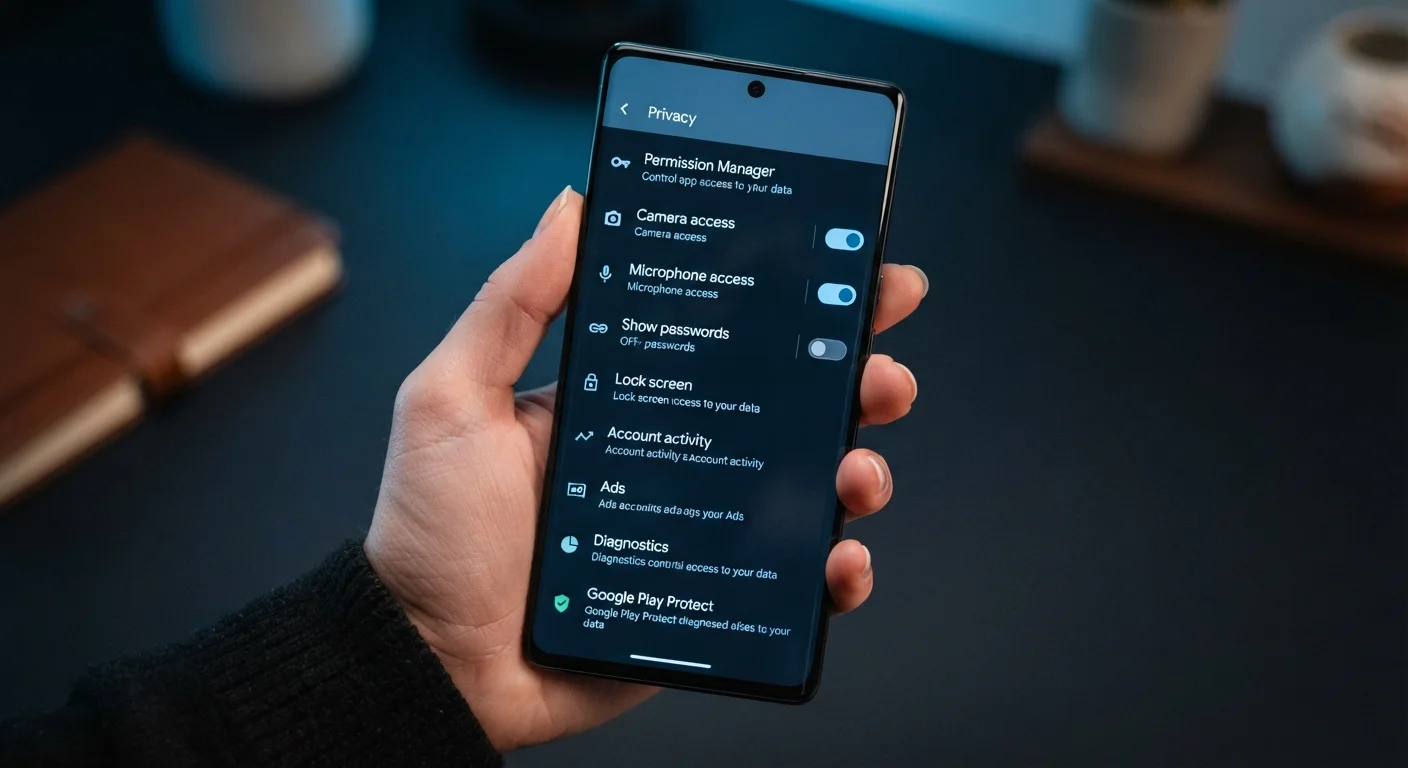
Permission Manager (Android)
A built-in dashboard that lists every app with access to each permission category, making it easier to audit multiple apps at once.
Key Risks to Keep in Mind
OS Updates Can Reset Your Privacy Settings
Major operating system updates on both Android and iOS sometimes introduce new data-sharing toggles or reset existing permission states. After any significant OS update, return to Settings and re-verify the permissions you've restricted. Treating this as a routine post-update step - rather than a one-time task - is the most reliable way to maintain your privacy configuration over time.
Revoking Permissions May Break App Features
Some apps will stop functioning correctly if you remove a permission they rely on - a navigation app without location access being the obvious example. This checklist is about informed choice, not blanket restriction. If an app stops working after you revoke a permission, you can re-grant it selectively. The goal is to ensure every permission you've allowed is one you consciously intended to grant.
Once you've completed this audit, consider pairing it with stronger account-level security. Our article on two-factor authentication on your phone walks through the available methods and explains why it's one of the highest-impact security habits you can build. You may also want to review public Wi-Fi risks and precautions, since network-level exposure can undermine even well-configured device settings.
If you're setting up a device for a child, the privacy considerations are different - our parent's guide to smartphone setup and oversight covers the relevant controls in detail. And because privacy settings reset or change after major OS updates, schedule a brief re-audit every three to six months.
