
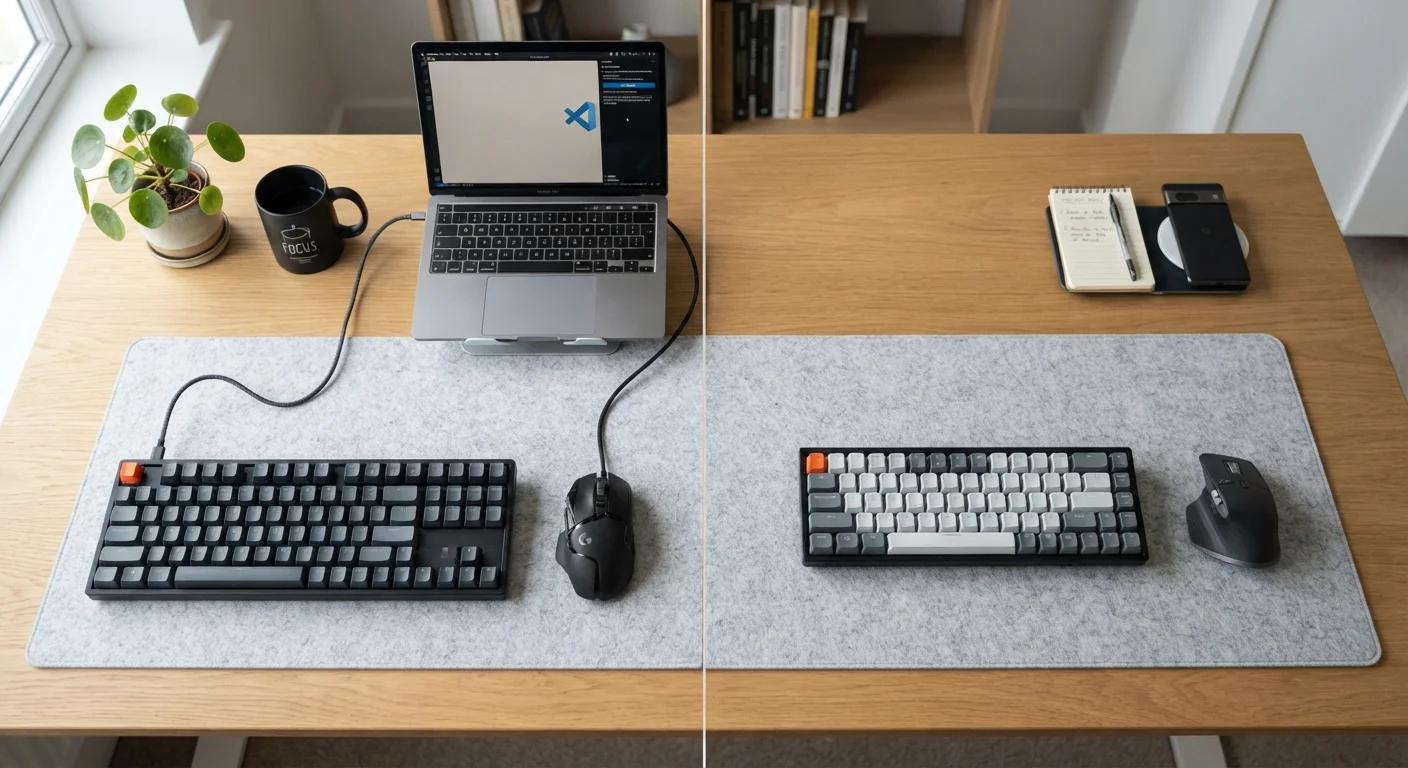
What Actually Separates Wired from Wireless
At the most basic level, the difference is how data travels between your peripheral and your computer. Wired devices transmit signals over a physical cable - typically USB - creating a direct, uninterrupted path. Wireless devices transmit over radio frequencies, using either Bluetooth or a dedicated RF (radio frequency) dongle. Each method carries genuine advantages and real limitations.
The word "wireless" covers meaningfully different technologies. Bluetooth requires no extra hardware but introduces slightly more overhead in how data is processed. RF dongles use a dedicated 2.4 GHz channel and generally offer lower latency than Bluetooth. If the distinction matters to your workflow, our article on Bluetooth vs. RF wireless breaks down what each approach means in everyday use.
The practical gap between the two connection types has narrowed as wireless technology has improved, but the underlying physics haven't changed: a cable will always offer a more direct signal path than radio transmission through the air.
Latency, Reliability, and Performance
Latency - the delay between a physical action (clicking a mouse button, pressing a key) and the computer registering it - is where wired peripherals hold a structural advantage. A USB connection typically introduces single-digit millisecond delays; many users describe this as imperceptible. High-performance wireless peripherals using RF dongles have achieved comparable figures in controlled conditions, but real-world environments introduce variables: radio interference from other devices, signal congestion, and physical obstructions can increase that number unpredictably.
~1 ms
Typical wired USB input latency
USB polling rates on modern wired peripherals generally deliver input latency around 1 millisecond under standard conditions.
1-4 ms
RF wireless latency range
High-performance RF dongles operating on dedicated 2.4 GHz channels typically achieve input latency in the 1-4 ms range in unobstructed environments.
For competitive gaming, even small inconsistencies in input registration matter. For typing a document, browsing the web, or video calls, the difference is rarely noticeable. Reliability is the more relevant concern for general users: wired connections don't drop, don't need pairing, and don't interact with neighboring wireless networks. Wireless peripherals can occasionally experience interference in environments dense with 2.4 GHz devices - something worth considering in apartment buildings or shared office spaces.
Reduce Wireless Interference at Your Desk
If you use a wireless peripheral with a 2.4 GHz RF dongle, plug the dongle into a USB port closest to the peripheral rather than a rear-panel port buried behind the case. Keeping the dongle physically nearer to the device reduces the signal distance and minimizes the chance of interference from other electronics. Avoid placing the receiver next to a Wi-Fi router or other transmitting devices.
Battery Life and the Cost of Convenience
Wireless freedom comes with one unavoidable ongoing task: keeping devices charged or batteries replaced. Modern wireless keyboards routinely last weeks or months on a charge; wireless mice are more variable, ranging from days (for power-hungry backlit models) to several months for efficient, feature-light designs.
This maintenance overhead is minor for most users but worth acknowledging. A dead mouse or keyboard during a critical moment is a genuine inconvenience. Rechargeable models mitigate the cost of disposable batteries but introduce their own dependency on cables or charging docks - an ironic partial return to the wired world.
Wired peripherals sidestep this entirely. They draw power directly from the USB port and are always ready. For a home office setup where peripherals rarely move, this is a non-trivial convenience. See our coverage of accessories that genuinely improve a home office setup for context on where peripherals fit into a broader productivity picture.
Desk Organization and Ergonomics
Cable management is one of the more underappreciated arguments for wireless peripherals. A wired keyboard, mouse, and headset can collectively route five or more cables across a desk. Managing those cables takes effort - clips, sleeves, and routing channels all help - but the clutter never fully disappears.
Wireless setups allow more flexible desk arrangements and make it easier to reposition peripherals to match ergonomic needs. If you're adjusting the angle of your keyboard for wrist comfort, a cable doesn't constrain the movement. That said, a well-managed wired desk with quality cable routing can be just as clean in practice, and the choice of keyboard type can affect comfort more than whether it's tethered.
| Wired Peripherals | Wireless Peripherals | |
|---|---|---|
| Latency | Consistently minimal | Low to minimal; varies by technology |
| Reliability | No signal drops or interference | Occasional interference possible |
| Power source | USB port - no batteries needed | Battery or rechargeable - ongoing upkeep |
| Cable clutter | Cables required; management needed | No cables; cleaner desk setup |
| Portability | Limited by cable length | Moves freely between locations |
| Setup complexity | Plug in and use | Pairing or dongle required initially |
| Typical cost | Generally lower at equivalent quality | Often slightly higher at equivalent quality |
Portability is another ergonomic consideration. Wireless peripherals move freely between locations - from desk to couch to conference room - without requiring cable management each time. For users who regularly use laptops in multiple locations, this flexibility has real daily value.
Making the Right Call for Your Setup
The honest answer is that both options work well for most people. The choice comes down to what you actually do at your computer and how you use your desk.
- Prioritize wired if you game competitively, work in a radio-congested environment, or simply don't want to think about battery levels.
- Prioritize wireless if you value a clean desk, frequently reposition peripherals, or move between workspaces regularly.
- Consider your existing hardware - some older machines have limited USB ports, and a wireless dongle uses one of those slots too.
If you're curious how similar trade-offs appear in other connected devices, the wired vs. wireless home security camera comparison applies the same logic to a different product category. In most cases, picking a well-made device in either category - and maintaining it properly - will matter more than the connection type alone.
