
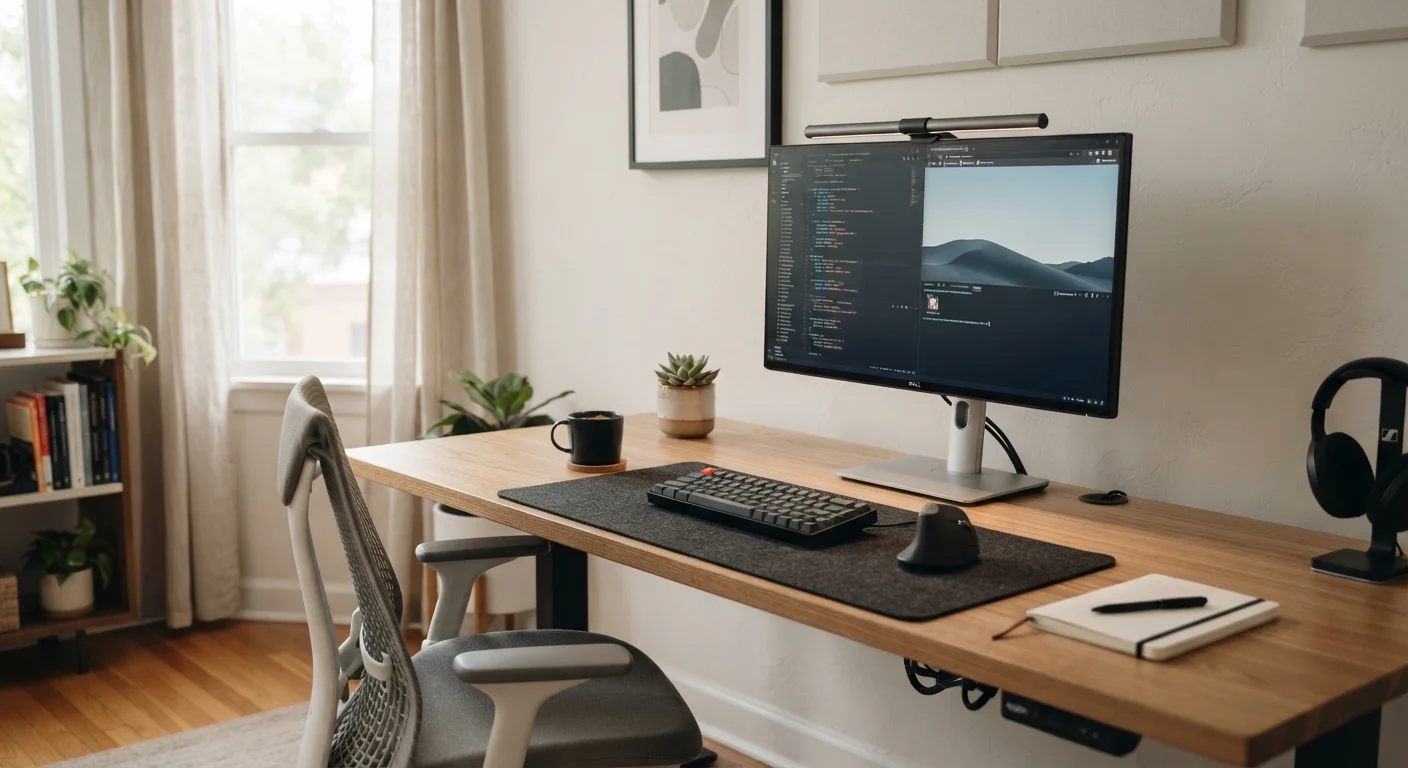
Why Accessory Choices Actually Matter
It's easy to accumulate peripherals that look useful on a product page but barely change daily life at a desk. The accessories that genuinely improve a home office setup share a common trait: they reduce a specific, recurring friction - whether that's physical discomfort, slow workflows, or connectivity headaches.
If you're still figuring out whether a desktop or laptop anchors your workspace, the desktop vs. laptop comparison is worth reading first. For those already set up, the list below focuses on the additions that make a measurable difference - not marketing-driven novelties.
An External Monitor for Laptop Users
Working from a laptop screen alone - especially for extended hours - is one of the most limiting constraints in a home office. An external monitor adds usable screen real estate, allows for proper viewing distance, and eliminates the neck strain that comes from looking down at a built-in display.
You don't need a large or expensive panel to benefit. Even a modestly sized external display in the 24-27 inch range, positioned at eye level, creates a substantially better work environment. The ergonomic guidance on screen positioning is clear: top of the screen at or just below eye level, at arm's length from your face.
Even a modest external monitor dramatically reduces neck strain and expands usable workspace.
A Full-Size External Keyboard
Laptop keyboards are engineered for portability, not prolonged typing. Keys are shallow, spacing is compressed, and the fixed position ties your hands to the location of the screen - which is rarely ergonomically ideal. A full-size external keyboard lets you position your hands where they are most comfortable, independent of where the screen sits.
Mechanical keyboards offer tactile feedback that many users find reduces typing errors and fatigue, while membrane keyboards are quieter and often more affordable. The wired vs. wireless tradeoffs are worth understanding before choosing - wireless models offer desk flexibility, while wired ones eliminate battery management entirely.
Positioning your keyboard independently of the screen is one of the simplest ergonomic wins available.
An Ergonomic Mouse or Trackball
Standard flat mice require the forearm to rotate into an unnatural position during extended use, which can contribute to discomfort in the wrist and elbow over time. Vertical mice - which orient the hand in a more neutral handshake position - are a straightforward alternative that many users find noticeably more comfortable after a short adjustment period.
Trackballs are another option worth considering, particularly for users with limited desk space. With a trackball, the device stays stationary and the thumb or fingers move the cursor, which eliminates wide arm movements entirely. Neither option requires a premium purchase to be functional; the ergonomic benefit comes from the design, not the price point.
Vertical mice and trackballs can significantly reduce forearm strain during long computing sessions.
A USB Hub or Docking Station
Modern laptops - and some desktops - ship with fewer physical ports than users actually need. Constantly swapping cables for external drives, cameras, headsets, or card readers is a daily friction point that a USB hub eliminates entirely. For laptop users who regularly move between a desk setup and portable use, a docking station extends this further, allowing a single cable connection to restore access to monitor, keyboard, mouse, and network simultaneously.
When evaluating a hub, check whether it supports the data transfer speeds and power delivery you need - not all USB-A or USB-C hubs are equivalent in throughput. The computer buying checklist covers port considerations worth applying here as well.
A quality docking station converts a single cable connection into a full desk workstation instantly.
Proper Task Lighting
Lighting is consistently underestimated as a factor in home office comfort. Poorly lit environments cause the eyes to work harder to maintain focus, contributing to fatigue over the course of a workday. Glare on a monitor from overhead or ambient light sources compounds the problem.
A dedicated desk lamp with adjustable color temperature - allowing a shift between cooler, more alert-promoting light during the day and warmer tones in the evening - provides meaningful control over the visual environment. Monitor-mounted light bars are a newer option that illuminate the desk surface without casting glare onto the screen. Neither requires a large investment, and both address a real, daily discomfort that most setups ignore.
Adjustable task lighting reduces eye fatigue and improves focus throughout the workday.
A Headset or Quality Speakers with a Dedicated Microphone
Built-in laptop microphones and speakers are sufficient for occasional calls but fall short for anyone on frequent video meetings, recorded sessions, or focused audio work. A dedicated headset improves both what you hear and what others hear from you - reducing listener fatigue on both ends of a call.
For those who prefer not to wear headphones all day, a USB microphone paired with a decent set of speakers or studio monitor headphones offers a similar upgrade. Audio quality on calls is often the single most noticed improvement by remote collaborators, making this one of the higher-impact, lower-cost upgrades available for a home office.
Clear audio on calls is consistently one of the most appreciated upgrades by remote collaborators.
Putting It All Together
No single accessory transforms a home office, but the right combination - chosen deliberately rather than impulsively - compounds into a noticeably more comfortable and efficient work environment. Prioritize what addresses real pain points in your current setup before adding anything else.
Start With the Friction That Costs You Most
Before adding any accessory, identify the single most disruptive daily friction in your current setup - whether that's neck pain, cable chaos, poor audio, or eye strain. Solving that one problem first delivers more real-world benefit than buying several accessories that address minor inconveniences. Once the primary pain point is resolved, the next most impactful upgrade becomes clearer.
For a deeper look at how your physical desk arrangement affects strain over time, the ergonomic computing setup guide covers posture, screen height, and desk positioning based on established guidance. And once your hardware is dialed in, keyboard shortcuts are one of the fastest ways to extract more productivity from the setup you already have.
