
The Problem a Docking Station Solves
Modern laptops are designed to be thin and portable - which means manufacturers routinely cut physical ports to save space. You might find yourself with just one or two USB-C ports and nothing else. That creates a daily frustration: plugging in your monitor, keyboard, mouse, and charger one by one every morning, then unplugging them all when you leave. Laptop port reduction is a deliberate design trend, and docking stations are one of the most practical answers to it.
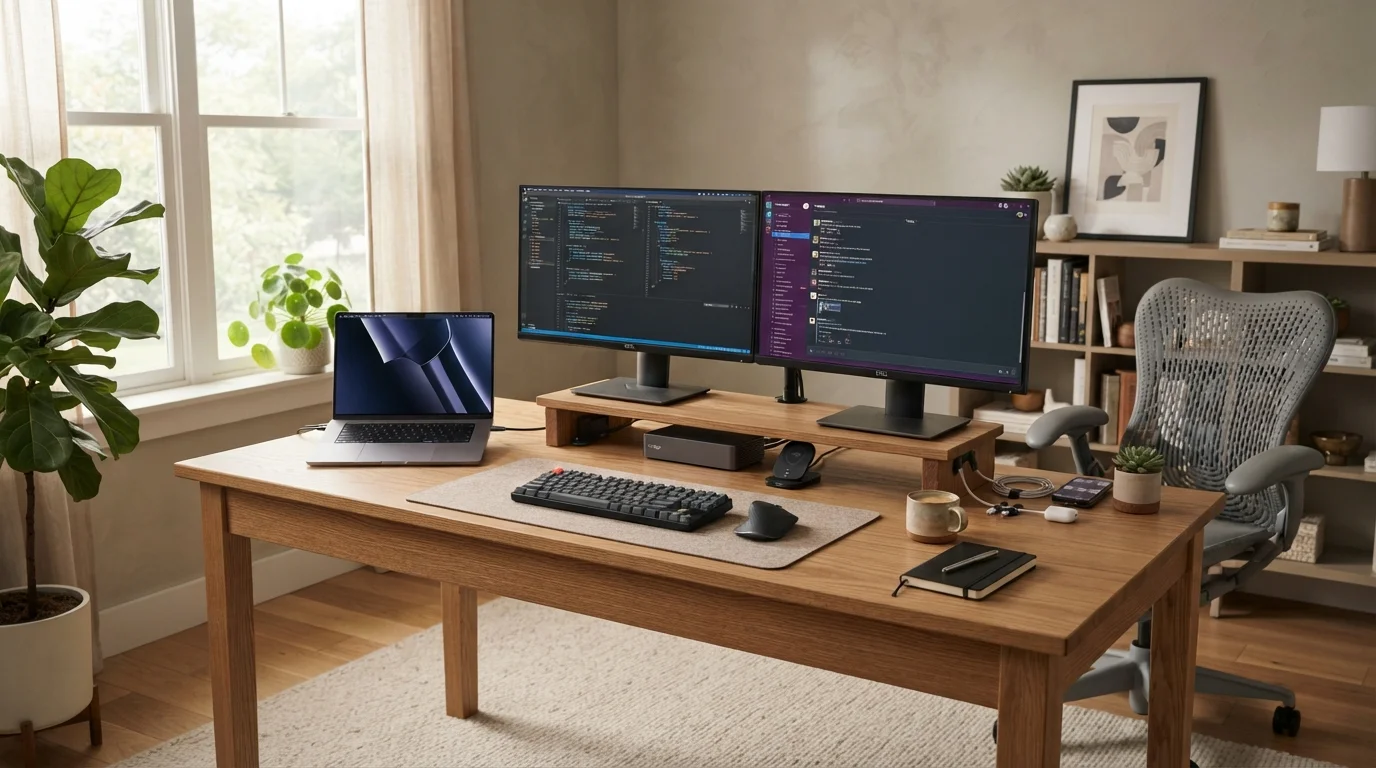
A docking station sits permanently on your desk. When you arrive, you plug one cable into your laptop and every peripheral - monitors, wired keyboard, mouse, Ethernet, headset, external storage - connects instantly. When you leave, you unplug that one cable. That's it.
Test Your Laptop's Port Before Buying
Before investing in a docking station, check whether your laptop's USB-C port supports video output and power delivery - not all do, even if they look identical. Consult your laptop's official spec page or user manual. This one step prevents most compatibility disappointments.
What's Actually Inside a Docking Station
Physically, a dock is a box with a variety of ports on the outside and circuitry inside that multiplexes signals over the connection to your laptop. Common ports you'll find on a dock include:
- USB-A ports for standard peripherals like mice and keyboards
- USB-C ports for newer devices and fast data transfer
- HDMI or DisplayPort outputs for connecting external monitors
- Ethernet (RJ-45) for a stable wired internet connection
- 3.5mm audio jack for headsets or speakers
- SD card reader useful for photographers and content creators
- Power delivery to charge the connected laptop simultaneously
The connection to your laptop is almost always USB-C or Thunderbolt. Thunderbolt (developed by Intel) provides significantly more bandwidth, which matters when you're driving two or more high-resolution displays. Docking stations consistently appear among the accessories that make a measurable productivity difference for desk-based workers.
1
Cable needed to connect all desk peripherals via a dock
A core selling point of docking stations is reducing daily plug-and-unplug friction to a single connection, regardless of how many devices are on the desk.
40Gbps
Maximum data bandwidth on Thunderbolt 4 docks
Thunderbolt 4 specification supports up to 40 gigabits per second of bandwidth, enabling simultaneous 4K display output, fast storage, and charging over one cable.
100W
Typical maximum power delivery on high-end docks
Many full-featured docking stations can deliver up to 100W of power through the dock cable, sufficient to charge most mainstream laptops at rated speed.
Who Actually Needs One
A docking station is not a universal necessity - but it genuinely earns its place in specific situations:
- Hybrid workers
- If you carry your laptop between home and office regularly and maintain a full peripheral setup at each location, a dock at each desk makes the daily transition seamless.
- People replacing a desktop
- If you've decided a laptop suits your lifestyle but still want a desktop-quality experience when stationary, a dock bridges that gap. Our overview of how desktops and laptops compare for different lifestyles can help you decide whether you even need both.
- Multi-monitor users
- Running two or more external displays typically requires a dock, since most laptops can't natively output to multiple screens through adapters alone.
- Anyone with many wired peripherals
- Ergonomic keyboards, drawing tablets, external drives, wired headsets - if your desk has four or more wired devices, a dock avoids cable chaos.
If you mostly use your laptop on a couch, in coffee shops, or at a single location with just one monitor and a wireless mouse, individual adapters are likely sufficient. If you're weighing a tablet instead of a laptop, note that tablet docking support varies significantly by device and operating system.
What to Think About Before Getting One
Before committing to a dock, check three things on your current laptop:
- Port type: Does it have USB-C, Thunderbolt 3, or Thunderbolt 4? The answer determines which docks are compatible and what features you'll get.
- Power requirements: High-performance laptops sometimes need 90W or more to charge at full speed. Confirm a dock's power delivery output meets that threshold.
- Display capability: Not all USB-C ports on all laptops support video output, even if the port physically fits. Check your laptop's spec sheet or manufacturer documentation.
A dock that costs less but lacks sufficient bandwidth or power delivery may create new frustrations rather than solving old ones. Taking ten minutes to verify compatibility before purchasing saves considerable hassle.
Docks and Firmware: Keep Both Updated
Some docking station issues - display flickering, intermittent disconnections, charging inconsistencies - are resolved through firmware updates rather than hardware problems. Manufacturers often release dock firmware updates through companion software or downloadable installers. Similarly, keeping your laptop's operating system and drivers current reduces compatibility issues with newer docks.
