
Why Manufacturers Cut Ports in the First Place
The disappearance of ports from modern laptops isn't accidental - it's the direct result of an industry-wide race toward thinner, lighter machines. Physical connectors have minimum size requirements dictated by their engineering standards. A full-size USB-A port, for example, is roughly 14mm wide and requires a certain chassis depth to seat properly. When a laptop's total thickness drops to 13mm or less, that connector simply doesn't fit.
Beyond physical constraints, manufacturers argue that consolidating around a single connector type - primarily USB-C - simplifies both the chassis design and internal component routing. Fewer ports mean more room for battery, cooling systems, or a slimmer profile. That's a genuine engineering benefit, even if it creates friction for users.
There's also a commercial dimension. Selling a laptop that requires accessories to be fully functional can drive ecosystem revenue. That said, the underlying engineering logic is real: modern ports like USB-C and Thunderbolt carry power, data, and video signals over a single small connector in ways that older ports cannot.
Not Every USB-C Port Is Equal
USB-C is a connector shape, not a single standard. A USB-C port on one laptop may support Thunderbolt 4 with full video and power delivery, while another may support only basic USB 2.0 data transfer. Always check the specifications for each individual port - not just the connector shape - before assuming capability.
Which Ports Disappeared - and Which Survived
The ports most commonly removed in recent years include:
- USB-A - the rectangular connector most peripherals used for years. Still extremely common on accessories, but bulky by modern standards.
- Full-size HDMI - useful for connecting to TVs and monitors, but the connector is wide and tall relative to ultra-thin chassis.
- SD card slots - once standard on consumer laptops, now absent from many models, inconvenient for photographers.
- 3.5mm headphone jack - increasingly removed even from laptops, mirroring the smartphone trend.
- Ethernet - the physical network port was one of the first to go as Wi-Fi became more reliable.
What survived - and often expanded - is USB-C, particularly in its Thunderbolt variant. Thunderbolt 4 ports, for instance, can simultaneously handle power delivery, 4K video output, and high-speed data transfer. For a full breakdown of what each connector does, see our guide to laptop ports and connectors.
1
Cables needed to connect via Thunderbolt 4
Thunderbolt 4 ports can carry power, data, and 4K video simultaneously over a single USB-C cable, according to Intel's published Thunderbolt 4 specification.
~13mm
Typical thickness of ultraportable laptops
Many thin-and-light laptops now measure between 12-15mm thick - thinner than a full-size USB-A connector's required mounting depth.
40 Gbps
Maximum data transfer speed via Thunderbolt 4
Intel's Thunderbolt 4 standard supports up to 40 gigabits per second of bandwidth, enabling high-speed storage, video, and data over one small port.
How Adapters and Hubs Fill the Gap
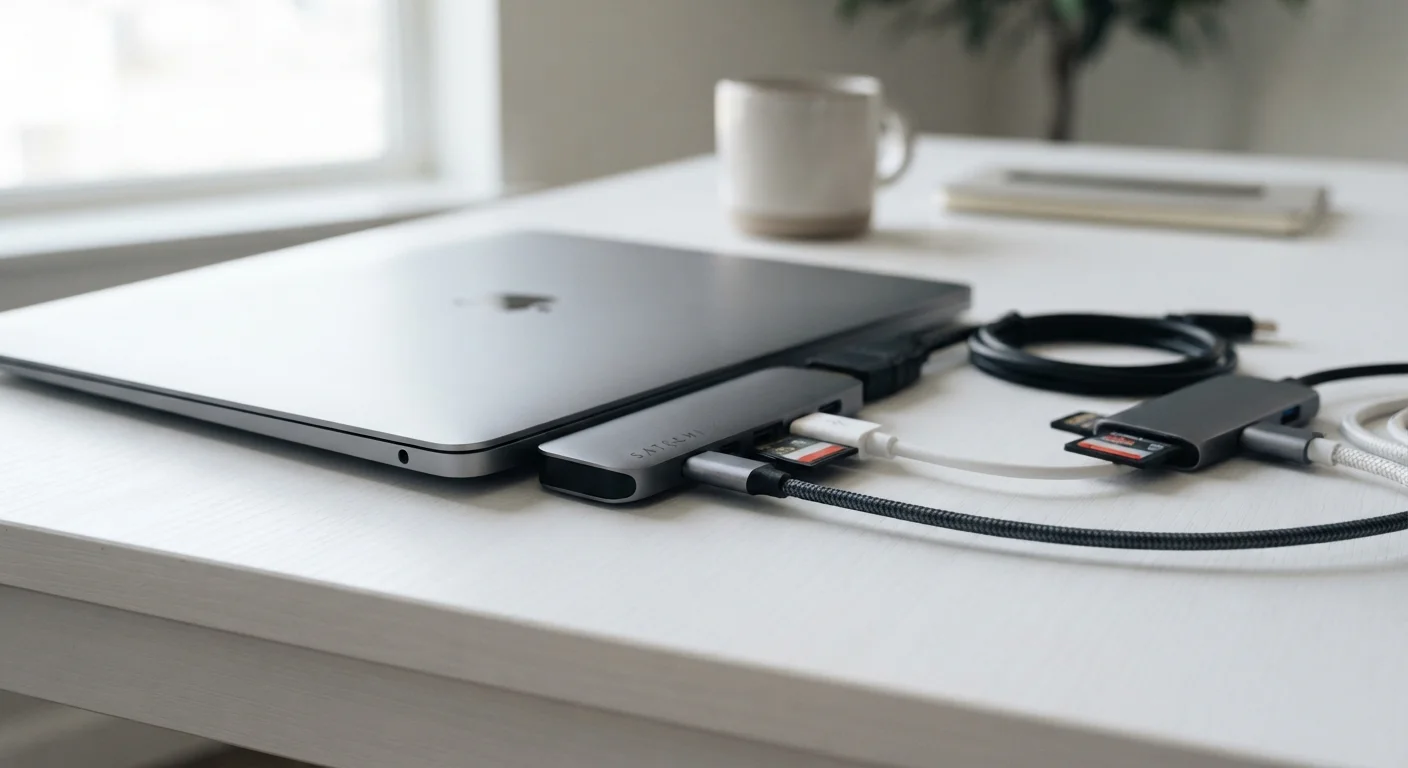
An adapter is a simple passthrough device - it converts one connector type to another. A USB-C to HDMI adapter, for example, lets you plug a display into a laptop that has no HDMI port. A hub goes further, typically adding several ports (USB-A, HDMI, SD card, Ethernet) from a single USB-C connection.
Hubs are practical but not without tradeoffs. Bandwidth is shared across all connected devices, which can affect performance when multiple high-demand peripherals are active simultaneously. Power delivery to the laptop may also be reduced depending on hub design. And a hub is one more thing to carry, charge, and potentially forget.
Choose a Hub That Matches Your Power Needs
When selecting a USB-C hub, check whether it supports pass-through charging and at what wattage. Some hubs cap power delivery at 60W or less, which may be insufficient for larger laptops. A hub rated for at least 85-100W pass-through charging ensures your laptop charges at full speed while the hub is in use.
For users who work primarily at a desk, a docking station is often the more elegant solution. Unlike a portable hub, a docking station sits permanently on your desk and connects your laptop to all peripherals - monitor, keyboard, mouse, Ethernet, storage - through a single cable. Learn more about what docking stations do and who benefits most.
Making the Right Call Before You Buy
Understanding port tradeoffs is important before you commit to a laptop. If you regularly connect to an external monitor via HDMI, transfer photos from an SD card, or use older USB accessories, a laptop with only two USB-C ports will require you to purchase and carry additional hardware.
Thinner and lighter doesn't automatically mean better for every user. The honest tradeoffs of owning a thin-and-light laptop go beyond ports - battery life, repairability, and thermal performance all shift as chassis size shrinks. Similarly, understanding what specs actually matter for your workflow - covered in our article on RAM, storage, and processing power - can help you prioritize appropriately.
If staying tethered to a desk is a concern, it's also worth reading about whether a desktop or laptop makes more sense for your life. Desktops retain full port arrays and are significantly easier to expand. For users who value portability but need a full peripheral setup, the combination of a lightweight laptop and a quality docking station often strikes the best balance.
