
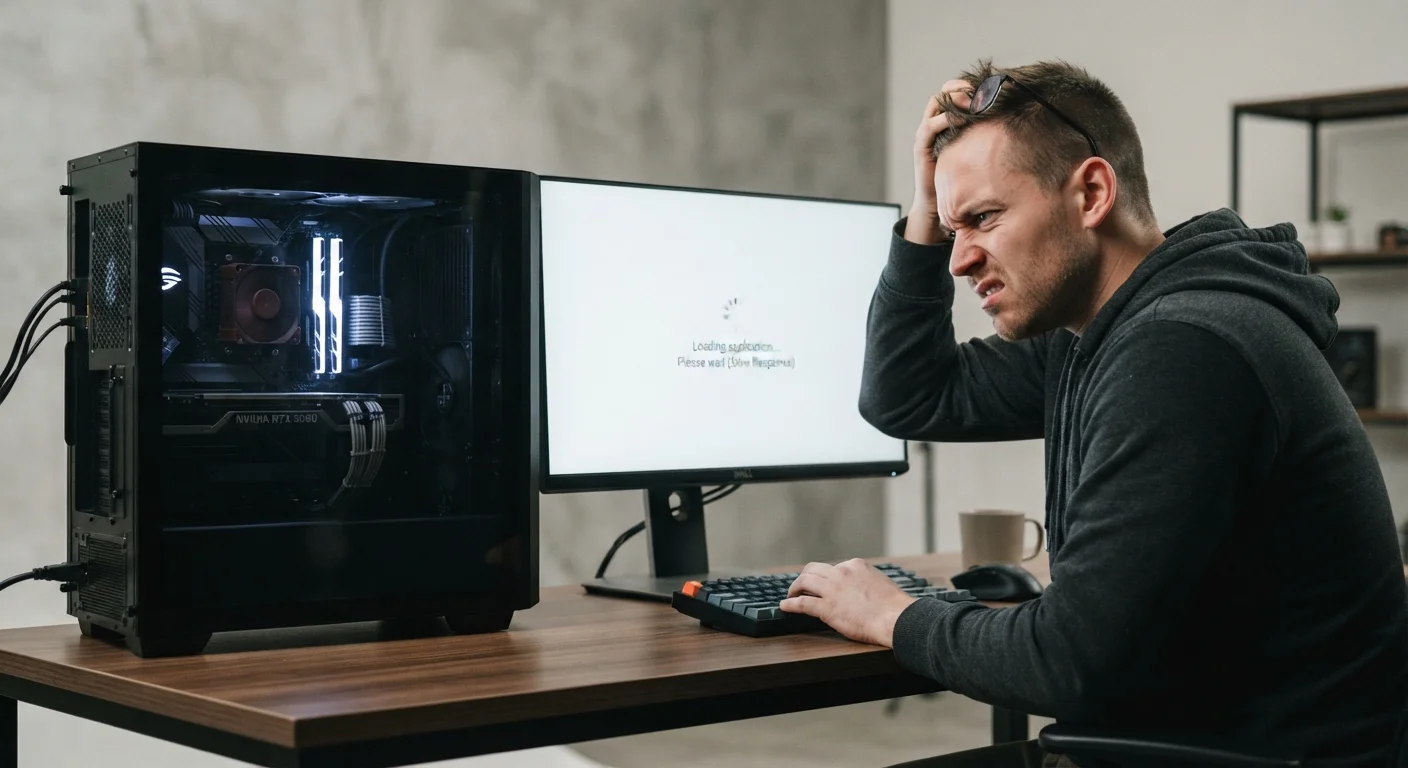
The RAM Myth and Why It Persists
When a computer starts crawling, adding more RAM is almost always the first upgrade people suggest - online forums, tech-savvy friends, and even some repair shops default to this recommendation. It's an easy, visible fix that sounds logical: more memory means more room to work, right?
Sometimes, yes. But RAM is just one variable in a complex performance equation. The truth is that most everyday slowdowns have little to do with how much memory a machine has installed. Before spending money on an upgrade that may not help, it pays to understand what's actually happening under the hood.
As we explore in our complementary piece on why computers slow down over time, performance degradation is rarely caused by a single factor - and RAM shortages are further down the list than most people assume.
Assuming RAM is always the bottleneck without checking system diagnostics first.
Why it happens: RAM is tangible and easy to upgrade, so it's become the default answer in tech communities - even when other components are the real culprit.
Ignoring the hard drive or SSD as a performance bottleneck.
Why it happens: Disk health is invisible to most users. Mechanical hard drives degrade over time, and even SSDs slow down when nearly full or when their firmware is outdated.
Overlooking malware, adware, or runaway background processes as the cause of slowdowns.
Why it happens: These culprits are less obvious than a hardware spec and require an extra diagnostic step that many users skip.
Adding RAM to a computer whose CPU is the actual performance ceiling.
Why it happens: CPU limitations are harder to visualize than memory, so users gravitate toward the more familiar RAM upgrade.
Buying RAM that is incompatible with the motherboard's supported speed or type.
Why it happens: RAM comes in multiple generations (DDR4, DDR5) and speeds, and not all modules work with every system - a detail easy to miss when shopping.
How to Actually Diagnose What's Slowing You Down
Before touching any hardware, run a proper diagnostic. Both Windows and macOS include built-in performance monitors that show CPU usage, memory pressure, disk activity, and network load in real time.
- Windows: Open Task Manager (Ctrl + Shift + Esc) and click the Performance tab. Watch which resource spikes when your system slows - CPU, memory, disk, or GPU.
- macOS: Open Activity Monitor from Applications > Utilities. The Memory Pressure graph turns yellow or red when RAM is genuinely strained.
If your disk is consistently at 100% usage while memory sits comfortably below capacity, a RAM upgrade will do nothing. Similarly, if the CPU is pegged at maximum load, adding memory won't free it up.
100%
Disk usage during common PC slowdowns
Microsoft has documented that 100% disk usage in Windows is a frequent complaint, often caused by system indexing, antivirus scans, or a failing mechanical drive - not insufficient RAM.
~3-5×
Speed improvement from HDD to SSD upgrade
Industry testing consistently shows that replacing a traditional spinning hard drive with an SSD delivers dramatically faster boot and load times, often outperforming a RAM upgrade on older machines.
Once you know which component is the bottleneck, you can make an informed decision. If RAM truly is the constraint - and the system supports an upgrade - then more memory is a justified investment. If it's something else, address that first.
For a broader look at how hardware choices affect everyday performance, our guide on what RAM, storage, and processing power really mean breaks down each component without the technical jargon. And if these patterns remind you of your phone, the same diagnostic logic applies - see why phones slow down over time for a parallel look at mobile devices.
Don't Skip the Software Check
A hardware upgrade won't fix a software problem. Malware, poorly optimized applications, and accumulated startup programs are common performance drains that no RAM stick can resolve. Always rule out software and driver issues before opening your wallet for new components.
If your machine has been running slowly for years and diagnostics point to multiple aging components, it may be worth consulting our guide on when upgrading makes more sense than replacing before committing to any single fix.
