
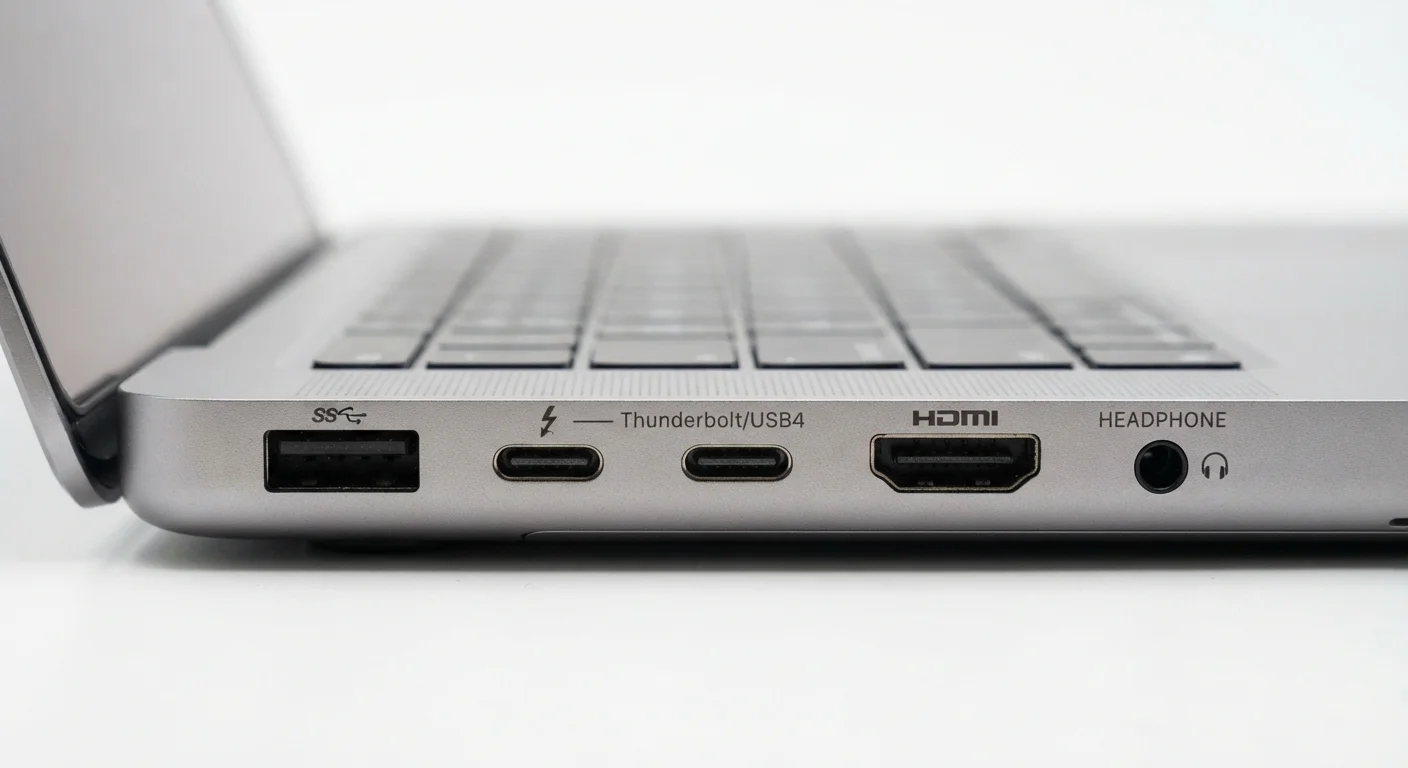
Why So Many Ports?
Flip a laptop around or peer at the back of a desktop tower, and you'll typically find a row of openings in different shapes and sizes. Each one follows a specific standard, handles different amounts of data or power, and is designed to work with particular cables and devices. Knowing what each port does prevents frustrating mismatches and helps you make smarter decisions about the hardware you connect to your computer.
If you're shopping for a new machine, port selection deserves more attention than it usually gets. See our computer buying checklist for guidance on evaluating connectivity before you commit. And if you want to understand why newer laptops often include fewer ports than their predecessors, learn why manufacturers make these trade-offs.
| USB-A max speed (USB 3.2 Gen 2) | 10 Gbps (USB Implementers Forum specification) |
| Thunderbolt 4 max bandwidth | 40 Gbps (Intel Thunderbolt 4 specification) |
| HDMI 2.1 max resolution supported | 10K (HDMI Licensing Administrator specification) |
| USB-C connector orientation | Reversible (no wrong side up) (USB Implementers Forum) |
| Thunderbolt port identifier | Lightning bolt icon beside port (Intel Thunderbolt branding guidelines) |
| USB 2.0 max speed | 480 Mbps (USB Implementers Forum specification) |
USB-A: The Familiar Rectangular Port
USB-A is the rectangular connector most people recognize instantly. It's been the dominant port type on computers since the late 1990s and remains common today. USB-A ports support a wide range of devices: flash drives, keyboards, mice, charging cables, and external hard drives.
The key variable with USB-A is speed, which depends on the USB generation. USB 2.0 transfers data at up to 480 Mbps - adequate for keyboards and mice but slow for large file transfers. USB 3.0 and newer (often marked by a blue color inside the port) reaches 5 Gbps or faster. When copying large files or using an external SSD, always plug into a USB 3.x port if one is available.
USB (Universal Serial Bus)
A standardized connection system used to link computers to peripheral devices. USB defines both the physical connectors and the protocols that govern data transfer and power delivery.
Thunderbolt
A high-speed interface developed by Intel that uses the USB-C physical connector. Thunderbolt 3 and 4 offer up to 40 Gbps bandwidth, display output, and power delivery in one port.
HDMI
High-Definition Multimedia Interface - a standard connector that transmits digital video and audio from a source device (like a computer) to a display (like a monitor or TV) over a single cable.
Bandwidth
The maximum rate at which data can travel through a connection, typically measured in megabits per second (Mbps) or gigabits per second (Gbps). Higher bandwidth means faster data transfer.
DisplayPort
A digital display interface primarily used to connect computers to monitors. It supports high resolutions, high refresh rates, and can daisy-chain multiple displays from a single port.
USB Generation
Refers to versions of the USB standard (e.g., USB 2.0, USB 3.0, USB 3.2) that define different data transfer speeds. Newer generations are generally faster but backward-compatible with older devices.
USB-C and Thunderbolt: The Oval Ports Doing Heavy Lifting
USB-C describes the physical shape of the connector - small, oval, and reversible, meaning it plugs in either way up. However, the shape alone tells you nothing about what it can actually do. A USB-C port might carry USB 2.0 speeds on a budget device or support full Thunderbolt 4 capabilities on a premium machine. Always check the specification sheet rather than assuming any USB-C port is high-performance.
Thunderbolt is a protocol developed by Intel, and it runs over the USB-C connector on modern hardware. Thunderbolt 3 and Thunderbolt 4 ports deliver up to 40 Gbps of bandwidth, can drive one or more external displays, supply power to a connected device, and support external GPUs (graphics processing units). A small lightning-bolt icon next to the port usually identifies Thunderbolt. This is the port to prioritize if you plan to use a docking station. Learn what docking stations actually do and whether your workflow warrants one.
40 Gbps
Thunderbolt 4 peak transfer rate
Per Intel's Thunderbolt 4 specification, this is roughly 8x faster than USB 3.0's 5 Gbps baseline.
1 cable
Thunderbolt connections needed for a full docking station setup
A single Thunderbolt cable can simultaneously carry data, video output, and up to 100W of power delivery to a connected hub.
HDMI, DisplayPort, and Audio Jacks
HDMI (High-Definition Multimedia Interface) is the most common way to connect a computer to a TV or external monitor. It carries both video and audio over a single cable, making setup straightforward. Most HDMI ports on computers support at least 1080p output; newer versions (HDMI 2.0 and 2.1) handle 4K and 8K resolutions at higher refresh rates. The port is trapezoidal in shape and widely recognizable.
DisplayPort is an alternative display connector more common on desktop monitors and graphics cards than on consumer TVs. It supports high refresh rates and multiple monitors chained together - useful for design or productivity setups. Some laptops use mini-DisplayPort, a smaller variant of the same standard.
The 3.5mm audio jack - the round port - handles headphones, headsets, and microphones. Many thin laptops have removed it in recent years. For devices missing one, a USB-C to 3.5mm adapter typically fills the gap. This kind of connectivity trade-off is worth considering alongside other internal components when evaluating any machine; this overview of computer internals provides helpful context.
Other ports you may encounter include SD card slots (for transferring photos from cameras), Ethernet ports (for wired internet connections), and legacy ports like VGA, which appears on older hardware. If you're working across multiple devices or operating systems and transferring files regularly, understanding how storage file systems affect compatibility is a natural next step.
Not All USB-C Ports Are Equal
Two computers can both have USB-C ports and behave very differently. One might only charge and transfer basic data; another might support 4K display output and 100W power delivery. Before purchasing a cable or adapter, verify the specific capabilities of your device's USB-C port in its manual or manufacturer's spec page - the connector shape alone is not a reliable indicator of performance.
