
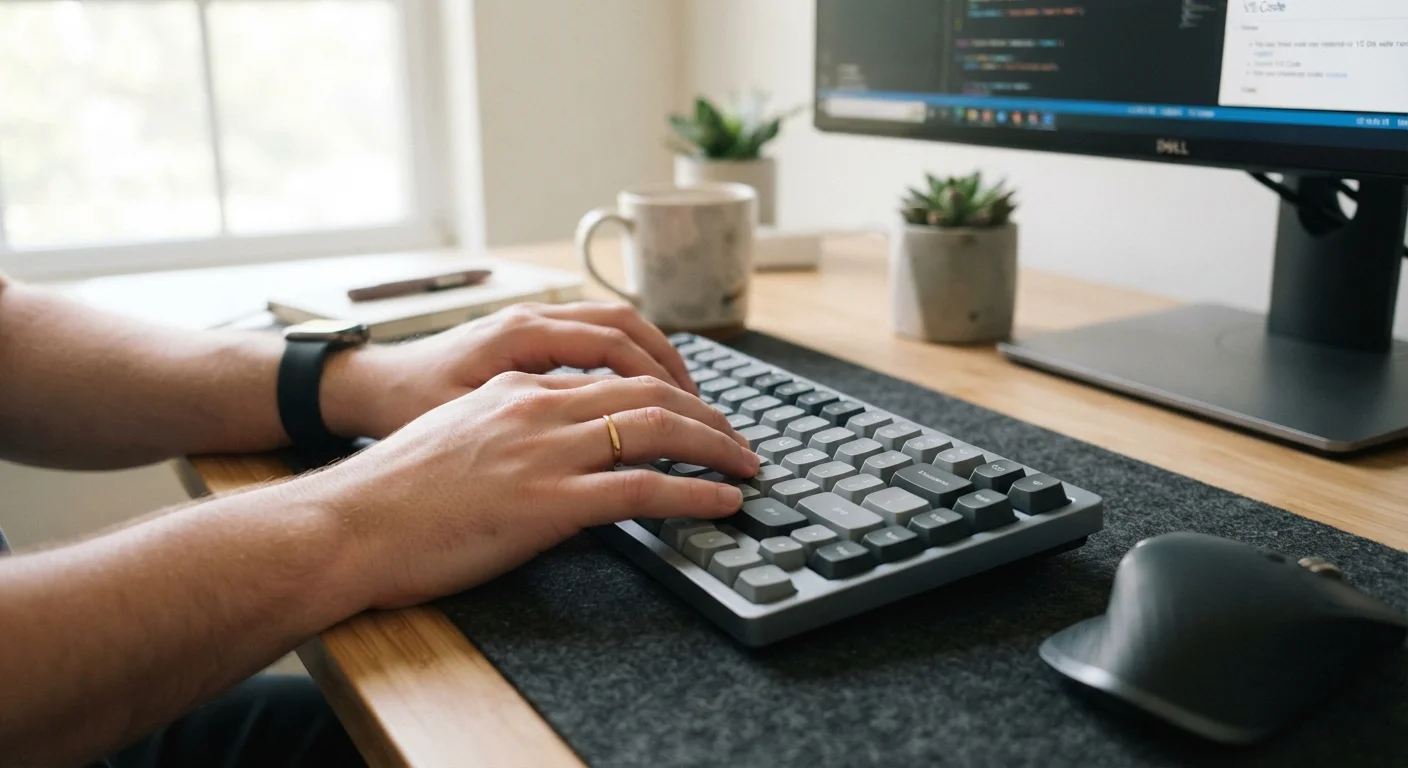
Why Keyboard Shortcuts Actually Matter
Reaching for the mouse dozens of times per hour adds up. Researchers who study computer interaction have observed that even small reductions in hand travel - switching from pointing-and-clicking to keyboard combinations - compound into meaningful time savings over a full workday. More importantly, they reduce the mental interruption of breaking flow to navigate menus.
This guide focuses on shortcuts that deliver real, daily value for general computing tasks: text editing, window management, and browser navigation. You don't need to memorize everything at once. Pick two or three, practice them until they feel automatic, then add more. If you're comparing how these conventions differ across operating systems, our breakdown of Windows vs. macOS explains the broader context.
| Windows Modifier Key | Ctrl, Win, or Alt |
| macOS Primary Modifier Key | Command (⌘) |
| Universal Undo Shortcut | Ctrl + Z (Windows) / ⌘ + Z (Mac) |
| Screen Lock | Win + L (Windows) / Control + ⌘ + Q (Mac) |
| Clipboard History (Windows) | Win + V (Available on Windows 10 version 1809 and later) |
| Quick App Launcher (macOS) | ⌘ + Space (Spotlight) |
Essential Shortcuts for Windows Users
Windows shortcuts are built around the Ctrl, Win, and Alt keys. The following are among the most broadly useful:
- Win + D - Show or hide the desktop instantly.
- Win + L - Lock the computer without logging out; useful for stepping away briefly.
- Win + V - Open clipboard history to paste from recently copied items, not just the last one.
- Ctrl + Shift + T - Reopen the last closed browser tab (works in most major browsers).
- Alt + Tab - Cycle through open applications; hold Alt and tap Tab repeatedly to select.
- Win + Arrow keys - Snap the active window to half or a quarter of the screen for side-by-side work.
- Ctrl + Z / Ctrl + Y - Undo and redo actions across most applications.
- F2 - Rename the selected file or folder in Explorer without right-clicking.
Window snapping in particular is underused. Instead of manually resizing windows, pressing Win + Left or Win + Right instantly tiles them - practical when working from a single monitor.
Modifier Key
A key that alters the function of another key when held simultaneously. Common examples include Ctrl, Alt, Shift on Windows and Command (⌘), Option, and Control on macOS.
Clipboard History
A feature that stores multiple recently copied items, allowing users to paste from a list rather than only the most recent copy. Accessed on Windows via Win + V.
Spotlight
macOS's built-in system-wide search tool. Opened with ⌘ + Space, it can launch apps, find files, convert units, and perform quick calculations.
Window Snapping
A feature that automatically resizes and positions an application window to occupy a defined portion of the screen - typically half or a quarter - using keyboard shortcuts or drag gestures.
Essential Shortcuts for macOS Users
On a Mac, the Command (⌘) key does much of what Ctrl does on Windows, but macOS adds its own conventions worth learning separately. If you're new to the platform, our Mac setup guide covers foundational system preferences alongside these habits.
- ⌘ + Space - Open Spotlight search to launch apps, find files, or do quick calculations.
- ⌘ + Tab - Switch between open applications.
- ⌘ + ` (backtick) - Cycle through windows of the same app - useful when multiple documents are open.
- ⌘ + Shift + 4 - Take a screenshot of a selected area; press Space afterward to capture a specific window.
- ⌘ + Option + Esc - Force-quit a frozen application without restarting.
- Control + ⌘ + Q - Lock the screen immediately.
- ⌘ + Shift + T - Reopen the last closed Safari tab.
Spotlight (⌘ + Space) is worth special mention. Many users never discover it replaces the need to navigate application folders entirely - type an app's name and press Return.
Shortcuts That Work Almost Everywhere
A few conventions are consistent across both platforms and most applications, making them the highest-return shortcuts to learn first:
8 seconds
Average time saved per mouse navigation avoided
Computer interaction research consistently finds that menu navigation takes several seconds longer than the equivalent keyboard shortcut for practiced users.
~2 hours/week
Potential time recovered by power shortcut users
Productivity researchers estimate that heavy keyboard shortcut use can reclaim roughly two hours of working time per week for users performing repetitive tasks.
| Action | Windows | macOS |
|---|---|---|
| Copy | Ctrl + C | ⌘ + C |
| Paste | Ctrl + V | ⌘ + V |
| Cut | Ctrl + X | ⌘ + X |
| Select All | Ctrl + A | ⌘ + A |
| Find | Ctrl + F | ⌘ + F |
| Save | Ctrl + S | ⌘ + S |
| New Tab (browser) | Ctrl + T | ⌘ + T |
| Close Tab | Ctrl + W | ⌘ + W |
Pairing solid keyboard habits with a comfortable physical setup amplifies these gains. Peripherals that improve a home office setup and choosing the right keyboard type both affect how sustainable shortcut use becomes over time.
