
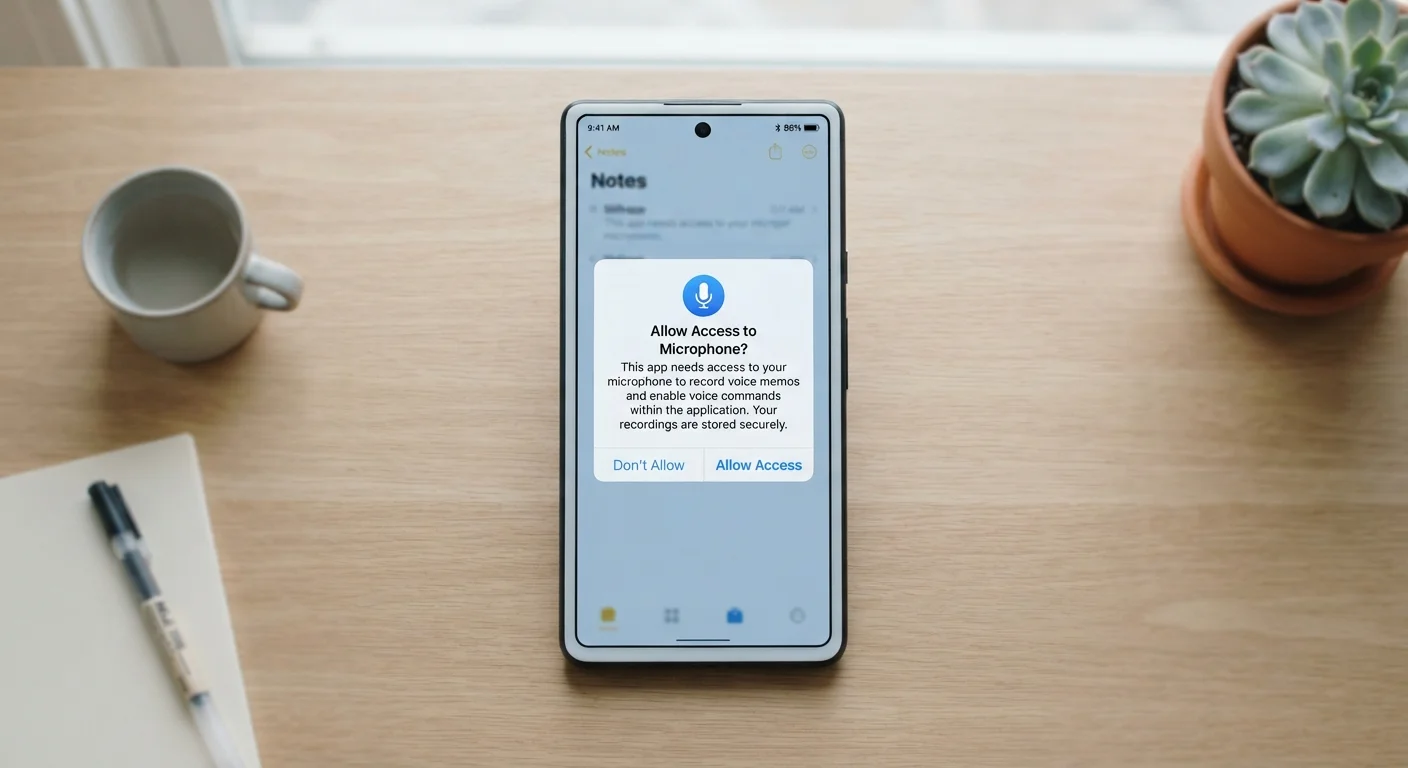
Why Permission Prompts Matter More Than Most People Realize
Most smartphone users tap "Allow" on permission prompts without a second thought - and app developers know it. That split-second decision, however, can grant an app sustained access to some of the most sensitive data on your device: your precise location, every photo in your camera roll, your list of contacts, or even your microphone.
Unlike a one-time information handoff, permissions typically remain active indefinitely. An app you downloaded two years ago and rarely open may still be quietly pulling your location in the background. Understanding what each permission category actually means - and when it's genuinely necessary - puts control back in your hands.
For a broader look at how these settings fit into your overall smartphone privacy posture, see our guide to privacy settings every smartphone owner should review.
Permissions Aren't Just About Privacy
Some permissions - particularly background location and unrestricted media access - can also affect battery life and mobile data consumption. Apps running location services continuously in the background draw measurable power. If you're looking to extend battery life or cut data use, reviewing active permissions is a practical starting point alongside the tips in our guide to reducing mobile data usage.
Decoding the Most Common Permission Categories
Here's what the permissions you encounter most frequently actually allow:
- Location: Gives the app access to where you physically are, either precisely (GPS-level) or approximately (network-based estimate). Navigation apps need this; most games do not.
- Camera: Allows the app to activate your camera and capture photos or video. A video-calling app needs this; a budgeting tool does not.
- Microphone: Enables the app to record audio. Voice assistants and call apps have clear reasons; many other apps do not.
- Contacts: Provides read (and sometimes write) access to your entire address book, including names, phone numbers, and email addresses - not just your own.
- Photos / Media: Grants access to images and files stored on your device. On newer iOS versions, you can limit this to specific photos rather than your full library.
- Notifications: Allows the app to send alerts to your lock screen and notification panel. This is less a privacy risk and more an attention and battery consideration.
- Bluetooth: Lets the app discover and communicate with nearby Bluetooth devices - increasingly requested by apps that have no obvious wireless hardware function.
45%
Apps requesting location access unnecessarily
A Pew Research Center study found that roughly 45% of smartphone users had turned off location access for an app because they felt the request was unwarranted.
1 in 3
Users who never review app permissions
Consumer research by NortonLifeLock indicated that approximately one-third of smartphone users have never reviewed the permissions granted to their installed apps.
~80%
Of free apps share data with third parties
Research published in academic privacy literature consistently estimates that a large majority of free mobile apps transmit user data to third-party advertising or analytics services.
How to Tell If a Permission Request Is Reasonable
A useful mental test: ask whether the requested permission is necessary for the app's stated purpose, or merely convenient for the developer's data interests. A weather app requesting location access makes sense - it needs to know where you are to give you a forecast. That same weather app requesting access to your microphone does not.
Red flags worth pausing on include:
- Requests for permissions with no clear link to the app's core function
- Prompts that appear before you've even used any relevant feature
- Apps that refuse to function at all unless you grant every requested permission
On Android, you can select "Only this time" for sensitive permissions like location or microphone, limiting access to the current session. iOS offers similar granularity, including the option to share only approximate location. Taking advantage of these options is a low-effort way to limit exposure without breaking functionality.
Use 'Ask Every Time' for Sensitive Permissions
For high-sensitivity permissions like microphone and precise location, choosing the "Ask Every Time" (iOS) or "Only this time" (Android) option rather than "Always Allow" is a simple safeguard. This ensures you consciously approve access each session, and apps that don't genuinely need constant access won't get it automatically. It takes only a few extra taps but meaningfully limits background data collection.
Auditing and Managing Your Existing Permissions
Reviewing what permissions your currently installed apps hold is one of the most practical privacy habits you can build. On both major platforms, you can view permissions organized either by app or by permission category - the latter being especially useful for spotting which apps have access to your camera or location in aggregate.
A sensible approach is to audit permissions whenever you notice an app you haven't opened in months, after installing a new app you're not fully sure about, or on a regular schedule - perhaps every few months. If an app's permission doesn't match what you use it for, revoke it. The app will ask again if it actually needs the access.
Parents setting up phones for younger users should pay particular attention to permissions across all installed apps. Our parent's guide to smartphone setup and oversight covers how to configure restrictions that limit what data apps can access on a child's device.
For those concerned about broader mobile risks, mobile security threats that target everyday smartphone users explains how over-permissioned apps can become a vector for data exposure.
“The permission system is fundamentally a trust model - it assumes users will make informed choices, but that only works if they understand what they're being asked.”
— Electronic Frontier Foundation, Digital rights nonprofit focused on user privacy and technology
