
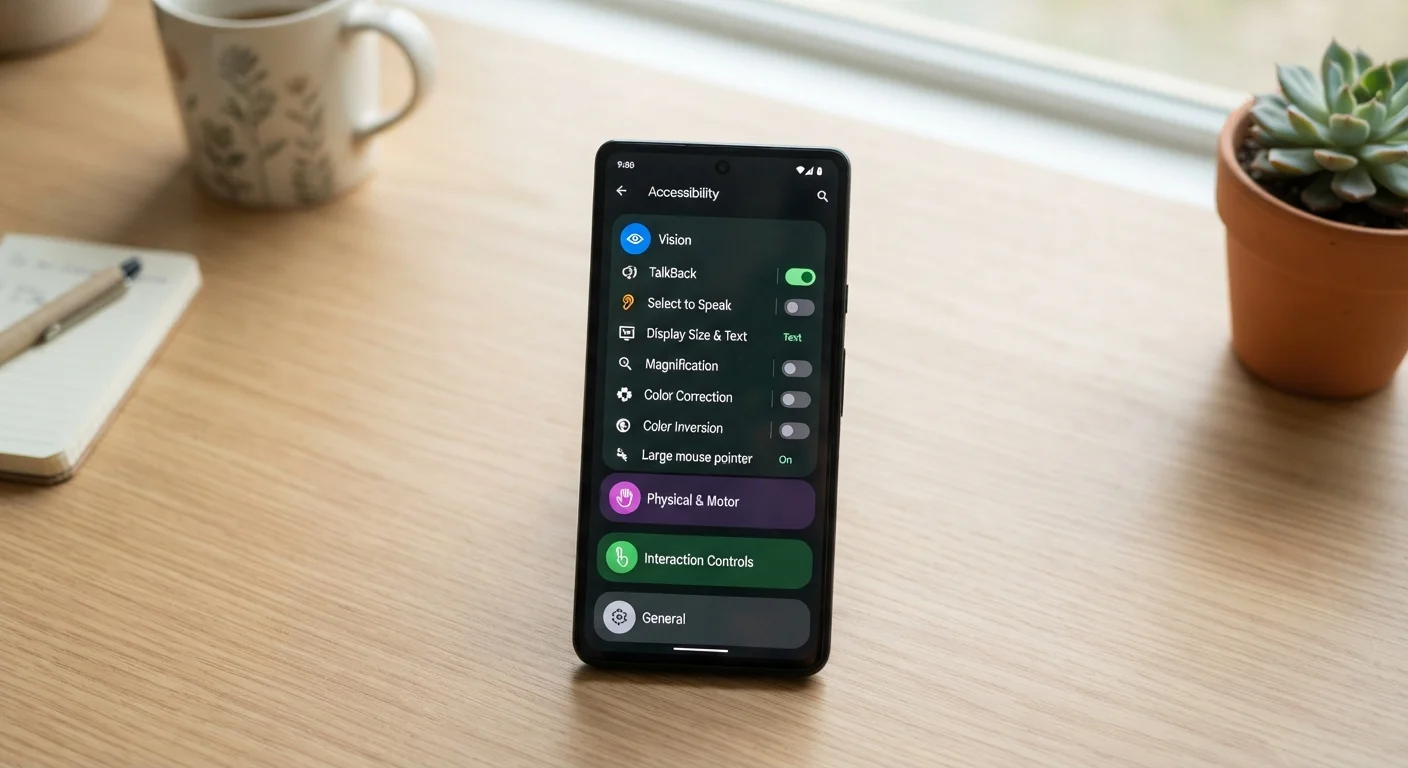
What Your Phone's Accessibility Menu Actually Contains
When most people hear "smartphone accessibility," they picture enlarged fonts or a screen brightness slider. In reality, modern iOS and Android devices ship with entire suites of assistive technology - tools sophisticated enough to replace specialized hardware that once required separate, costly devices.
These features are designed with users who have visual, hearing, motor, or cognitive disabilities in mind, but their usefulness extends well beyond those groups. A parent juggling a toddler, a driver needing hands-free interaction, or a worker in a loud warehouse can each benefit from tools built for accessibility. Understanding what's available - and where to find it - is the first step to using your phone more effectively.
If you're also reviewing how your phone handles privacy alongside usability, see our guide to privacy settings every smartphone owner should review. And for context on how voice-based interaction works at a system level, our piece on the privacy trade-offs of voice assistants covers important considerations.
Where to Find These Features
On iOS, accessibility tools are located under Settings > Accessibility. On Android, navigate to Settings > Accessibility (the exact path varies slightly by manufacturer). Both platforms organize features by category - Vision, Hearing, Physical & Motor - making it straightforward to explore what's available without knowing feature names in advance.
Seven Accessibility Features Worth Knowing
Voice Control and Full Hands-Free Navigation
Voice control goes well beyond asking a virtual assistant to set a timer. Both iOS and Android include system-level voice control that lets users navigate the entire phone - opening apps, scrolling, typing, and tapping buttons - using only spoken commands. On iOS, this feature is called Voice Control; Android offers a similar capability through Voice Access.
These tools are particularly valuable for people with motor impairments, but they're equally practical for anyone who regularly drives, cooks, or works with their hands. Commands are precise and customizable, and the feature works even without an internet connection on iOS.
Voice control lets users navigate every corner of their phone without touching the screen.
Sound Recognition and Live Captions
Many people don't realize their phone can actively listen for sounds in the environment and alert them visually. iOS includes Sound Recognition, which can detect alarms, sirens, doorbells, crying, and more - then send a notification. Android's Sound Notifications feature (via the Accessibility suite) works similarly.
Separately, Live Captions (available on Android and through third-party apps on iOS) generates real-time subtitles for any audio playing on the phone - videos, calls, podcasts - without requiring an internet connection on supported devices. For users who are deaf, hard of hearing, or simply in noisy environments, this dramatically expands how usable media content becomes.
Live Captions generates real-time subtitles for any audio on your phone, entirely on-device.
Switch Access for Alternative Input
Switch Access (Android) and Switch Control (iOS) allow users to operate their phone using one or more external switches - physical buttons, sip-and-puff devices, or even head movements tracked by the front-facing camera. The phone scans through interactive elements on the screen, and the user selects items using their chosen input.
This is among the most powerful - and least discussed - accessibility tools available. It's designed for people with significant physical disabilities, but the underlying infrastructure also enables creative use cases like single-handed operation or foot-pedal control.
Switch Access opens smartphone use to people who cannot interact with a touchscreen at all.
Color Filters and Display Accommodations
Roughly 1 in 12 men and 1 in 200 women experience some form of color vision deficiency, according to general estimates from vision research. Smartphones address this with color filters built directly into display settings - options typically include deuteranopia, protanopia, and tritanopia filters, as well as grayscale and hue rotation modes.
Beyond color blindness, both platforms offer reduce white point and reduce transparency settings, which lower visual intensity for users sensitive to bright screens or migraine triggers. These settings require no apps and take effect instantly across the entire operating system.
Color filters and reduced transparency settings are built-in tools no separate app can match for system-wide consistency.
Screen Readers: Far More Than Audio Text
Screen readers like VoiceOver (iOS) and TalkBack (Android) are full navigational systems, not just text-to-speech. They describe every element on the screen - buttons, images with alt text, input fields, and navigation gestures - enabling completely non-visual phone use.
They also support braille displays connected via Bluetooth, making smartphones a powerful tool for users who are deafblind. Well-designed apps expose accessibility labels that screen readers can announce accurately; poorly coded apps may present real barriers. This is why app accessibility is an ongoing software development consideration, not a one-time checkbox.
Screen readers like VoiceOver and TalkBack enable completely non-visual smartphone operation, including braille output.
Magnifier and Point-and-Read Tools
The Magnifier app (iOS) turns the phone's camera into a high-powered magnifying glass with adjustable brightness, contrast, and color filters - useful for reading medication labels, restaurant menus, or small print. Android devices include similar functionality under Magnification in accessibility settings, allowing pinch-to-zoom on any screen.
iOS takes this further with Magnifier's Detection Mode, which can describe scenes, read text aloud from the camera feed, and even identify people's proximity - functionality that was once exclusive to specialized assistive devices costing thousands of dollars. These capabilities are now standard on any modern iPhone.
The Magnifier app replaces specialized assistive hardware that once cost thousands of dollars.
AssistiveTouch and Touch Accommodations
AssistiveTouch (iOS) creates a floating on-screen menu that replicates hardware buttons and multi-finger gestures with a single tap - helpful for users with limited dexterity or a damaged physical button. Android offers Accessibility Menu, a large on-screen overlay with shortcuts to common actions.
Touch accommodations allow adjustment of how long a touch must be held before it registers, how much finger movement is tolerated before a tap is canceled, and whether repeat touches are ignored. These fine-grained controls make a significant difference for people with tremors or other motor conditions affecting touch precision.
Touch accommodation settings let users tune exactly how the screen responds to their individual touch pattern.
Try Accessibility Features Before You Need Them
Accessibility settings aren't only for users with disabilities - many are genuinely useful in everyday situations like bright sunlight, noisy environments, or one-handed use. Spend a few minutes exploring your phone's Accessibility menu to discover tools that may improve your daily experience right now. You can enable and disable most features instantly with no lasting effect on your phone.
Who Benefits - and Why It Matters for Everyone
Disability rights advocates and accessibility researchers often describe a concept called the "curb-cut effect" - the observation that design improvements made for people with disabilities tend to improve usability for everyone. Curb cuts were designed for wheelchair users, but they're used daily by strollers, cyclists, and delivery carts. The same principle applies to smartphone accessibility features.
Live Captions help workers in loud environments. Color filters ease eye strain during late-night use. Voice control assists anyone whose hands are temporarily occupied. These are not edge-case features - they're thoughtfully designed tools that reward exploration.
Older adults navigating smartphone use for the first time may find our related guide on accessibility features that make tablets easier for older adults a useful companion. For those looking to get better overall control of their phone's interface, organizing your phone so you can actually find things pairs well with what's covered here.
The full depth of smartphone accessibility remains underexplored by most users. Taking fifteen minutes to walk through your device's Accessibility settings - without a specific need in mind - is time well spent.
