
Why Background Data Quietly Drains Your Plan
Most smartphone owners assume they know which apps eat their data — streaming video, social media, navigation. What surprises many people is how much data disappears while the phone sits in a pocket. Background app refresh, push email syncing, automatic OS and app updates, and location-based advertising all consume cellular bandwidth without any action from you.
Understanding this distinction — foreground versus background data — is the foundation of effective data management. Foreground data is consumed when you actively use an app. Background data is consumed when the app is technically closed or the screen is off. On both Android and iOS, background data is configurable on a per-app basis, giving you precise control without removing apps you rely on.
If you are also thinking about data privacy alongside data usage, reviewing your smartphone privacy settings often addresses both problems simultaneously, since the same permissions that expose personal data tend to generate unnecessary network traffic.
What you will need
Step-by-Step: Adjusting Your Settings
The steps below cover the most impactful changes available natively on both major mobile platforms. Menu labels may vary slightly by OS version or device manufacturer, but the settings exist on all modern Android and iOS devices.
Check your current data usage by app
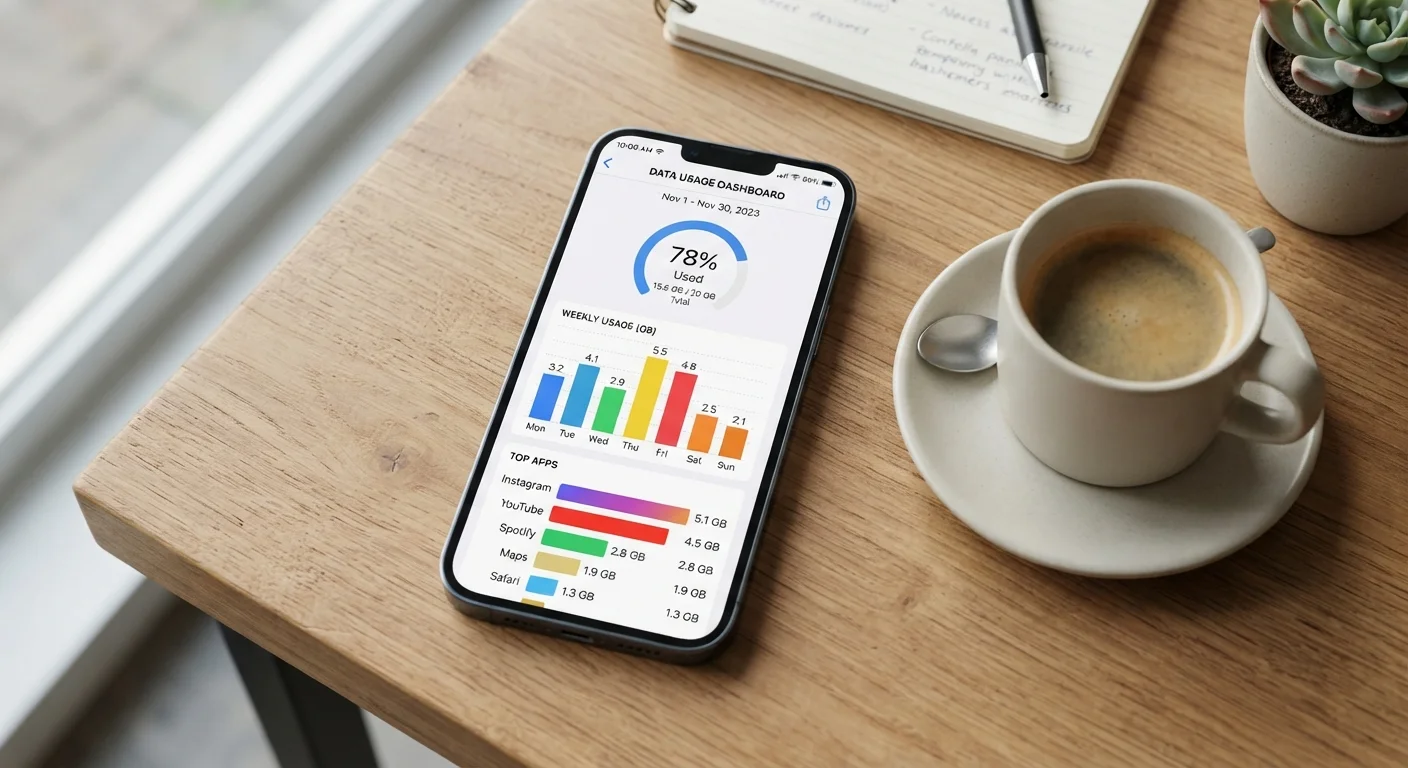
Before changing anything, identify where data is actually going. On Android, go to Settings → Network & internet → Data usage → Mobile data usage. On iOS, go to Settings → Cellular (or Mobile Data). Both screens list apps ranked by consumption for the current billing cycle. Note the top five offenders — especially any that surprise you.
Enable your phone's built-in Data Saver mode
Both platforms include a global throttle for background data. On Android, navigate to Settings → Network & internet → Data Saver and toggle it on. On iOS, go to Settings → Cellular → Cellular Data Options → Low Data Mode and enable it. These modes prevent background apps from refreshing unless you are actively using them, with minimal impact on foreground performance.
Restrict background data for high-consumption apps
For apps that consistently appear at the top of your usage list, restrict their background access individually. On Android, go to Settings → Apps → [App name] → Mobile data & Wi-Fi and disable Background data. On iOS, go to Settings → Cellular and toggle off the cellular access for any app that does not need it while you are not actively using it.
Turn off automatic app and OS updates over cellular
App updates can be substantial in size and often download in the background without notification. On Android, open the Google Play Store, tap your profile icon, go to Settings → Network preferences → Auto-update apps, and select Over Wi-Fi only. On iOS, go to Settings → App Store and disable Automatic Downloads under the Cellular Data section.
Set cloud backups and photo syncing to Wi-Fi only
Cloud backup services — including Google Photos, iCloud, and third-party equivalents — can sync large amounts of data continuously. On Android with Google Photos, open the app, go to Profile → Photos settings → Backup → Mobile data usage and set it to Don't use mobile data. On iOS, iCloud backup is Wi-Fi only by default, but confirm by going to Settings → [your name] → iCloud → iCloud Backup and checking that Back Up Over Cellular is off.
Adjust streaming quality for audio and video apps
Streaming services often default to the highest available quality, which consumes significantly more data per minute. In each streaming app you use, locate the settings for video quality or audio quality and set the cellular option to a lower tier — typically labeled Standard, Medium, or Data Saver. The perceptible quality difference on a phone-sized screen is usually minimal, while the data saving is substantial.
Wi-Fi First: The Simplest Rule
The single highest-impact habit you can build is defaulting to Wi-Fi for any data-heavy task — backups, downloads, streaming, and updates. Combining this habit with the settings changes above produces far greater savings than either approach alone. Make a practice of connecting to trusted networks whenever you are at home, work, or a familiar location.
Once you have worked through these steps, it is worth checking how your phone handles shared connections. If you use your phone as a hotspot, understanding how hotspot data is consumed helps you apply the same discipline to tethered devices.
Keeping Usability Intact
A common concern is that reducing data usage means degraded app performance or missed notifications. In practice, the changes above are surgical: you are restricting what happens in the background, not how apps behave when you open them. Messages, calls, and real-time alerts from apps you care about can be preserved by selectively enabling background data only for those apps.
Reducing unnecessary data consumption can also translate to lower monthly costs if you are on a tiered or pay-as-you-go plan. For a broader look at trimming recurring expenses without disrupting your lifestyle, practical strategies for cutting spending without feeling deprived offer a useful complement to the technical changes here.
Do Not Restrict Critical Safety Apps
Avoid disabling cellular data or background refresh for apps you may depend on in an emergency — such as navigation, emergency alerts, or health-monitoring apps. Review each restriction carefully before applying it. When in doubt, leave emergency-adjacent apps unrestricted.
Finally, consider auditing which apps have access to data at all. Understanding what app permissions actually grant helps you identify which installed apps have no legitimate reason to access the network in the background.
