
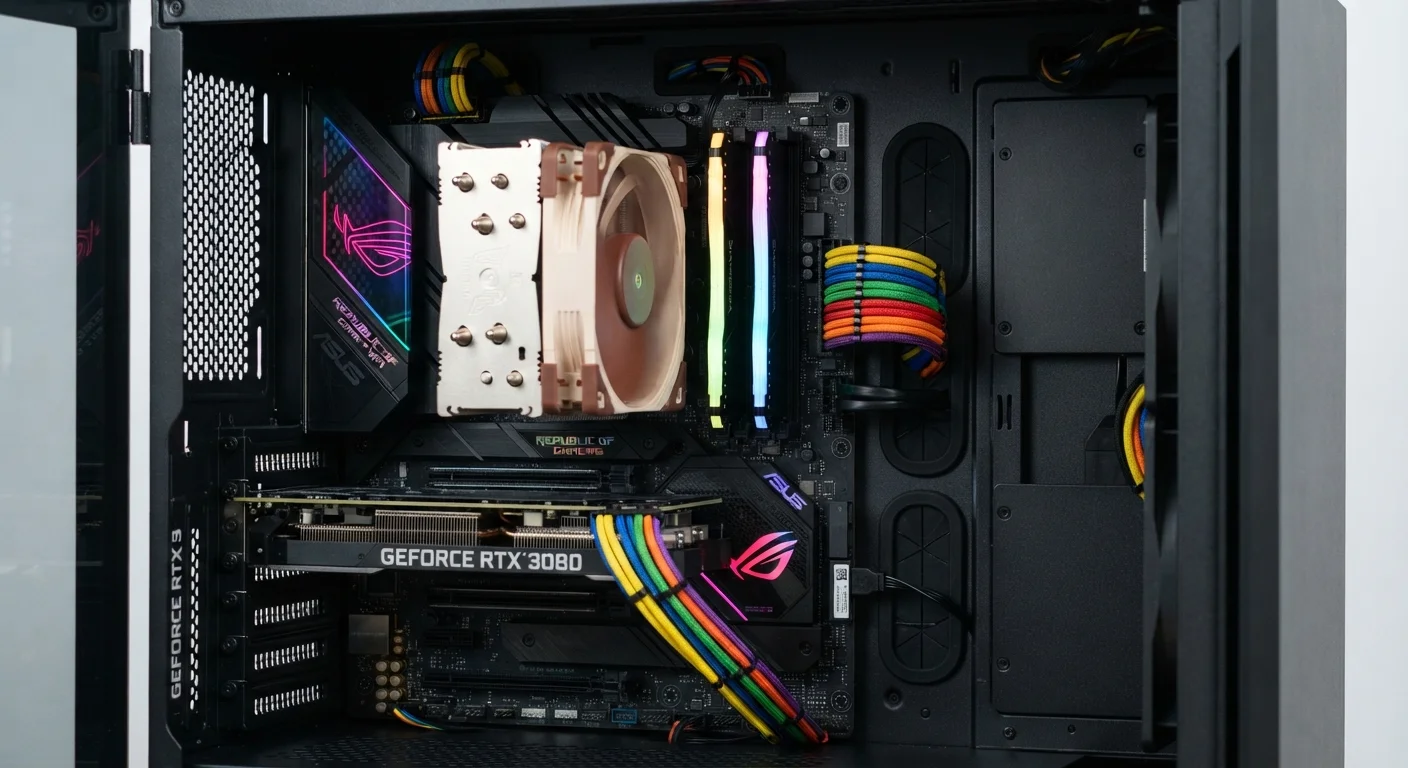
The Motherboard: Your Computer's Backbone
Pop the side panel off a desktop PC and the first thing you'll notice is a large, flat circuit board covered in slots, sockets, and connectors. That's the motherboard - the component that ties everything else together. Every other part either plugs directly into it or connects to it through cables.
The motherboard doesn't perform computations itself, but it determines which components are compatible with each other and how quickly they can exchange data. It houses the chipset - a set of chips that manages communication between the CPU, RAM, and storage devices - as well as the BIOS or UEFI firmware, which is the low-level software your computer runs when it first powers on before your operating system loads.
Motherboard
The main circuit board inside a computer that connects all components and allows them to communicate with each other.
Chipset
A group of chips on the motherboard that manages data traffic between the CPU, RAM, storage, and other components.
BIOS / UEFI
Low-level firmware stored on the motherboard that runs when the computer first powers on, before the operating system loads.
Integrated Graphics
A graphics processor built directly into the CPU that handles basic visual tasks without needing a separate graphics card.
Thermal Throttling
An automatic process where a CPU or GPU reduces its speed to lower heat output and prevent damage when temperatures get too high.
VRAM
Video RAM - dedicated high-speed memory on a graphics card used to store image and texture data for fast rendering.
For a deeper look at the ports you'll find on the outside of your machine, see our guide to computer ports and connectors.
The CPU: Where Thinking Happens
The CPU (Central Processing Unit) is often called the brain of a computer - and that's a fair description. It carries out the instructions that make software work, from loading a webpage to running a spreadsheet formula. Every action you take on your computer ultimately traces back to the CPU executing a sequence of instructions.
Two numbers describe a CPU's capability most directly: core count and clock speed. Cores are independent processing units within the chip; more cores allow the CPU to work on multiple tasks simultaneously. Clock speed, measured in gigahertz (GHz), reflects how many instruction cycles the CPU completes per second - higher generally means faster at single-threaded tasks. Modern CPUs also include integrated graphics, which handle basic visual output without needing a separate graphics card.
Check CPU Generation, Not Just Speed
Clock speed comparisons are only meaningful within the same CPU generation and family. A newer processor with a lower clock speed can easily outperform an older chip with a higher number. When evaluating CPUs, pay attention to the generation and architecture, not just GHz.
For a detailed explanation of CPU specs and what those numbers actually mean, our CPU guide walks through core counts, generations, and more.
RAM and Storage: Memory vs. Space
These two are frequently confused, but they do very different jobs. RAM (Random Access Memory) is your computer's short-term, working memory. When you open an application, the computer loads it into RAM so the CPU can access it quickly. The more RAM you have, the more programs you can run at once without slowdown. Close the program, and that RAM is freed up - nothing is saved there permanently.
Storage is where everything lives long-term: your operating system, photos, documents, and installed apps. Most modern computers use a Solid State Drive (SSD), which stores data on flash memory chips and is significantly faster than older Hard Disk Drives (HDDs), which use spinning magnetic platters. SSDs have no moving parts, making them more durable and quicker to load files.
When evaluating a laptop or desktop, both matter - but in different ways. See our guide to RAM, storage, and processing power for practical advice on choosing the right balance.
Don't Confuse Storage Capacity With Speed
A large hard drive doesn't mean a fast computer. An older HDD with 2TB of space will feel noticeably slower than a newer SSD with 256GB, particularly at startup and app loading. Prioritize storage type (SSD vs. HDD) as much as capacity when assessing a machine's performance.
The GPU, Power Supply, and Cooling
The GPU (Graphics Processing Unit) handles rendering images, video, and animations. While CPUs handle general tasks sequentially, GPUs are designed to process many smaller calculations simultaneously - which is exactly what displaying millions of pixels requires. Casual users can often rely on integrated graphics built into the CPU, but video editors, gamers, and 3D designers typically benefit from a dedicated GPU with its own video memory (VRAM).
The Power Supply Unit (PSU) converts the alternating current (AC) from your wall outlet into the direct current (DC) that computer components require. It's rated in watts; a system with a powerful CPU and GPU needs more wattage to run stably. A low-quality or underpowered PSU is a common but underappreciated source of system instability.
Cooling is what keeps all of this from overheating. CPUs and GPUs generate substantial heat, managed through heatsinks, fans, or liquid cooling loops. When a component gets too hot, it automatically slows itself down - a process called thermal throttling - to avoid damage. Good airflow through the case and quality cooling hardware preserve both performance and long-term reliability.
Once you understand what's inside your machine, reading a spec sheet becomes far less intimidating. Our guide to reading computer spec sheets can help you apply this knowledge when evaluating your next purchase.
How to Read a Computer Spec Sheet
Learn to decode the acronyms and numbers on any computer listing so you know exactly what you're evaluating before making a decision.
Computer Security Basics
Once you understand your hardware, protect it. This guide covers foundational security practices every everyday computer user should know.
