
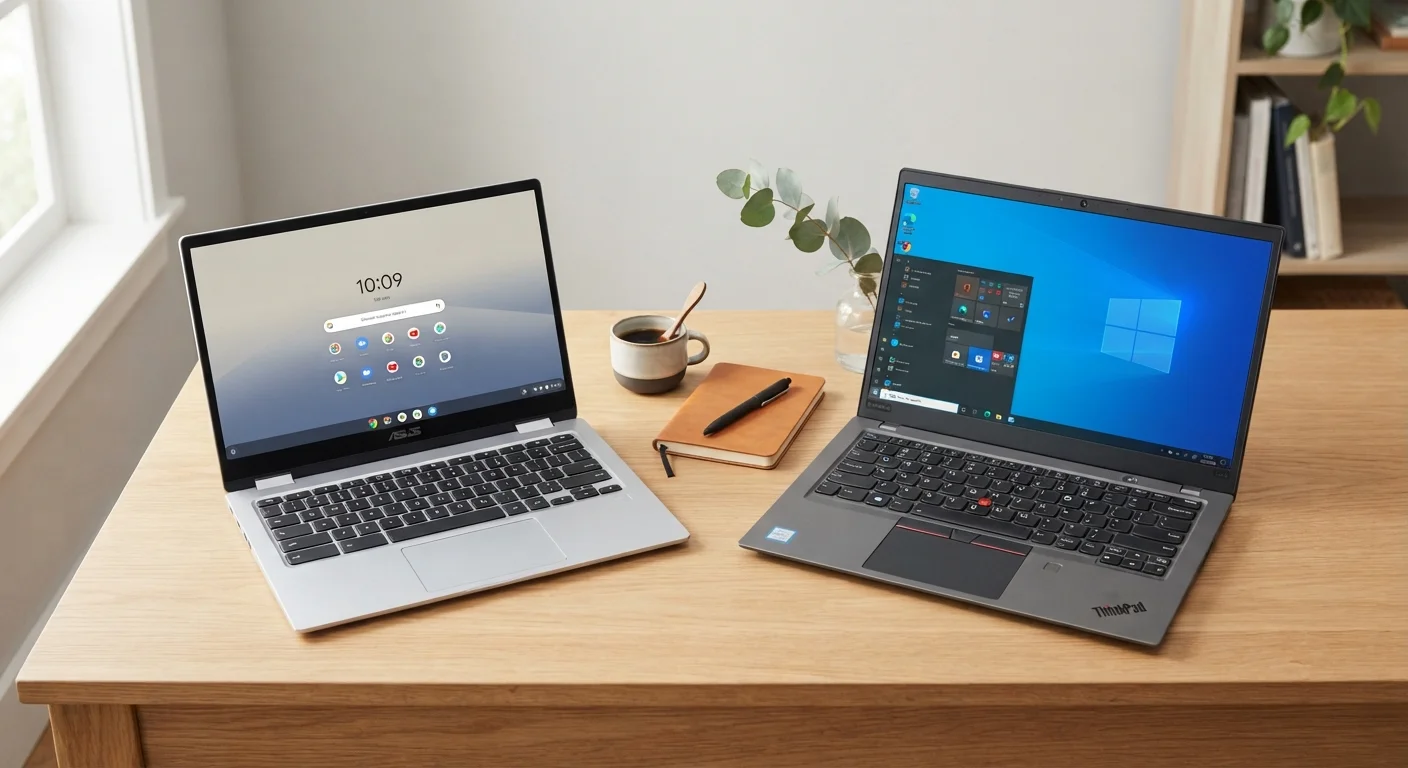
Two Platforms, Two Philosophies
At first glance, a Chromebook and a Windows laptop can look nearly identical - same clamshell form factor, same keyboard and trackpad layout. But beneath the surface, they represent meaningfully different approaches to computing.
ChromeOS, the operating system powering Chromebooks, is built around the browser and Google's cloud ecosystem. Most of what you do happens in Chrome or through web apps. Local storage is intentionally limited - typically 32GB to 128GB - because the model assumes you'll store files in Google Drive. Windows, by contrast, is a full general-purpose operating system that lets you install traditional desktop software, manage local files freely, and operate largely without internet access.
Neither approach is wrong. But they suit different users. Understanding which model fits your actual habits is the clearest path to a decision you won't regret. For a deeper look at how specs factor in across both platforms, see our guide to RAM, storage, and processing power.
| Criterion | Chromebook | Windows Laptop |
|---|---|---|
| Operating System | ChromeOS (Google) | Windows (Microsoft) |
| Software Library | Web apps, Android apps, limited Linux | Full desktop software ecosystem |
| Local Storage | Typically 32GB-128GB | Typically 256GB-1TB+ |
| Offline Capability | Limited; cloud-dependent | Fully functional offline |
| Maintenance | Minimal; auto-updates | More active management needed |
| Boot Speed | Very fast | Varies by hardware |
| Hardware Variety | Moderate range | Very wide range |
| Ideal Primary Use | Browsing, Google apps, streaming | General purpose, professional, creative |
Software Access: The Most Important Difference
The software gap between ChromeOS and Windows is the single biggest practical distinction for most users.
Chromebooks support Chrome browser extensions, Progressive Web Apps (PWAs), and - on most modern models - Android apps from the Google Play Store. This covers a lot of ground: streaming, communication tools, light document editing, and casual apps. However, if you rely on software that must be installed as a traditional desktop program - think accounting software, professional video editors, engineering tools, or certain employer-required applications - ChromeOS almost certainly won't support it.
Windows laptops run the full Windows ecosystem, including decades of software built for the platform. That breadth matters for professionals, students in technical programs, and anyone whose workflow is tied to a specific installed application.
~35%
U.S. K-12 laptop market share held by Chromebooks
Chromebooks became widely adopted in U.S. schools due to their manageability and integration with Google Classroom.
1 billion+
Active Windows devices worldwide
Microsoft has reported over one billion active Windows devices globally, reflecting its broad reach across consumer and enterprise markets.
It's also worth noting that ChromeOS has improved meaningfully over time. Linux app support, available on many Chromebooks, does extend capability - but it requires some technical comfort and isn't a seamless experience for most general users.
Performance, Battery Life, and Maintenance
Chromebooks often feel fast even on modest hardware because ChromeOS is lightweight - it doesn't carry the background processes that a full Windows installation does. Boot times are typically short, and day-to-day browsing and app use feel responsive at lower price points than comparable Windows machines.
Windows laptops span a much wider performance range, from thin-and-light machines built for portability to high-performance workstations. That variety is an advantage, but it also means the experience varies considerably depending on the hardware.
Battery life tends to be strong on Chromebooks, partly due to efficient processors and an OS designed to minimize unnecessary background activity. Many Windows laptops now offer excellent battery life as well, though it varies significantly by model and workload.
Maintenance differences are real: ChromeOS updates silently in the background with minimal user input, and there's no traditional antivirus software to manage. Windows requires more active attention - updates, driver management, and security software - though Microsoft has improved its built-in tools considerably.
ChromeOS Has a Software Update Lifespan
Google assigns each Chromebook model an Auto Update Expiration (AUE) date - after which the device no longer receives ChromeOS updates, including security patches. Before choosing a Chromebook, it's worth checking how many years of support remain for that model. Windows laptops don't have a model-specific expiration tied to hardware in the same way, though Microsoft does set end-of-support dates for Windows versions.
If you're also weighing whether a laptop is even the right form factor, our comparison of tablets vs. laptops covers that decision in detail.
Who Should Choose Which
The right choice depends almost entirely on your actual use pattern - not on which device has a more impressive spec sheet.
A Chromebook is a strong fit if your computing is centered on Google Workspace (Docs, Sheets, Gmail), video streaming, web browsing, and occasional Android apps. It's particularly well-suited to households with younger students, light users who want simplicity, or anyone frustrated by the complexity of a traditional PC.
A Windows laptop makes more sense if you regularly use software that requires installation, work in environments where internet access isn't guaranteed, manage large local files (video, audio, photography), or simply want more flexibility in what your machine can do over time.
For users weighing how Windows compares against Apple's macOS platform, our Windows vs. macOS comparison explores those distinctions honestly. And before finalizing any purchase decision, the computer buying checklist can help you evaluate the specifics before committing.
