
Why Built-In Tools Are Worth Using
Most people underestimate how much time they spend on their phones - and that gap between perception and reality is exactly what native screen time tools are designed to close. Both Android's Digital Wellbeing feature and Apple's Screen Time dashboard provide usage data and practical controls without requiring any additional downloads, subscriptions, or account sign-ups.
These tools can surface genuinely useful information: which apps consume the most of your day, how often you pick up your device, and how many notifications you receive each hour. Acting on that data is, of course, a personal choice - but awareness is a reasonable starting point. For a broader look at what research actually supports around screens and wellbeing, see what the evidence says about screen time and mental health.
What you will need
Setting Up Digital Wellbeing on Android
Android's Digital Wellbeing suite is available on most devices running Android 9 (Pie) or later, though the exact menu labels may vary slightly by manufacturer. Here's how to configure it effectively.
Open Digital Wellbeing (Android) or Screen Time (iOS)
Android: Go to Settings → Digital Wellbeing & Parental Controls. You'll see a dashboard showing your total daily usage, most-used apps, and unlock count.
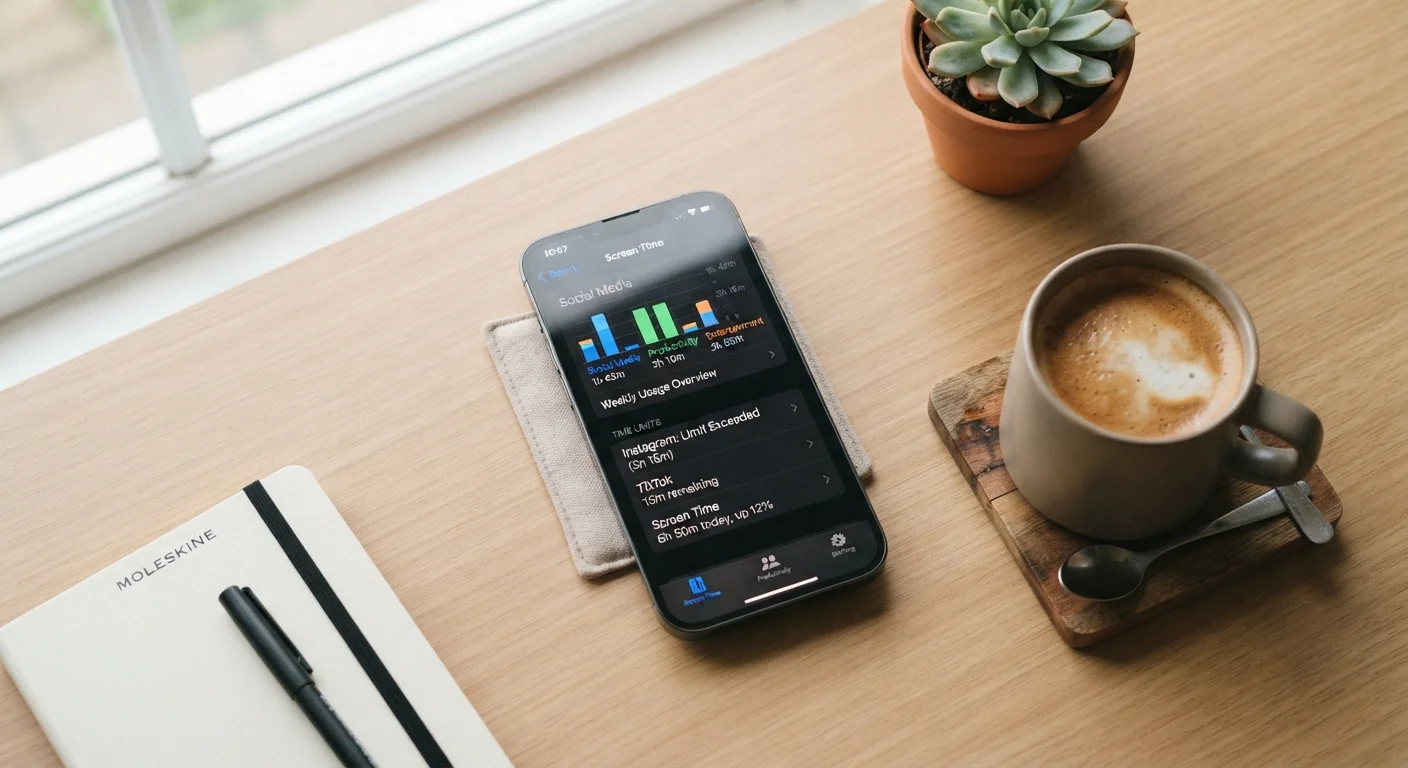
iOS: Go to Settings → Screen Time. Tap Turn On Screen Time if you haven't activated it yet. Your usage summary appears at the top of the screen.
Review Your Usage Dashboard
Spend a few minutes reading the data before making any changes. Both platforms show a daily and weekly breakdown by app category.
- Android: Tap the chart to see per-app usage for the current day.
- iOS: Tap See All Activity to view a full breakdown, including pickups and notifications received per app.
Note which two or three apps account for the majority of your time - these are the logical starting points for setting limits.
Set App Timers or App Limits
Android: From the dashboard, tap an app name, then select Set timer. Choose a daily time allowance. When the limit is reached, the app icon grays out and a notification appears.
iOS: Go to Screen Time → App Limits → Add Limit. You can restrict entire categories (such as Social Networking) or individual apps. Set your preferred daily limit and tap Add.
Schedule Downtime or Bedtime Mode
Android: Tap Bedtime mode (or Wind Down on some versions) and set a schedule. The screen can shift to grayscale and Do Not Disturb can activate automatically during those hours.
iOS: Navigate to Screen Time → Downtime. Set a start and end time. During Downtime, only apps you've explicitly allowed - and phone calls - remain accessible.
Manage Notifications to Reduce Interruptions
Reducing the number of notifications you receive is often as impactful as setting time limits. Both platforms allow per-app notification controls.
- Android: Settings → Notifications → tap any app to adjust alert types, sounds, and badge visibility.
- iOS: Settings → Notifications → select an app and toggle Allow Notifications or refine delivery to Scheduled Summary mode, which batches alerts at set times.
Notification volume data visible in Screen Time (iOS) can help you prioritize which apps to mute first.
Check Your Stats Weekly, Not Daily
Checking usage data every day can create unnecessary stress over normal fluctuations. Instead, review your weekly summary once a week to spot trends. Both platforms display a week-over-week comparison that provides more meaningful context than a single day's numbers.
If you manage a child's Android device, Family Link integrates directly with Digital Wellbeing to let you set limits and review activity remotely. Our parent's guide to smartphone setup and oversight covers that process in detail.
Configuring Screen Time on iOS
Apple's Screen Time is built into iPhones and iPads running iOS 12 or later. It offers similar controls to Android's Digital Wellbeing but with some distinct features, including a dedicated Communication Limits section and tighter integration with Family Sharing.
Passcode Resets Are Deliberately Difficult on iOS
Apple designed the Screen Time passcode recovery process to be intentionally restrictive, particularly for parental controls. If you forget the Screen Time passcode, recovery typically requires an Apple ID reset and may involve data loss in some configurations. Set a passcode only if you genuinely need to lock your own limits or manage a child's device.
Once you've reviewed your usage patterns, consider pairing these settings with a more organized home screen layout - a cluttered phone can drive mindless opening of apps. Our guide to organizing your phone so you can actually find things offers practical strategies for reducing that friction.
For broader device hygiene, it's also worth reviewing permissions alongside your screen time settings. See our privacy settings checklist for smartphone owners for a complementary walkthrough.
