
What a Router Actually Does
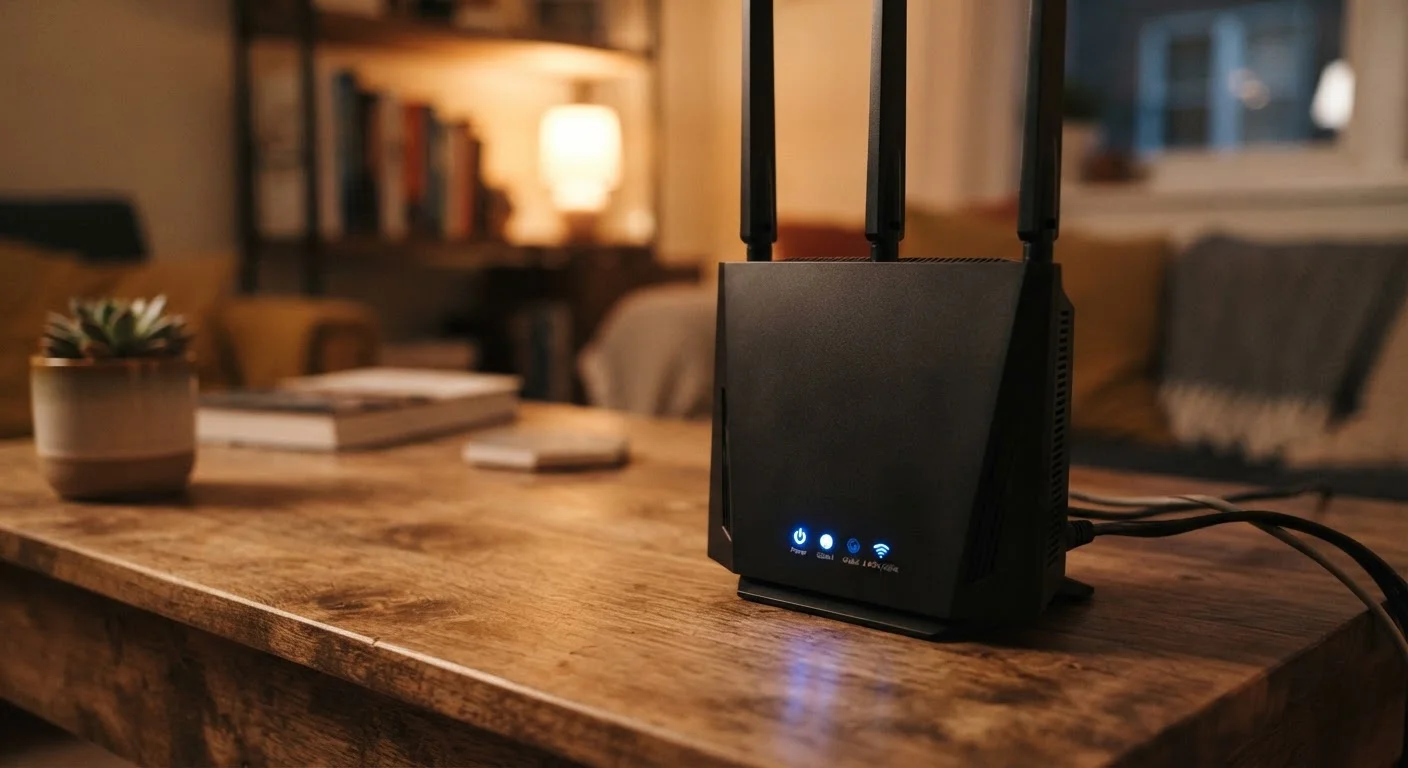
Most people think of a router as the box that provides Wi-Fi. That's accurate but incomplete. A router performs several distinct jobs simultaneously, and understanding them helps you make better decisions about your home network.
At its core, a router connects two different networks: your home network and the internet. Your ISP delivers a single internet connection to your home, and the router distributes that connection across every device you own - phones, laptops, smart TVs, and everything else.
To do this, the router runs NAT (Network Address Translation), which allows dozens of devices to share one public IP address. Each device on your home network receives a private IP address assigned by the router's DHCP server. This happens automatically in the background every time a device joins your network.
The router also acts as a basic firewall. Unsolicited traffic from the internet - connection attempts that you didn't initiate - is blocked by default. This is a meaningful layer of protection that often goes unappreciated. For a broader look at how your devices interact with your network environment, see home network security habits worth building.
75%+
Households using default router passwords
Security researchers consistently find that a large majority of home routers are never reconfigured from factory defaults, leaving them exposed to known credential attacks.
5-7 years
Typical router firmware support lifespan
Most consumer router manufacturers provide security updates for roughly five to seven years before a device is considered end-of-life and no longer patched.
20+
Connected devices in an average U.S. home
According to industry estimates, the average American household now connects more than 20 devices to a home network, increasing the importance of proper router configuration.
The Admin Panel: Where Settings Live
Every router has an administrative interface - a web-based control panel you access through a browser. Typically, you type an address like 192.168.1.1 or 192.168.0.1 into your browser's address bar while connected to your home network. The exact address is printed on a label on the router itself.
You'll be prompted for a username and password. On a factory-fresh router, these are generic defaults (often "admin" / "admin" or similar), which is precisely why changing them immediately matters. Anyone on your local network - or, in some misconfigurations, anyone on the internet - could access your router with those defaults.
After logging into your router's admin panel for the first time, screenshot or document the default settings before changing anything. This gives you a reliable restore point if something goes wrong.
Factory resets return a router to defaults, but knowing which settings you had intentionally changed saves significant troubleshooting time.
Assign your router's admin panel a bookmark in a private or incognito browser window - this prevents saved sessions from persisting and reduces the risk of accidental or unauthorized access.
Persistent admin sessions on shared household computers represent a low-effort but overlooked attack vector for anyone with physical access to the device.
Once logged in, the interface varies by manufacturer, but the underlying categories are consistent: wireless settings, LAN settings, security, parental controls, and firmware management. Most modern routers also offer companion mobile apps that expose a simplified version of the same controls.
Network Settings Worth Understanding
Several settings inside the admin panel are genuinely useful for everyday consumers - not just network engineers.
SSID and Wi-Fi Bands
Your SSID is the name your Wi-Fi network broadcasts. You can rename it to anything you choose. Most modern routers broadcast on both 2.4 GHz and 5 GHz bands. The 2.4 GHz band covers greater distances but at lower speeds; 5 GHz offers faster throughput at shorter range. Some routers also support 6 GHz (Wi-Fi 6E). Devices automatically select a band, but you can set separate SSIDs for each if you want manual control.
DHCP Reservation
Normally, your router assigns a new IP address to a device each time it connects. DHCP reservation lets you permanently assign a specific IP to a particular device - useful for printers, smart home hubs, or any device you access by its address directly.
Quality of Service (QoS)
QoS lets you prioritize network traffic for certain devices or applications. If video calls or streaming keep stuttering when other household members are online, QoS rules can reserve bandwidth for those activities. Not every router implements QoS the same way, but the concept is widely available.
For households with many connected devices spread across multiple rooms, smart placement of connected devices can reduce how hard your router has to work.
Security Settings That Actually Matter
Security settings in your router's admin panel have a direct impact on your household's exposure to external threats.
Wireless Encryption
Look for WPA3 in your wireless security settings - it's the current standard and the most resistant to common attack methods. If your devices don't support WPA3, WPA2-AES is the acceptable fallback. Avoid WEP or WPA (original) entirely; both are outdated and easily compromised.
Default Admin Credentials
Change the admin username and password immediately after setup. Use a strong, unique password - not the same one you use for other accounts.
Never Leave Default Admin Credentials in Place
Default router usernames and passwords are publicly documented and widely known. Leaving them unchanged means anyone who reaches your admin panel - including devices already on your network - can modify any setting. Change these credentials during initial setup, not later. Store the new password somewhere secure, such as a password manager.
Firmware Updates
Router firmware is software, and like all software it contains vulnerabilities. Manufacturers release updates to patch them. Check your admin panel for a firmware update section and apply available updates. Some routers can be set to update automatically.
Guest Networks
A guest network creates a separate Wi-Fi segment for visitors or IoT devices, keeping them isolated from your primary devices. This is one of the most practical security features available on modern routers. Setting up a guest Wi-Fi network is straightforward on most hardware and well worth doing.
Advanced Features Most People Overlook
Beyond the basics, routers often include features that go entirely unused - sometimes because they're buried in menus, sometimes because their purpose isn't obvious.
DNS Settings
Your router resolves domain names (like a website address) through a DNS server, typically provided by your ISP by default. You can change this to an alternative DNS resolver. Different resolvers offer different trade-offs in speed, privacy, and filtering capability - though evaluating those trade-offs requires some research into what each provider logs and retains.
Port Forwarding
Port forwarding allows outside traffic to reach a specific device inside your network - used for hosting a game server or accessing a home camera remotely, for example. It should be applied precisely and narrowly; opening unnecessary ports increases your attack surface.
Parental Controls
Many routers include built-in content filtering and scheduling that can limit what specific devices can access and when. These controls vary widely in sophistication, so testing them against your actual needs before relying on them is advisable.
When to Troubleshoot vs. When to Upgrade
Not every connectivity problem originates with the router. Before assuming your hardware is at fault, it's worth ruling out device-side issues. Common Wi-Fi issues that are actually your computer's fault covers many of the culprits.
That said, routers do age out of usefulness. Security patches eventually stop being issued, and older hardware may not support modern Wi-Fi standards or the number of simultaneous devices a household now runs. As a general guideline, a router that no longer receives firmware updates from its manufacturer warrants replacement on security grounds alone, regardless of whether it still connects to the internet.
Rebooting your router periodically - not just when things break - can clear memory and resolve subtle performance issues. Many network engineers treat a monthly reboot as routine maintenance.
Schedule a Monthly Router Reboot
A simple monthly reboot clears the router's memory, flushes stale connections, and can resolve slow or intermittent performance before it becomes a real problem. Set a recurring calendar reminder so it becomes automatic. Most routers reboot in under two minutes.
Understanding what your router actually manages - traffic routing, IP assignment, firewall protection, wireless broadcasting - puts you in a much stronger position to configure it thoughtfully, troubleshoot problems accurately, and recognize when a setting genuinely matters versus when it can be safely left alone.
