
The Accumulation Problem: Software You Didn't Know You Kept
The most common reason computers slow down isn't age - it's accumulation. Every application installed often brings background services, scheduled tasks, and startup entries along with it. Over time, a machine that launched in seconds may take several minutes to reach a usable desktop, simply because dozens of programs are silently competing for resources during boot.
Browser extensions follow a similar pattern. Each one adds a small processing overhead, and browsers are already among the most memory-hungry applications on a modern system. Combine ten extensions with a dozen open tabs, and it's easy to see how a browser alone can consume more RAM than the entire operating system needed a decade ago.
Temporary files, application caches, and fragmented data (on older spinning drives) pile up quietly in the background. None of these individually causes dramatic slowdowns, but the cumulative effect after a year or two of use is real and measurable.
Check What Launches at Startup
On Windows, open Task Manager and navigate to the Startup tab to see which programs launch automatically with your computer. On macOS, check System Settings under General > Login Items. Disabling unnecessary startup entries is one of the fastest ways to recover boot speed without any hardware changes.
Operating System Growth and the Demand Ratchet
Operating systems and major applications don't stay the same size. Each update cycle typically adds features, security layers, and telemetry tools that consume more CPU cycles and RAM than the previous version. This is sometimes called the "demand ratchet" - software requirements consistently move in one direction.
A computer purchased when a particular OS version launched may have been comfortably over-specced for that software. Three years later, the same hardware runs a substantially heavier version of the same OS, often without users realizing anything changed. The machine didn't get slower - the software got heavier.
This is especially visible on computers with older processors or limited RAM. Tasks like indexing files, syncing cloud storage, and running antivirus scans happen in the background, and older CPUs handle them less efficiently alongside foreground work.
15-25%
Typical CPU overhead from background processes on an aged system
Performance analyses of consumer PCs commonly find that background services consume a significant share of processing capacity on machines that have been in use for two or more years.
~3 years
Median point when users report noticeable slowdowns
Consumer surveys on PC satisfaction consistently find that performance dissatisfaction peaks around the three-year mark of ownership, coinciding with accumulated software growth and OS update cycles.
Hardware Wear: What Actually Degrades Physically
Hardware components do degrade, though the timeline and mechanisms vary significantly.
Traditional hard drives (HDDs) contain spinning magnetic platters and a moving read/write head. Over years of use, the mechanical components wear, and data becomes scattered across the disk (fragmented), requiring more physical movement to read. Performance declines measurably as drives age and fill up.
Solid-state drives (SSDs) have no moving parts, but they use NAND flash memory cells that have a finite number of write cycles. Consumer SSDs are designed to handle many years of typical use before this becomes limiting, but heavily used or older drives can show reduced write speeds as cells reach wear limits.
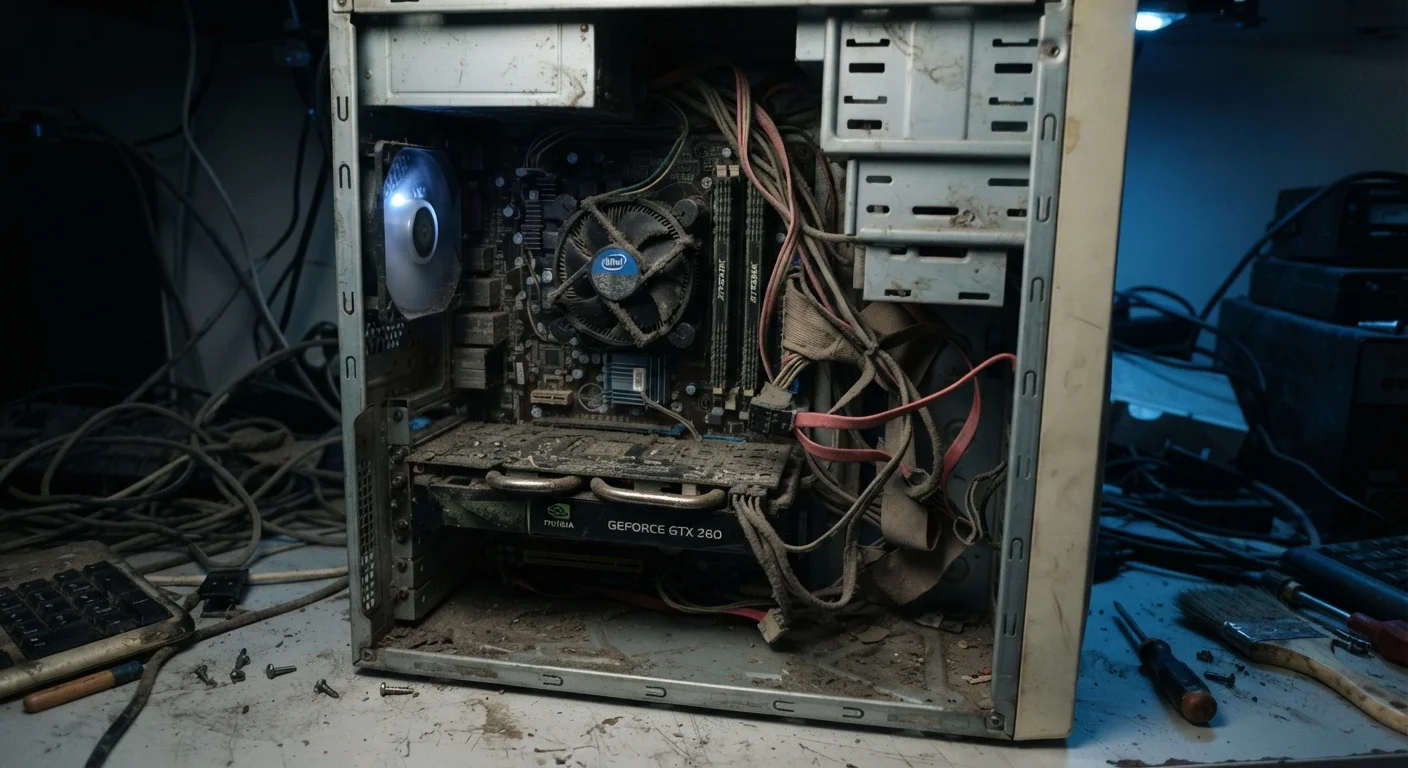
Thermal throttling is another underappreciated factor. Processors are designed to reduce their own clock speed when they overheat - a protective behavior called thermal throttling. Laptops are especially prone to this as cooling vents clog with dust over time, causing the CPU to run hotter and throttle more aggressively under load. A computer that ran cool and fast when new can become noticeably sluggish simply because airflow is restricted.
For readers also experiencing network sluggishness alongside general slowdowns, it's worth reviewing common computer-side causes of Wi-Fi trouble - some performance issues affect both local and network responsiveness.
What You Can Actually Do About It
Understanding the causes points directly to solutions. Software accumulation is addressed by auditing startup programs, uninstalling unused applications, and periodically reviewing browser extensions. Most operating systems include built-in tools to manage startup items and view which processes consume the most resources.
Thermal issues are often resolved with physical cleaning - removing dust from vents and fans. For desktops, this is straightforward. For laptops, it may require partial disassembly, which some users prefer to have done professionally.
Storage concerns depend on the drive type. Spinning drives benefit from ensuring adequate free space (generally, keeping at least 15% of capacity free). SSDs need less hands-on management, but monitoring their health with manufacturer diagnostic tools is worthwhile on older machines.
Before assuming a slow computer needs full replacement, it's worth understanding when upgrading specific components makes more sense than buying new. And for those wondering whether RAM is the right upgrade, the answer is more nuanced than it might seem.
Consistent maintenance habits prevent most of these problems from reaching the frustrating stage. A practical overview of those habits is available in our guide on keeping a computer running well over time.
