
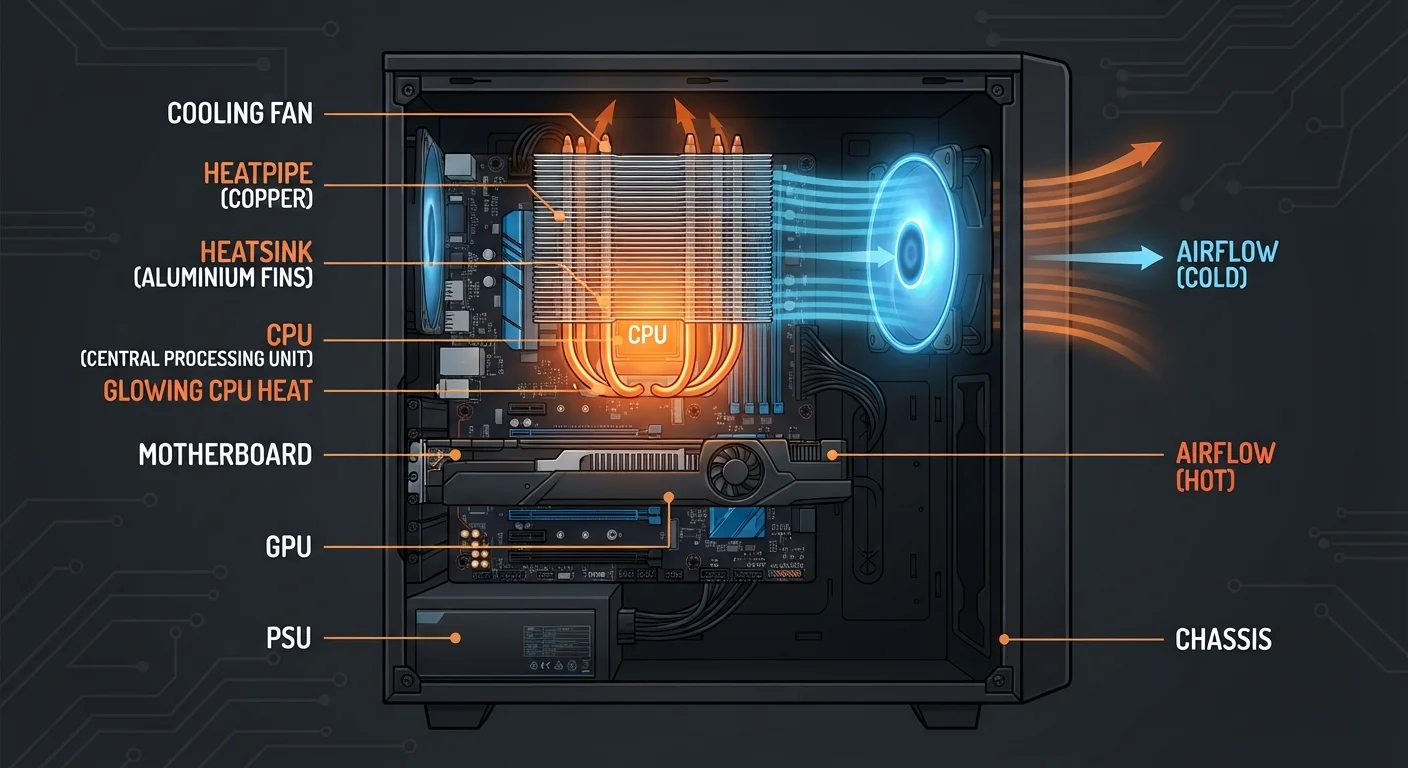
Why Computers Generate So Much Heat
Every time a processor executes an instruction - which happens billions of times per second - electrical current flows through microscopic transistors etched into silicon. That electrical resistance produces heat as a byproduct. The more intensely a processor works, the more heat it generates.
Modern CPUs and GPUs can produce anywhere from 65 watts to well over 300 watts of heat under full load. To put that in perspective, a 100-watt incandescent light bulb radiates enough warmth to noticeably heat a small room over time. Without active cooling, that energy has nowhere to go except into the surrounding components - and silicon chips begin to malfunction at temperatures most people would consider moderately warm.
Understanding what's inside your machine is the first step to appreciating why cooling matters. Our guide to every major computer component explains how the CPU, GPU, and other heat-generating parts fit together.
~50%
Of hardware failures linked to heat
Industry research has long estimated that thermal stress is a contributing factor in roughly half of all electronic component failures, underscoring cooling as a critical reliability factor.
10°C
Temperature rise doubles failure rate
A widely cited rule of thumb in electronics engineering holds that for every 10°C increase in operating temperature, semiconductor failure rates approximately double over time.
65-350W
Heat output range of modern processors
TDP ratings across current-generation CPUs and GPUs span this range, with high-end desktop processors and graphics cards approaching or exceeding 300 watts under sustained load.
The Main Components of a Cooling System
Most computers rely on several complementary technologies working in concert:
- Heatsink: A block of thermally conductive metal - typically aluminum or copper - attached directly to a hot chip. Its fins dramatically increase surface area, giving heat more room to radiate into the air.
- Thermal paste: A thin compound applied between the chip's surface and the heatsink base. Even machined metal surfaces have microscopic gaps; thermal paste fills them to ensure efficient heat transfer instead of trapping insulating air pockets.
- Fans: Electric fans move air across heatsink fins and through the case, carrying heat out through exhaust vents. Fan speed is typically controlled dynamically - spinning faster when temperatures rise, slower when the system is idle.
- Heat pipes: Sealed copper tubes containing a small amount of refrigerant fluid. Heat vaporizes the fluid at the hot end; the vapor travels to the cooler fin array, condenses, and the cycle repeats. Heat pipes are especially common in laptops, where space is constrained.
In higher-performance builds, liquid cooling replaces the heatsink-and-fan stack with a pump, radiator, and water block. Liquid carries heat away from the chip far more efficiently than air, though the system requires more components and occasional maintenance.
Check Airflow Direction in Desktops
Desktop cases are designed with an intended airflow path - typically front-to-back and bottom-to-top. When adding or replacing fans, confirm they're oriented to push air in the correct direction. Misoriented fans can create turbulent, competing airflows that reduce overall cooling efficiency even if all fans are spinning normally.
What Happens When Cooling Fails
Cooling systems don't fail all at once - they degrade gradually, and the effects show up in ways that are easy to misattribute. A machine that's running hotter than it should will often slow down before it shuts down, because modern processors reduce their operating speed (called thermal throttling) when temperatures approach dangerous limits. This is the same mechanism that can make a computer feel slower over time - poor cooling is one underappreciated contributor.
The most common cause of cooling failure isn't a broken fan - it's dust. Over months and years, dust accumulates on heatsink fins, fan blades, and case vents, acting as an insulating blanket that traps heat. A fan that's still spinning may be moving warm, obstructed air rather than fresh cool air.
Other failure points include dried thermal paste that loses conductivity, a fan bearing that begins to fail noisily, and - in liquid cooled systems - pump failure or coolant evaporation over years of use. Each of these reduces the system's ability to shed heat, shortening the effective lifespan of the computer.
Thermal Throttling Is a Safety Feature
When a processor reduces its speed to shed heat, it's doing exactly what it's designed to do - protecting itself from damage. This behavior can look like a software problem or a failing component when it's actually the cooling system underperforming. Diagnosing the thermal situation first, before assuming a hardware fault, saves time and unnecessary expense.
Practical Steps to Keep Cooling Working
Maintaining a computer's thermal performance doesn't require technical expertise - the most impactful steps are straightforward:
- Keep vents clear: Don't place laptops on soft surfaces like beds or couches that block intake vents. Desktop towers should have a few inches of clearance on all sides.
- Clean dust regularly: Compressed air blown through vents every six to twelve months removes the accumulated dust that gradually chokes airflow. This single habit prevents the majority of cooling-related issues.
- Monitor temperatures: Free utilities display real-time temperatures for CPU and GPU. If readings are consistently high even during light tasks, investigate before a shutdown or failure occurs.
- Consider professional reapplication of thermal paste: On a machine several years old with rising temperatures, having a technician remove the old paste and apply fresh compound can restore meaningful cooling headroom.
These habits are part of a broader set of maintenance practices that prevent most common computer problems. Keeping the cooling system in good shape is one of the highest-leverage things any user can do to protect their hardware investment.
