
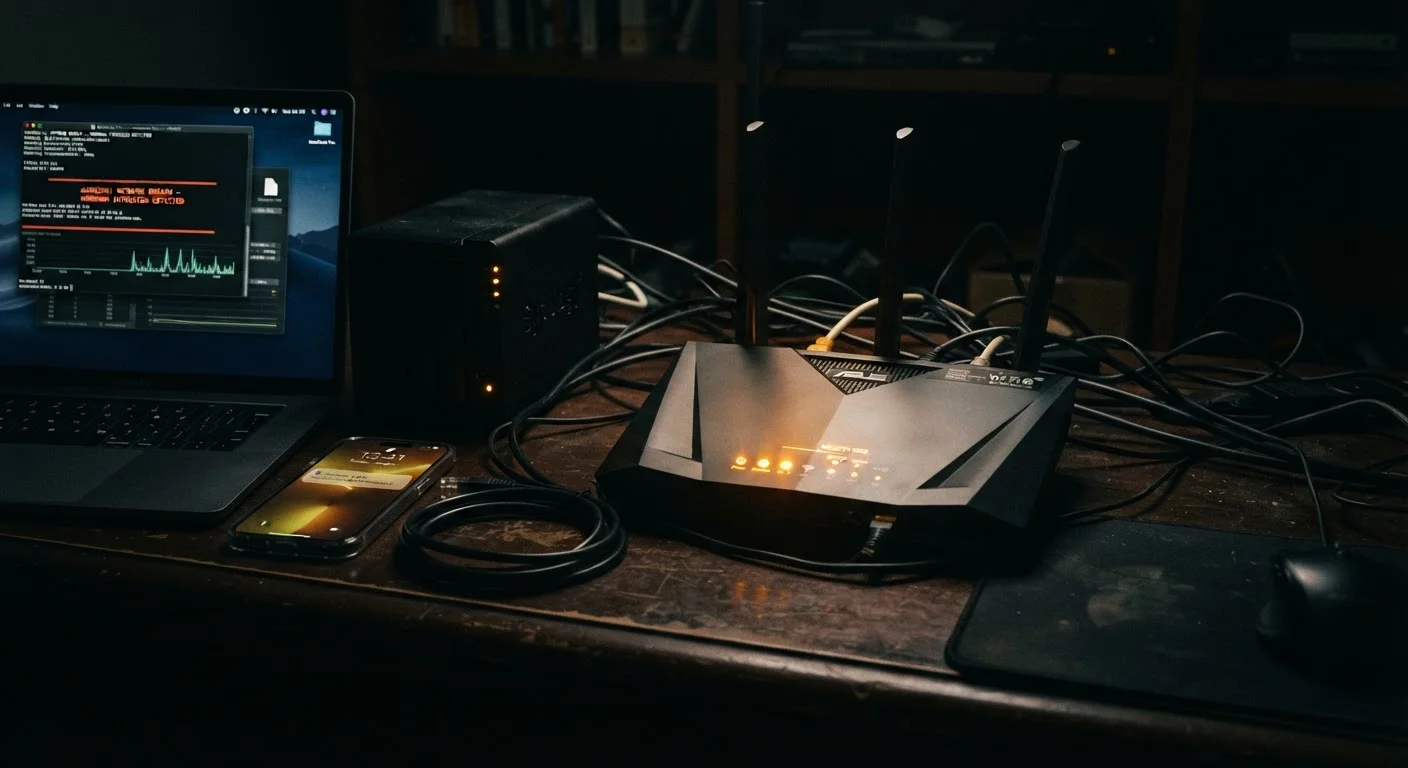
How to Know Your Network Has Been Compromised
Home network breaches are not always obvious. Common indicators include: devices behaving erratically or rebooting without explanation, significantly slower internet speeds without a clear cause, unfamiliar devices appearing in your router's connected-device list, unexpected changes to your DNS settings, or online accounts showing login activity from unfamiliar locations. In some cases, your ISP may contact you about unusual outbound traffic originating from your connection.
If you observe any of these signs, treat the situation as a breach until confirmed otherwise. Overreacting to a false alarm costs an hour of your time; underreacting to a real breach can cost far more. Before beginning recovery, use a device on mobile data - completely separate from your home network - to confirm your router's admin panel shows no unrecognized changes.
Do Not Delay Isolation
Every minute a compromised network stays online gives attackers more time to exfiltrate data, spread to other devices, or entrench malware. Your very first action must be to cut the internet connection - unplug the router's WAN cable or power it off entirely. Do not attempt diagnosis before isolation.
Once you have confirmed something is wrong, the steps below walk you through a methodical, full recovery. For context on staying ahead of these risks long-term, see the security habits worth building from day one.
What You'll Need Before You Start
Attempting recovery without the right information and tools on hand often leads to incomplete fixes or additional confusion. Gather the following before you begin:
What you will need
Router admin interface (web or app)
Used to inspect current settings, connected devices, and perform a factory reset.
Smartphone with mobile data
Provides a safe, isolated internet connection while your home network is offline during recovery.
Antivirus / anti-malware scanner
Scans computers and mobile devices for malware that may have been installed during the breach.
Password manager
Generates and stores strong, unique credentials for your router, Wi-Fi network, and online accounts.
Router manufacturer's documentation
Provides model-specific reset procedures and default credential details.
Changing Passwords Alone Is Not Enough
Many people assume updating their Wi-Fi password resolves a breach - it usually does not. If an attacker has altered router firmware, DNS settings, or installed persistent backdoor credentials, a password change leaves those threats in place. A full factory reset followed by reconfiguration from scratch is the only reliable remediation.
Step-by-Step Recovery Process
Follow these steps in order. Skipping ahead - particularly past the factory reset - is one of the most common reasons home network recoveries fail to fully resolve a breach.
Cut the internet connection immediately
Unplug the WAN (internet) cable from the back of your router, or power the router off entirely. This severs the attacker's active access path without disturbing evidence on the device. Do not log in to any accounts or attempt repairs until the network is fully offline.
Assess the scope of the breach
On a separate, unaffected device, check your router manufacturer's app or recent admin login history (if available) for unfamiliar activity. Review connected-device lists, DNS settings, and any port-forwarding rules you did not create. Note any anomalies - they will inform what you need to reset and monitor.
Perform a factory reset on your router
Locate the reset pinhole on your router (usually on the back panel). Hold a straightened paperclip in the hole for 10-30 seconds until indicator lights cycle - the exact method varies by model, so consult your manufacturer's documentation. A factory reset wipes all custom settings, including any attacker-planted configurations, returning the device to its original state.
Reconfigure the router with strong, new credentials
Once the router restarts, log in using the default admin credentials printed on the device label - then immediately change both the admin username (if editable) and password to something long and unique. Set a new Wi-Fi network name (SSID) that does not identify your address or router model. Use WPA3 encryption if your router supports it; WPA2-AES is the minimum acceptable standard. Disable WPS (Wi-Fi Protected Setup), which is a common attack vector.
Update router firmware
Before reconnecting any devices, check your router's admin panel for a firmware update option, or visit the manufacturer's support page. Install any available updates. Firmware patches frequently close the exact vulnerabilities attackers exploit, and skipping this step leaves a known door open.
Scan and audit every previously connected device
Run a reputable anti-malware scan on each computer, tablet, and smartphone before allowing it back on the network. For smart home devices - thermostats, cameras, smart speakers - check the manufacturer's app for firmware updates and review whether factory resetting the device is advisable. Devices that cannot be updated or scanned should be considered untrusted until verified. See how to audit a cluttered home network for a systematic approach to cataloging every device.
Change passwords on all associated online accounts
Any account accessed over the compromised network - email, banking, streaming, social media - should be treated as potentially exposed. Change passwords for each, enable multi-factor authentication (MFA) where available, and review recent login activity for signs of unauthorized access. Prioritize accounts tied to financial or personal information.
Reconnect devices in stages and monitor
Bring devices back online one group at a time - computers first, then mobile devices, then smart home hardware. After each batch, check your router's connected-device list to confirm only known devices appear. Watch for unusual traffic patterns or unexpected devices in the first 48-72 hours. Consider setting up a separate guest network for IoT devices as an additional layer of separation - see how to set up a guest Wi-Fi network for setup guidance.
Document Your Network Before You Need To
After recovery is the ideal time to photograph or write down your router's configuration - SSID names, channel settings, and which devices are authorized. Keeping this record somewhere offline (a notebook or encrypted USB drive) makes future troubleshooting and any repeat recovery dramatically faster.
After Recovery: Building a More Resilient Network
Recovering from a breach is the right time to implement the practices that make a future incident less likely and easier to contain. Consider segmenting your network so that smart home devices are isolated from computers and phones - a guest network is a practical way to do this without advanced hardware. Learn more in our guide on setting up a guest Wi-Fi network at home.
Enable automatic firmware updates on your router if the option is available, and schedule a quarterly review of connected devices to remove anything outdated or no longer in use. If your network has grown cluttered over time, that review is also an opportunity to restructure device groupings for better visibility and control.
Network security is not a one-time task. The habits you build in the weeks after a breach are the ones most likely to prevent - or minimize - the next one.
