
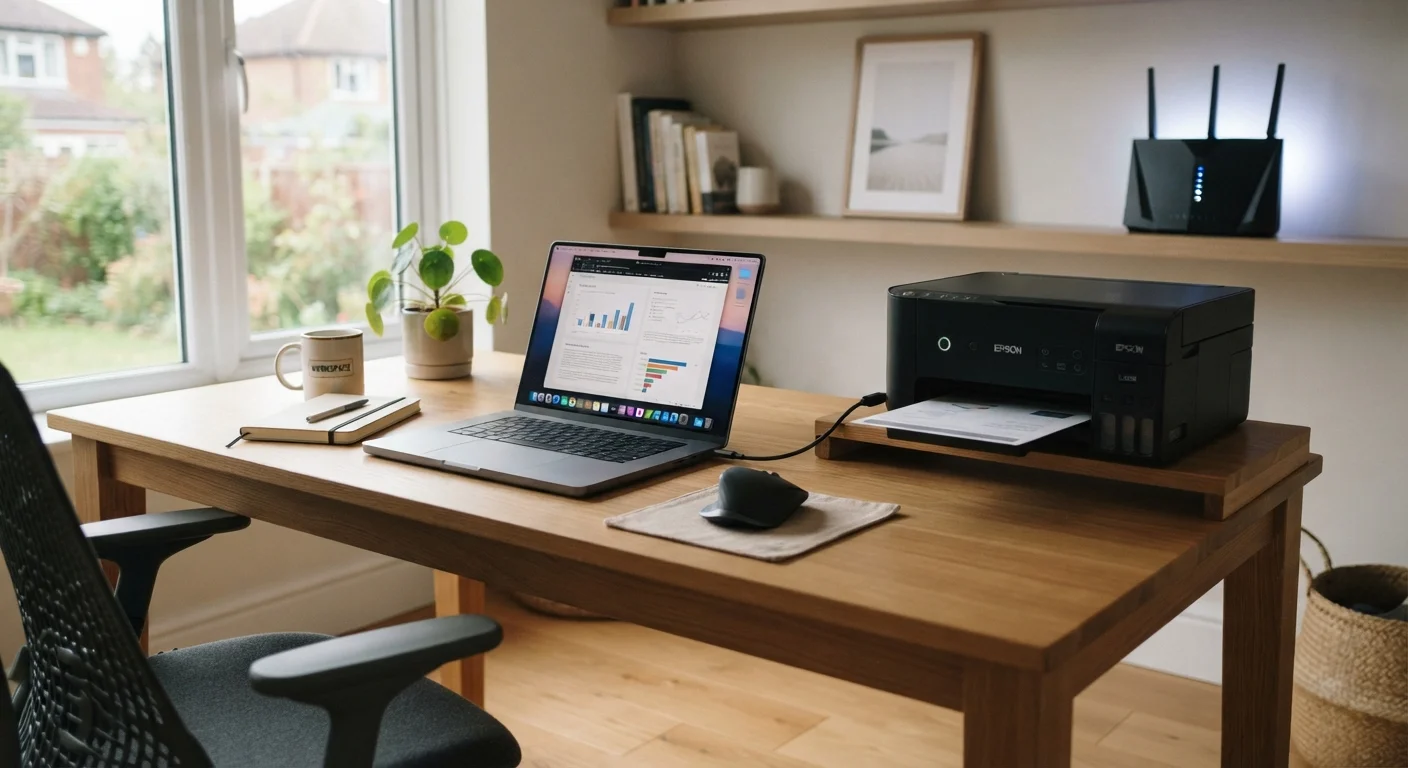
The Three Main Ways a Printer Connects
Most home and office printers use one of three connection types: USB, Wi-Fi, or wired Ethernet. Understanding the difference explains a lot about why printers behave the way they do.
USB (direct cable): The printer plugs directly into your computer with a cable. This is the simplest setup - no network involved, no IP addresses to worry about. The computer recognizes the printer almost instantly, and communication is direct. The downside is that only the connected computer can print, and the cable limits placement.
Wi-Fi: The printer joins your home wireless network, making it accessible to every device on that network - phones, tablets, laptops. It's the most popular setup in modern homes. However, it introduces all the variables of a wireless connection: signal strength, router behavior, and IP address assignment. See our guide to wired vs. wireless peripherals for a broader look at these tradeoffs.
Wired Ethernet (network): The printer connects to your router via an Ethernet cable rather than Wi-Fi. This offers network-wide access like Wi-Fi but with the stability of a physical cable. It's common in office environments but less typical in homes.
~60%
Home printers now sold with Wi-Fi capability
Industry analysts have noted that wireless connectivity has become a near-standard feature on consumer printers sold in the U.S. market.
Top 3
Most common tech support complaints include printer issues
Printer connectivity problems consistently rank among the most frequent consumer tech support requests reported by major IT service organizations.
Why Printers Go Offline: The Real Causes
An "offline" status rarely means your printer is broken. It almost always means your computer has lost its communication path to the printer. Here are the most common reasons that happens:
- IP address change: Wi-Fi and Ethernet printers receive an IP address from your router. By default, routers assign these dynamically, meaning the address can change - particularly after a power outage or router restart. If the address changes, your computer is still pointing to the old one.
- Wi-Fi dropout: Printers have less sophisticated wireless hardware than laptops. They can drop off a network and fail to reconnect automatically, especially if the router rebooted or the signal weakened. This is explored further in our article on why networked devices keep disconnecting.
- Stalled print queue: A failed or stuck print job can block subsequent jobs and cause Windows or macOS to mark the printer as offline. Clearing the queue often immediately restores status.
- Driver or software issues: Outdated, corrupted, or incompatible drivers disrupt communication at the software level. The printer itself may be functioning perfectly, but the computer can't talk to it properly. Good system maintenance habits - covered in our computer maintenance guide - help prevent this.
Prevent Offline Issues Before They Start
The single most effective step for Wi-Fi or network printers is assigning a static (reserved) IP address through your router's settings. This takes about five minutes and eliminates the most common cause of recurring offline errors. While you're at it, enable automatic driver updates in your operating system so software issues don't quietly build up over time.
Practical Fixes That Actually Work
Most offline printer problems resolve with one of a few targeted actions. Start with the simplest and work forward:
- Restart in order: Turn off the printer, then restart your router, then power the printer back on. This forces both devices to re-establish their connection cleanly.
- Clear the print queue: On Windows, go to Settings > Printers & Scanners, select your printer, and open the print queue. Delete all pending jobs. On macOS, find the printer in System Settings and clear any queued documents.
- Assign a static IP: Access your router's admin page (typically at 192.168.1.1 or 192.168.0.1 in a browser) and assign a reserved IP address to your printer's MAC address. This ensures the printer's address never changes. The printer's MAC address appears in its network settings menu.
- Update or reinstall the driver: Visit the printer manufacturer's support site, find your model, and download the latest driver package. Uninstall the existing driver first for a clean install.
- Check your network band: Many home routers broadcast both 2.4 GHz and 5 GHz Wi-Fi bands. Some older printers only support 2.4 GHz. If your printer is trying to connect to a 5 GHz network, it will fail silently. Connecting it to the correct band resolves this. Our article on setting up your home network has useful context on managing router bands.
