
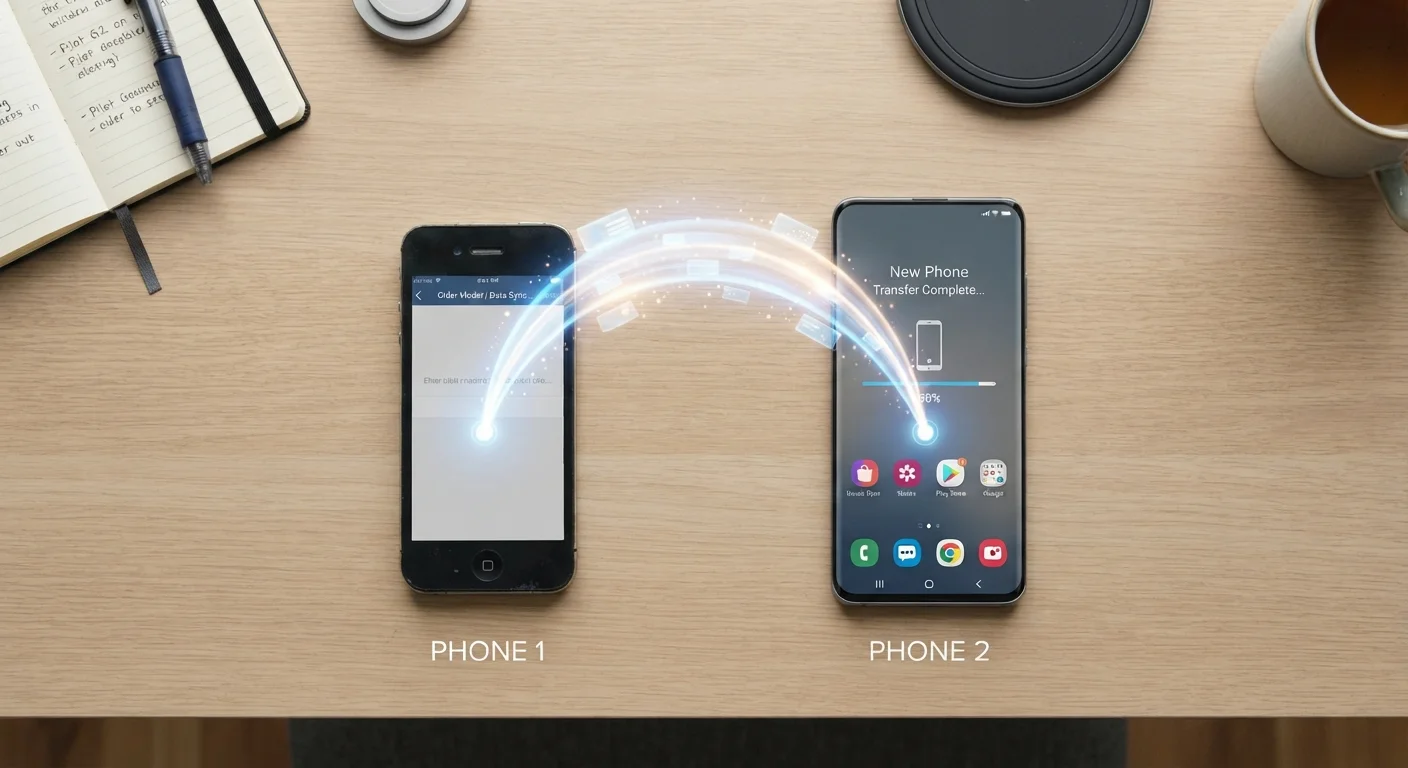
Why Migration Often Goes Wrong - and How to Avoid It
Most data-loss incidents during a phone switch trace back to a single overlooked step: skipping or rushing the backup. Without a complete, verified backup on your old device, a restore on your new phone can only recover what was already synced to the cloud - which is often incomplete. Photos saved locally, app data for offline games, and text message threads stored only on the device itself are common casualties.
The other frequent pitfall is timing. Many people trade in their old phone the same day they buy the new one, leaving no window to confirm the migration worked. Keeping both devices active for 48 to 72 hours after the switch is the simplest way to catch anything that didn't transfer correctly.
Do Not Wipe Your Old Phone Yet
Keep your old phone active and unwiped until you have confirmed that every category of data - photos, contacts, messages, app data - has successfully transferred to your new device. Wiping too early is the leading cause of permanent data loss during phone migrations. Once you are satisfied everything is in place, consult our guide on safely wiping your phone before trade-in.
Understanding these failure points turns a stressful process into a systematic one. The steps below are designed for both Android and iOS users, and most of the tools you'll need are already built into your phone.
Organize Before You Migrate
A new phone is a natural reset point. Before migrating, delete apps you never use and clear out photo duplicates. This keeps your new phone lean from day one. Once everything is set up, our article on organizing your phone so you can actually find things can help you build a cleaner home screen layout.
What You'll Need Before You Start
Gather the essentials before powering on your new device. A stable Wi-Fi connection is particularly important - cloud backups and restores over mobile data can be slow, and some carriers throttle large transfers.
What you will need
iCloud or Google One (cloud backup service)
Stores a complete backup of your phone's data so it can be restored to your new device during setup.
Quick Switch Adapter / Move to iOS app
Manufacturer-provided tools that transfer data directly between phones, even across platforms.
USB-C or Lightning cable
Enables a faster, more reliable wired data transfer when moving between Android devices.
Computer with iTunes or Finder (iOS) / Android File Transfer (Android)
Allows local backup and restore without relying on cloud storage or internet speed.
If you're switching between platforms - say, from Android to iPhone - the Move to iOS app (available on Android) or a direct cable connection can transfer photos, contacts, and basic app data across the platform divide, though some app data may not carry over due to platform differences.
Follow These Steps in Order
Back Up Your Old Phone Completely
This is the single most important step. On iOS, go to Settings > [Your Name] > iCloud > iCloud Backup and tap Back Up Now. On Android, go to Settings > System > Backup and ensure Google Backup is turned on, then tap Back up now. Wait for the backup to complete fully before proceeding.
For a deeper look at your backup options - including local and hybrid strategies - see our guide on backing up your smartphone.
Handle Two-Factor Authentication Apps Separately
Open any authenticator app on your old phone and use its built-in transfer or export feature. In Google Authenticator, tap the menu icon and choose Transfer accounts > Export accounts. In Authy, enable multi-device support in settings. Complete this step before you lose access to your old phone.
Power On Your New Phone and Begin Setup
Turn on your new device. Both Android and iOS will prompt you during initial setup to restore from a backup or transfer from a nearby phone. On iOS, choose Restore from iCloud Backup or use Quick Start by holding your old iPhone near your new one. On Android, choose Copy apps and data and follow the prompts - you can use a cable or Wi-Fi direct connection.
Verify Contacts, Photos, and Messages
Once the restore finishes, open each critical app and confirm your data is present. Check your Contacts app, your Photos library, and your messaging apps. On iOS, iMessages restore from backup. On Android, SMS messages may require a third-party app (such as SMS Backup & Restore) if they were not covered by your Google Backup.
Reinstall and Log Back Into Apps
Most apps will reinstall automatically from your backup, but some may need you to log in again. Start with your most-used apps: email, banking, streaming services, and social media. Have your passwords ready - a password manager app can make this significantly faster.
Review Privacy and Permissions on the New Device
App permissions and location settings do not always carry over perfectly from a backup. Spend a few minutes reviewing which apps have access to your camera, microphone, contacts, and location. Our privacy settings checklist walks through the most important toggles on both Android and iOS.
Once your new phone is fully set up and verified, take a moment to explore the built-in settings. Platform updates often introduce new features worth configuring early. And if you'd like to cut down on unnecessary background data use right from the start, our guide on reducing mobile data usage offers practical setting-level changes for both platforms.
