
How the Update Pipeline Works
Every OTA update begins with software engineers at the operating system developer - Google for Android, Apple for iOS - finalizing a build and signing it cryptographically. That package then travels through a delivery pipeline before it reaches your specific device.
For iPhones, Apple controls both the hardware and software, so the path from Apple's servers to your device is relatively direct. Android is more complex: Google releases the core OS, hardware manufacturers (often called OEMs) adapt it for their chipsets and software layers, and then carriers may apply additional testing before approving delivery to devices on their network.
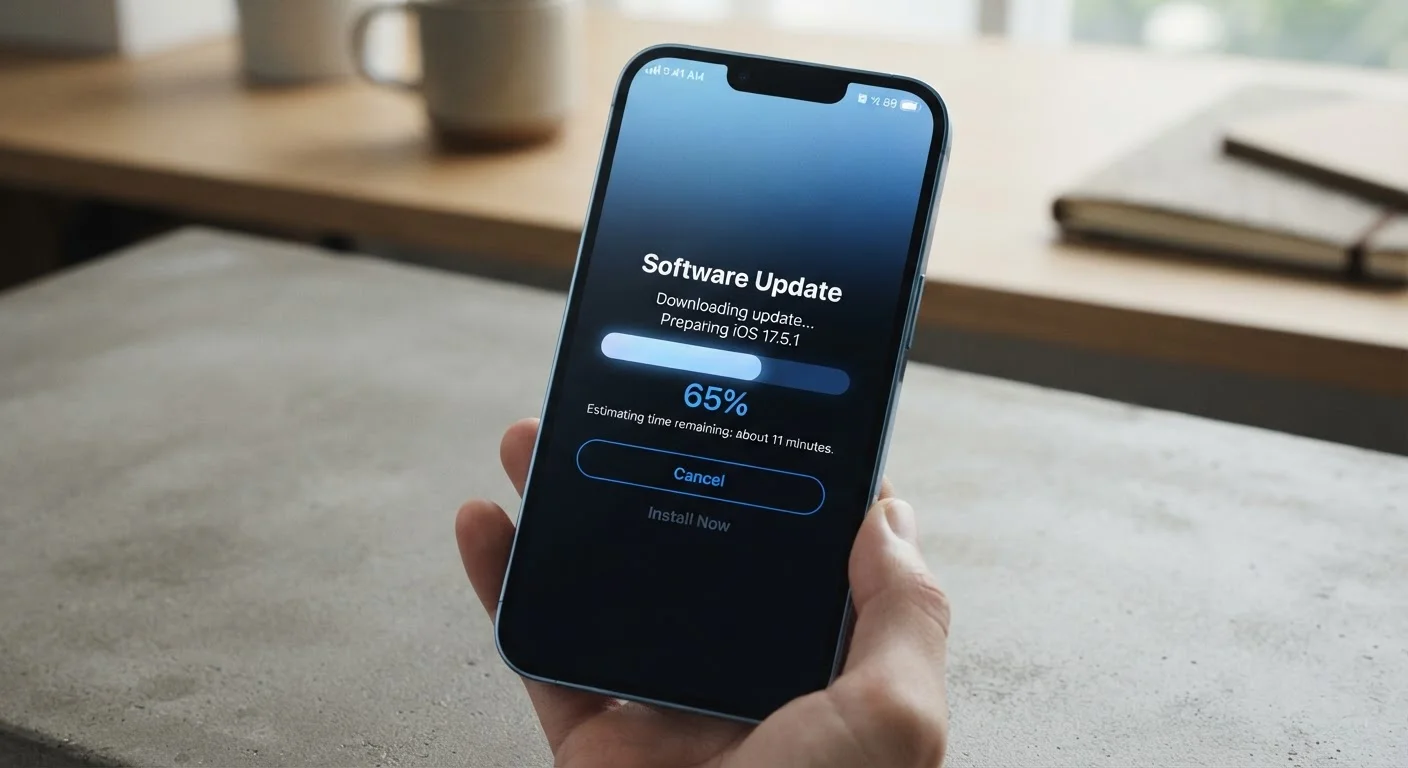
Once your device is scheduled to receive the update, your phone contacts a remote server - typically on a set schedule or when you check manually - and downloads a manifest file describing what's available. If an update applies to your device, the package is downloaded in the background, usually over Wi-Fi to conserve data. Understanding why OS updates matter can help you prioritize keeping your device current.
~1 billion
Android devices updated via OTA globally each year
Google has reported over a billion Android devices receiving updates annually through its infrastructure, underscoring the scale of OTA delivery systems.
90%+
iPhone users on the latest or previous iOS version
Apple's tightly integrated hardware and software ecosystem consistently drives high adoption rates for iOS updates, according to Apple's own developer statistics.
Up to 4 weeks
Typical delay for carrier-branded Android updates
Industry observers note that carrier-approved Android builds can lag behind manufacturer releases by several weeks due to additional network compatibility testing.
What Happens During Installation
Once the download is complete, the real work begins. Modern smartphones use a system called A/B partitioning (also called seamless updates). Your phone maintains two system partitions: the active one you're currently running, and an inactive one. The update is written silently to the inactive partition in the background - often while you're using your phone normally.
When you choose to restart and apply the update, the phone boots from the newly written partition. If the new system doesn't pass a basic health check on startup, the device can fall back to the previous partition automatically. This approach significantly reduces the risk of a failed update leaving your phone unusable.
Older devices without A/B partitioning use a recovery partition instead. The phone reboots into a minimal recovery environment, applies the update to the main partition, then reboots again into the updated OS - a process that can take several minutes and requires the phone to be out of use the entire time.
Let Background Updates Finish First
If your phone shows a notification that an update has been downloaded and is ready to install, try to apply it soon rather than dismissing it repeatedly. The download phase is already done - all that remains is the installation reboot, which typically takes only a few minutes on modern devices with A/B partitioning.
Why Some Phones Get Updates Faster Than Others
If you've ever noticed a friend's phone running a newer software version than yours, the update pipeline explains why. Several factors determine your place in the rollout queue.
- Device and OS unification: When one company makes both the hardware and software, testing cycles are shorter and updates tend to arrive sooner.
- Carrier involvement: Carrier-branded phones in the U.S. often require the carrier to review and approve updates - a step that can add weeks to the timeline. Unlocked devices typically skip this layer.
- Staged rollouts: Manufacturers deliberately send updates to a small percentage of devices first, monitoring for widespread problems before expanding to everyone. Your device may simply not be in the first wave.
- Device age: Older models eventually age out of the update support window. Manufacturers typically commit to a defined number of years of OS or security updates - after which no further OTA updates are issued for that model.
A slower phone experience after years of updates may be related to hardware aging as much as software - our explainer on why phones slow down over time covers the real causes in detail.
Update Support Windows Vary by Manufacturer
Different manufacturers commit to different lengths of software support. Some pledge multiple years of OS upgrades plus additional years of security patches; others offer more limited timelines. Checking a device's stated support period before purchasing can help you gauge how long it will continue receiving OTA updates.
Keeping Updates Working in Your Favor
OTA updates are one of the most effective and lowest-effort ways to keep your device secure and performing well. Security patches in particular close vulnerabilities that attackers actively exploit - delaying them leaves your device unnecessarily exposed. The same principle applies beyond phones: smart home devices and routers also depend on firmware updates to stay protected.
A few practical habits help ensure updates go smoothly:
- Keep at least 20-30% battery charge before initiating a large update, or stay plugged in.
- Connect to Wi-Fi when possible to avoid data charges and reduce the chance of an interrupted download.
- Maintain adequate free storage - updates need temporary space to unpack before installation.
- Don't interrupt or power off your phone during the installation phase.
For a broader look at what these updates are actually doing under the hood, see our guide on what operating system updates actually do. The mechanics differ slightly between phones and computers, but the underlying rationale - and the risks of skipping updates - are the same.
